<?xml version="1.0" encoding="utf-8"?><feed xmlns="http://www.w3.org/2005/Atom" ><generator uri="https://jekyllrb.com/" version="3.10.0">Jekyll</generator><link href="https://blog.sciode.com/feed.xml" rel="self" type="application/atom+xml" /><link href="https://blog.sciode.com/" rel="alternate" type="text/html" /><updated>2026-06-07T03:46:59+09:00</updated><id>https://blog.sciode.com/feed.xml</id><title type="html">Sciode</title><subtitle>Writing about software development, personal finance, and everything in between.</subtitle><author><name>W. Choi</name></author><entry><title type="html">Modern boot firmware, partition table, and file systems</title><link href="https://blog.sciode.com/tech/it/10/" rel="alternate" type="text/html" title="Modern boot firmware, partition table, and file systems" /><published>2022-08-17T00:00:00+09:00</published><updated>2022-08-17T00:00:00+09:00</updated><id>https://blog.sciode.com/tech/it/10</id><content type="html" xml:base="https://blog.sciode.com/tech/it/10/"><![CDATA[<p><em>최초 작성일: 2022년 08월 18일</em><br />
<em>최근 수정일: 2022년 08월 19일</em></p>

<h2 id="overview">Overview</h2>

<p>This post compares BIOS/UEFI, MBR/GPT, and different file systems such as NTSF/APFS/EXT4/XFS/exFAT.</p>

<h2 id="description">Description</h2>

<h3 id="boot-firmware-bios-vs-uefi">Boot firmware: BIOS vs UEFI</h3>

<table>
  <thead>
    <tr>
      <th style="text-align: left"> </th>
      <th style="text-align: center"> </th>
      <th style="text-align: center"> </th>
    </tr>
  </thead>
  <tbody>
    <tr>
      <td style="text-align: left">Boot firmware</td>
      <td style="text-align: center">BIOS</td>
      <td style="text-align: center">UEFI</td>
    </tr>
  </tbody>
</table>

<p>A boot firmware is stored in the motherboard; this firmware initializes the system devices, and then runs the boot loader that loads the installed OS. This firmware is known as the <strong>BIOS (Basic Input/Output System)</strong> or <strong>UEFI (Unified Extensible Firmware Interface)</strong>.</p>

<h4 id="boot-stages">Boot stages</h4>

<ul>
  <li>System startup
    <ul>
      <li>identifies, tests, and initializes system devices (e.g., CPU)</li>
    </ul>
  </li>
  <li>Boot
    <ul>
      <li>locates boot loader on boot deivces (e.g., HDD, USB, CD, etc.)</li>
      <li>transfers control to the loaded sector</li>
      <li>the boot program from the boot sector interprets the partition table</li>
      <li>loads installed OS</li>
    </ul>
  </li>
</ul>

<p>BIOS and UEFI are not the same, but both do the same job; UEFI replaces the legacy BIOS.
(<a href="https://www.techtarget.com/whatis/definition/Unified-Extensible-Firmware-Interface-UEFI">More info</a>, <a href="https://www.partitionwizard.com/partitionmagic/uefi-vs-bios.html">More info2</a>)</p>

<h3 id="partition-table-mbr-vs-gpt">Partition table: MBR vs. GPT</h3>

<table>
  <thead>
    <tr>
      <th style="text-align: left"> </th>
      <th style="text-align: center"> </th>
      <th style="text-align: center"> </th>
    </tr>
  </thead>
  <tbody>
    <tr>
      <td style="text-align: left">Partition Table</td>
      <td style="text-align: center">MBR</td>
      <td style="text-align: center">GPT</td>
    </tr>
  </tbody>
</table>

<p>First accessed on one of the boot processes of BIOS/UEFI when <code class="language-plaintext highlighter-rouge">"the boot program from the boot sector interprets the partition table."</code></p>

<p><a href="https://access.redhat.com/documentation/en-us/red_hat_enterprise_linux/6/html/installation_guide/sect-uefi-support-drives-x86#doc-wrapper">Source</a>, <a href="https://texit.tistory.com/55">Source2</a></p>

<p>Reasons for MBR partition table:</p>

<ul>
  <li>if you have an old system with BIOS
    <ul>
      <li>the legacy BIOS is unable to boot off of GPT-partitioned disks</li>
    </ul>
  </li>
</ul>

<p>Reasons for GPT partition table:</p>

<ul>
  <li>if you have a modern system with UEFI
    <ul>
      <li>UEFI requires GPT on the system’s boot drive</li>
    </ul>
  </li>
  <li>if the drive is larger than 2TB</li>
</ul>

<p>Differences:
| Partition Table | MBR | GPT |
|:—|:—:|:—:|
| # of partitions | max. 4 | max. 128 |
| max. storage | 2.2 TB | 9.4ZB |</p>

<h3 id="file-system-format-boot-and-data">File system format: boot and data</h3>

<table>
  <thead>
    <tr>
      <th style="text-align: left"> </th>
      <th style="text-align: center">EXT4</th>
      <th style="text-align: center">XFS</th>
      <th style="text-align: center">APFS</th>
      <th style="text-align: center">NTFS</th>
      <th style="text-align: center">exFAT</th>
    </tr>
  </thead>
  <tbody>
    <tr>
      <td style="text-align: left">Linux</td>
      <td style="text-align: center">boot/data</td>
      <td style="text-align: center">boot/data</td>
      <td style="text-align: center">x<sup id="fnref:1" role="doc-noteref"><a href="#fn:1" class="footnote" rel="footnote">1</a></sup></td>
      <td style="text-align: center">x<sup id="fnref:1:1" role="doc-noteref"><a href="#fn:1" class="footnote" rel="footnote">1</a></sup></td>
      <td style="text-align: center">data</td>
    </tr>
    <tr>
      <td style="text-align: left">macOS</td>
      <td style="text-align: center">x<sup id="fnref:2" role="doc-noteref"><a href="#fn:2" class="footnote" rel="footnote">2</a></sup></td>
      <td style="text-align: center">x<sup id="fnref:2:1" role="doc-noteref"><a href="#fn:2" class="footnote" rel="footnote">2</a></sup></td>
      <td style="text-align: center">boot/data</td>
      <td style="text-align: center">read-only<sup id="fnref:2:2" role="doc-noteref"><a href="#fn:2" class="footnote" rel="footnote">2</a></sup></td>
      <td style="text-align: center">data</td>
    </tr>
    <tr>
      <td style="text-align: left">Windows</td>
      <td style="text-align: center">x<sup id="fnref:3" role="doc-noteref"><a href="#fn:3" class="footnote" rel="footnote">3</a></sup></td>
      <td style="text-align: center">x<sup id="fnref:3:1" role="doc-noteref"><a href="#fn:3" class="footnote" rel="footnote">3</a></sup></td>
      <td style="text-align: center">x<sup id="fnref:3:2" role="doc-noteref"><a href="#fn:3" class="footnote" rel="footnote">3</a></sup></td>
      <td style="text-align: center">boot/data</td>
      <td style="text-align: center">data</td>
    </tr>
  </tbody>
</table>

<h4 id="compatibility">compatibility</h4>

<h4 id="rhel">RHEL</h4>

<p><a href="https://access.redhat.com/articles/rhel-limits#file-systems-and-storage-limits-5">https://access.redhat.com/articles/rhel-limits#file-systems-and-storage-limits-5</a>
<a href="https://access.redhat.com/articles/3129891">https://access.redhat.com/articles/3129891</a></p>

<ul>
  <li>EXT4</li>
  <li>XFS</li>
  <li><del>BtrFS</del>
    <ul>
      <li>It was fully removed in Red Hat Enterprise Linux 8.<sup id="fnref:5" role="doc-noteref"><a href="#fn:5" class="footnote" rel="footnote">4</a></sup></li>
    </ul>
  </li>
</ul>

<h4 id="macos">macOS</h4>

<ul>
  <li>APFS
    <ul>
      <li>default for macOS 11 and later</li>
    </ul>
  </li>
  <li>HFS+
    <ul>
      <li>default for macOS 10.15 and earlier</li>
    </ul>
  </li>
</ul>

<h4 id="windows">Windows</h4>

<ul>
  <li>NTFS</li>
  <li>FAT32
    <ul>
      <li>4GB size limit for single files</li>
    </ul>
  </li>
</ul>

<h3 id="label-format">Label format</h3>

<table>
  <thead>
    <tr>
      <th style="text-align: left"> </th>
      <th style="text-align: center">Linux</th>
      <th style="text-align: center">macOS</th>
      <th style="text-align: center">Windows</th>
    </tr>
  </thead>
  <tbody>
    <tr>
      <td style="text-align: left">Boot</td>
      <td style="text-align: center"> </td>
      <td style="text-align: center"> </td>
      <td style="text-align: center"> </td>
    </tr>
    <tr>
      <td style="text-align: left">Data</td>
      <td style="text-align: center">LVM</td>
      <td style="text-align: center"> </td>
      <td style="text-align: center">msftdata</td>
    </tr>
  </tbody>
</table>

<h2 id="solution">Solution</h2>

<p>How to convert partition tables, format file systems, and manage partitions will be covered in a separate post.</p>

<h2 id="references">References</h2>

<ul>
  <li><a href="https://access.redhat.com/solutions/3781221">https://access.redhat.com/solutions/3781221</a></li>
</ul>

<div class="footnotes" role="doc-endnotes">
  <ol>
    <li id="fn:1" role="doc-endnote">
      <p>mount APFS, NTFS on Linux <a href="#fnref:1" class="reversefootnote" role="doc-backlink">&#8617;</a> <a href="#fnref:1:1" class="reversefootnote" role="doc-backlink">&#8617;<sup>2</sup></a></p>
    </li>
    <li id="fn:2" role="doc-endnote">
      <p>mount EXT4/XFS, NTFS on macOS <a href="#fnref:2" class="reversefootnote" role="doc-backlink">&#8617;</a> <a href="#fnref:2:1" class="reversefootnote" role="doc-backlink">&#8617;<sup>2</sup></a> <a href="#fnref:2:2" class="reversefootnote" role="doc-backlink">&#8617;<sup>3</sup></a></p>
    </li>
    <li id="fn:3" role="doc-endnote">
      <p>mount EXT4/XFS, APFS on Windows <a href="#fnref:3" class="reversefootnote" role="doc-backlink">&#8617;</a> <a href="#fnref:3:1" class="reversefootnote" role="doc-backlink">&#8617;<sup>2</sup></a> <a href="#fnref:3:2" class="reversefootnote" role="doc-backlink">&#8617;<sup>3</sup></a></p>
    </li>
    <li id="fn:5" role="doc-endnote">
      <p><a href="https://access.redhat.com/solutions/197643">“Will Btrfs be supported on Red Hat Enterprise Linux?”, Red Hat</a> <a href="#fnref:5" class="reversefootnote" role="doc-backlink">&#8617;</a></p>
    </li>
  </ol>
</div>]]></content><author><name>W. Choi</name></author><category term="Tech" /><category term="IT" /><category term="kb" /><category term="partitions" /><category term="boot" /><category term="file-systems" /><summary type="html"><![CDATA[최초 작성일: 2022년 08월 18일 최근 수정일: 2022년 08월 19일]]></summary></entry><entry><title type="html">[윈도우 11] 개발 환경 설정</title><link href="https://blog.sciode.com/tech/guides/6/" rel="alternate" type="text/html" title="[윈도우 11] 개발 환경 설정" /><published>2022-07-11T00:00:00+09:00</published><updated>2022-07-11T00:00:00+09:00</updated><id>https://blog.sciode.com/tech/guides/6</id><content type="html" xml:base="https://blog.sciode.com/tech/guides/6/"><![CDATA[<p><em>최초 작성일: 2022년 07월 11일</em><br />
<em>최근 수정일: 2022년 08월 15일</em></p>

<h2 id="요약">요약</h2>

<p>윈도우 11 초기 환경 설정 후, 개발 환경 설정을 적용합니다.</p>

<h2 id="설명">설명</h2>

<p>일관성 있는 개발 환경으로 버전 호환성 등 문제를 최소화하고 효율적으로 개발을 시작할 수 있습니다.</p>

<h2 id="솔루션">솔루션</h2>

<p><em>윈도우 11 버전 21H2를 기준으로 작성하였습니다. 직접 해보진 않았으나, 윈도우 10에서도 비슷하게 진행될 것 같습니다.</em><br />
<em>윈도우 11 초기 설정 후 작성하였습니다.</em></p>

<h3 id="1-windows-터미널-구성">1. Windows 터미널 구성</h3>

<p><a href="https://docs.microsoft.com/ko-kr/windows/terminal/">Windows 터미널</a>에서 명령 프롬프트, PowerShell 및 bash와 같은 셸 프로그램을 편리하게 관리 가능하다.</p>

<div class="language-bash highlighter-rouge"><div class="highlight"><pre class="highlight"><code>시작 <span class="o">&gt;</span> <span class="s2">"터미널"</span> 검색 후 실행
</code></pre></div></div>

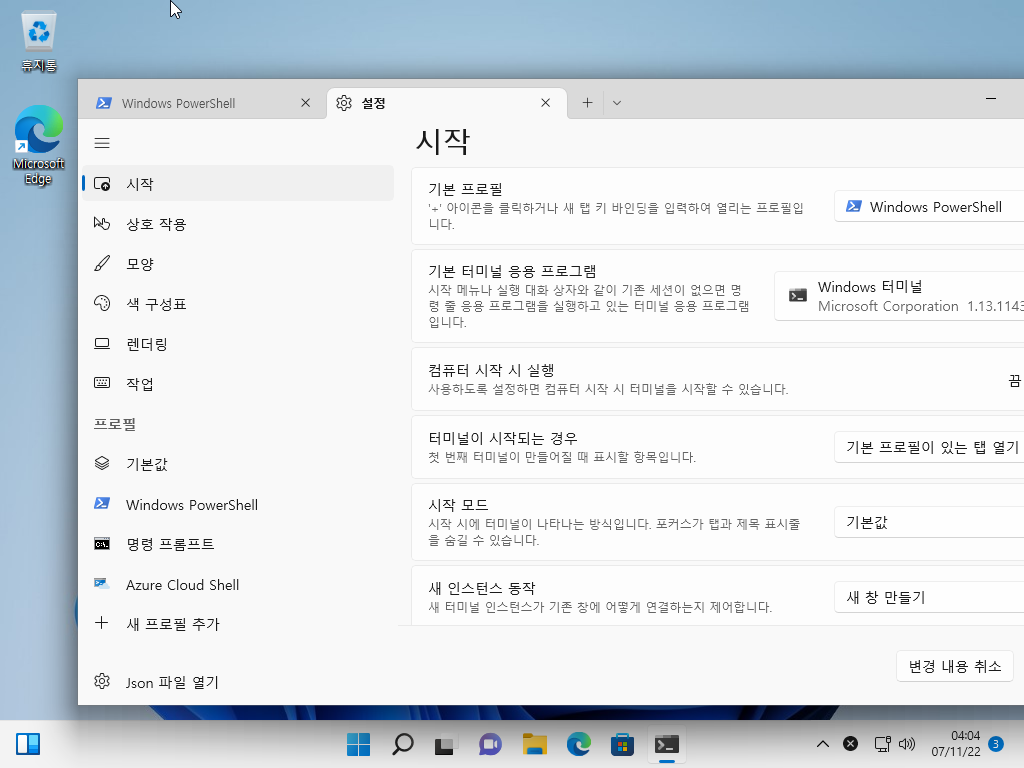
<p>최신 업데이트를 설치했으면 이미 내장돼있지만, 혹시 없다면 마이크로소프트 스토어에서 “Windows Terminal” 검색 후 설치할 수 있다.</p>

<p>설정에서 기본 프로필과 기본 터미널 응용 프로그램을 설정할 수 있는데 필자는 각각 PowerShell과 Windows 터미널로 지정했다.</p>

<table>
  <thead>
    <tr>
      <th style="text-align: center"> </th>
    </tr>
  </thead>
  <tbody>
    <tr>
      <td style="text-align: center"><img width="603" alt="daf" src="/assets/images/posts/Windows/6_1.png" onclick="window.open(this.src)" /></td>
    </tr>
  </tbody>
</table>

<h3 id="2-패키지-관리자-winget">2. 패키지 관리자: winget</h3>

<p><a href="https://docs.microsoft.com/ko-kr/windows/package-manager/winget/">winget</a>은 윈도우용 패키지 매니저로 앱 관리(검색, 설치, 업그레이드, 제거 등)가 가능하다. 앞으로 윈도우에서 프로그램을 설치할 때 최우선 순위로 사용될 예정이다.</p>

<h4 id="21-설치-확인-및-실행">2.1. 설치 확인 및 실행</h4>

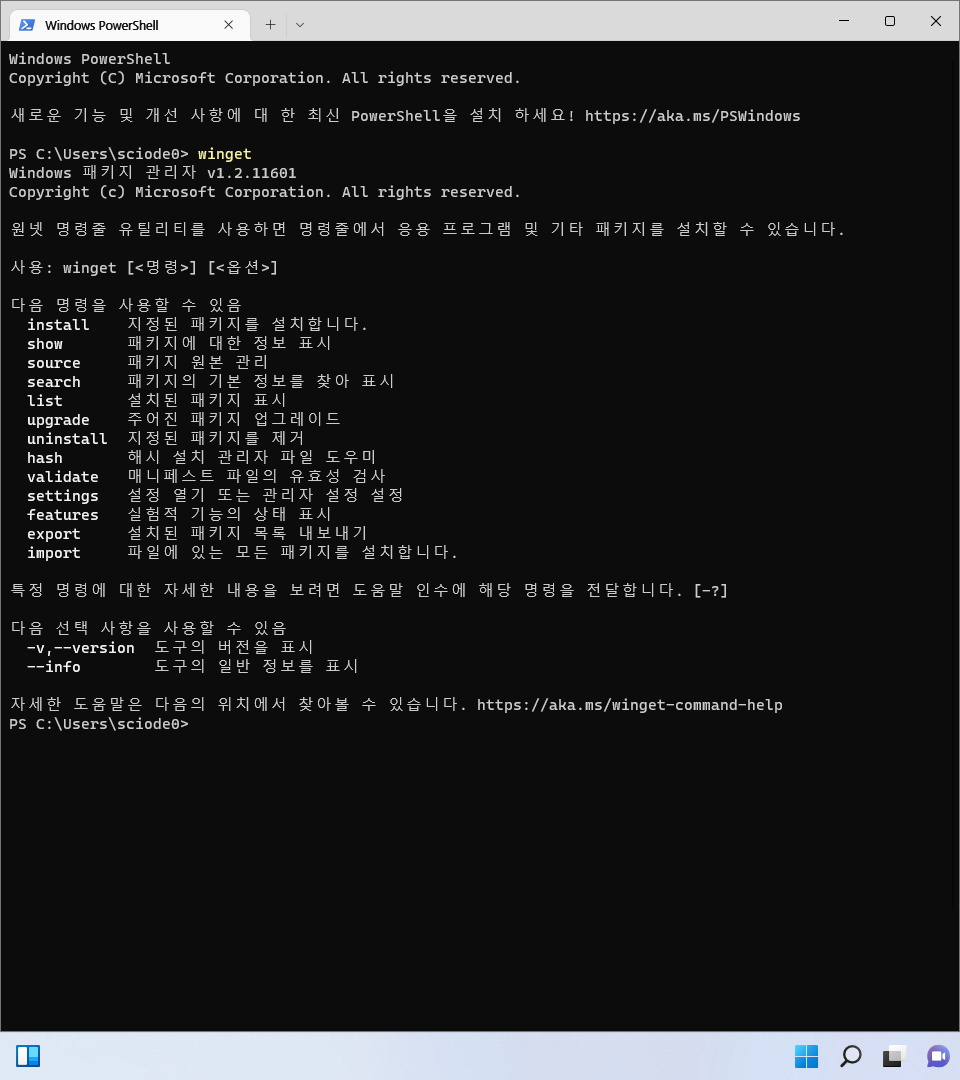
<p>최신 업데이트를 설치했으면 이미 내장돼있지만, 혹시 없다면 마이크로소프트 스토어에서 “앱 설치 관리자” 검색 후 설치할 수 있다.</p>

<table>
  <thead>
    <tr>
      <th style="text-align: center"> </th>
    </tr>
  </thead>
  <tbody>
    <tr>
      <td style="text-align: center"><img width="603" alt="daf" src="/assets/images/posts/Windows/6_2.png" onclick="window.open(this.src)" /></td>
    </tr>
  </tbody>
</table>

<div class="language-bash highlighter-rouge"><div class="highlight"><pre class="highlight"><code>윈도우 터미널 실행 후 <span class="s2">"winget"</span> 입력
</code></pre></div></div>

<h4 id="22-winget-사용-방법">2.2. winget 사용 방법</h4>

<p>아래 명령어를 윈도우 터미널에서 실행:</p>

<h5 id="221-앱-업데이트">2.2.1. 앱 업데이트</h5>

<ol>
  <li>
    <p>전체 앱</p>

    <div class="language-bash highlighter-rouge"><div class="highlight"><pre class="highlight"><code> winget upgrade <span class="nt">--all</span>
</code></pre></div>    </div>
  </li>
  <li>
    <p>특정 앱</p>

    <div class="language-bash highlighter-rouge"><div class="highlight"><pre class="highlight"><code> winget upgrade <span class="nt">-e</span> <span class="nt">--id</span> &lt;앱 ID&gt;
 e.g., winget upgrade <span class="nt">-e</span> <span class="nt">--id</span> Google.Chrome
</code></pre></div>    </div>
  </li>
</ol>

<h5 id="222-앱-검색">2.2.2. 앱 검색</h5>

<table>
  <thead>
    <tr>
      <th style="text-align: center"> </th>
    </tr>
  </thead>
  <tbody>
    <tr>
      <td style="text-align: center"><img width="603" alt="daf" src="/assets/images/posts/Windows/6_3.png" onclick="window.open(this.src)" /></td>
    </tr>
  </tbody>
</table>

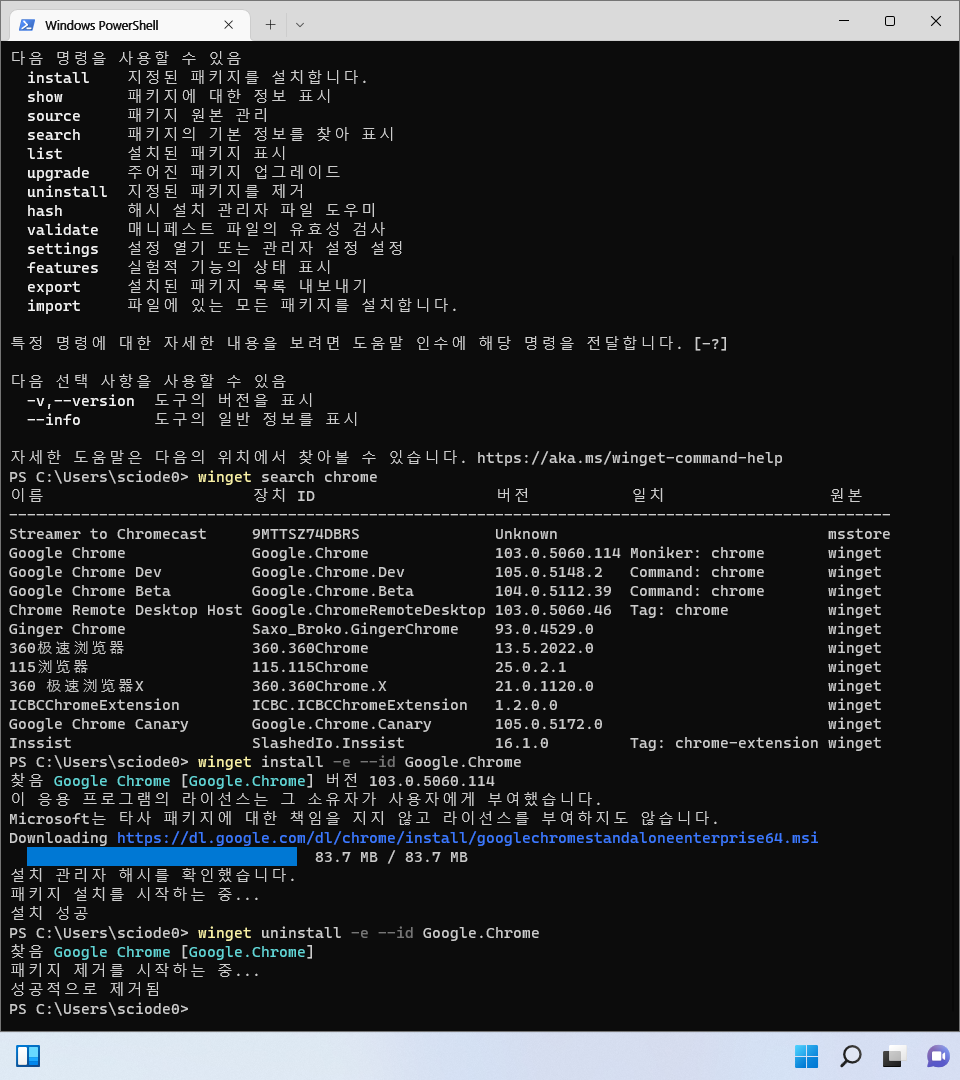
<div class="language-bash highlighter-rouge"><div class="highlight"><pre class="highlight"><code>winget search &lt;앱 이름&gt;
e.g., winget search chrome
</code></pre></div></div>

<h5 id="223-앱-설치">2.2.3. 앱 설치</h5>

<table>
  <thead>
    <tr>
      <th style="text-align: center"> </th>
    </tr>
  </thead>
  <tbody>
    <tr>
      <td style="text-align: center"><img width="603" alt="daf" src="/assets/images/posts/Windows/6_4.png" onclick="window.open(this.src)" /></td>
    </tr>
  </tbody>
</table>

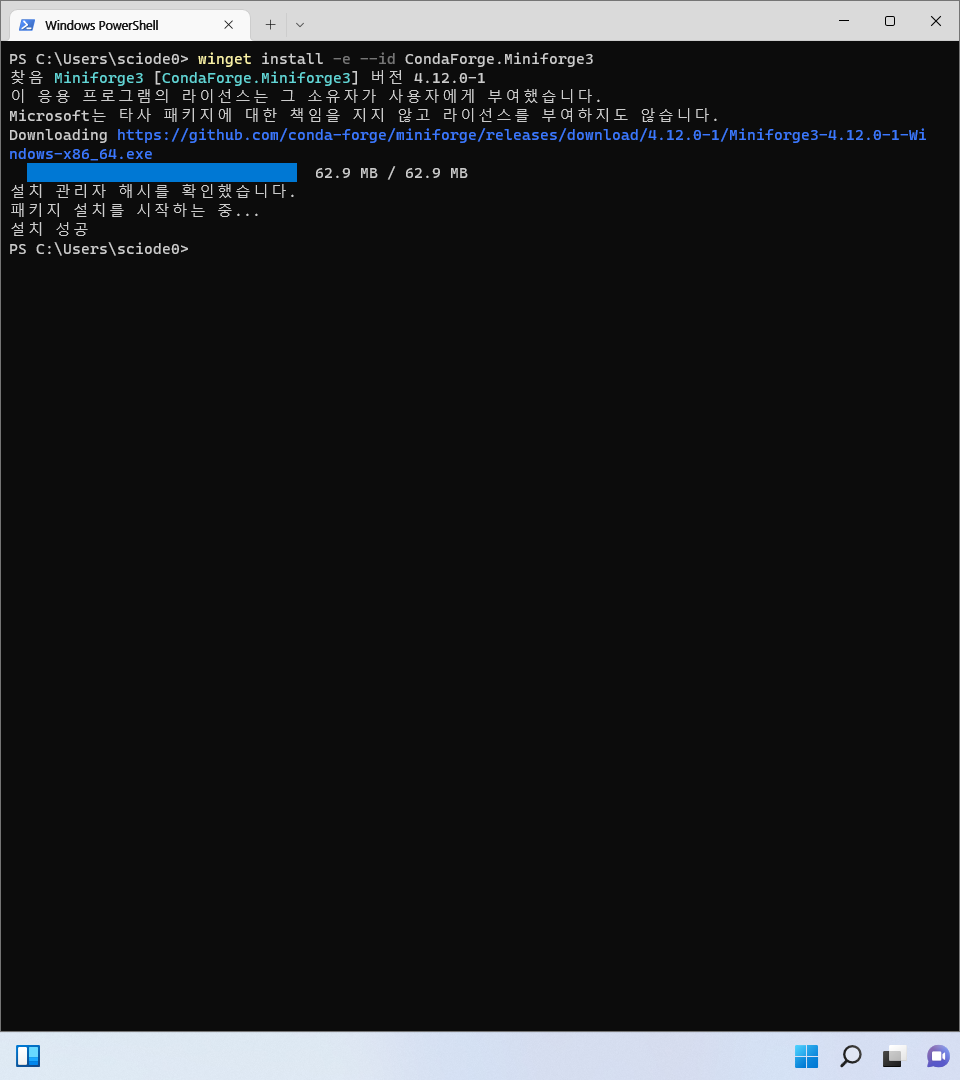
<div class="language-bash highlighter-rouge"><div class="highlight"><pre class="highlight"><code>winget <span class="nb">install</span> <span class="nt">-e</span> <span class="nt">--id</span> &lt;앱 ID&gt;
e.g., winget <span class="nb">install</span> <span class="nt">-e</span> <span class="nt">--id</span> Google.Chrome
</code></pre></div></div>

<h5 id="224-앱-제거">2.2.4. 앱 제거</h5>

<div class="language-bash highlighter-rouge"><div class="highlight"><pre class="highlight"><code>winget uninstall <span class="nt">-e</span> <span class="nt">--id</span> &lt;앱 ID&gt;
e.g., winget uninstall <span class="nt">-e</span> <span class="nt">--id</span> Google.Chrome
</code></pre></div></div>

<h5 id="225-기타">2.2.5. 기타</h5>

<ul>
  <li><code class="language-plaintext highlighter-rouge">winget</code> 관련 상세 명령어는 <a href="https://docs.microsoft.com/ko-kr/windows/package-manager/winget/#commands">공식 문서</a>를 참고하면 된다.</li>
  <li><a href="https://winget.run/">https://winget.run/</a>
에서 <code class="language-plaintext highlighter-rouge">winget</code>으로 설치 가능한 패키지를 편리하게 검색할 수 있다.</li>
</ul>

<h3 id="3-git">3. Git</h3>

<h4 id="31-git-설치">3.1. Git 설치</h4>

<p>위에서 <code class="language-plaintext highlighter-rouge">winget</code> 사용에 성공했다면 <code class="language-plaintext highlighter-rouge">git</code>과 같이 개발에 필요한 도구를 다운받는 건 굉장히 쉽다.</p>

<div class="language-bash highlighter-rouge"><div class="highlight"><pre class="highlight"><code>winget <span class="nb">install</span> <span class="nt">-e</span> <span class="nt">--id</span> Git.Git
</code></pre></div></div>

<h4 id="32-git-등록">3.2. Git 등록</h4>

<div class="language-bash highlighter-rouge"><div class="highlight"><pre class="highlight"><code>git config <span class="nt">--global</span> user.name <span class="s2">"username"</span>
git config <span class="nt">--global</span> user.email <span class="s2">"user@domain.com"</span>
</code></pre></div></div>

<blockquote>
  <p><em>global</em> 옵션은 현재 사용자 계정에서 작업하는 모든 리포지토리에 적용한다.</p>
</blockquote>

<h3 id="4-text-editor">4. Text Editor</h3>

<p>텍스트 편집기로는 <a href="https://code.visualstudio.com/">Visual Studio Code</a>를 추천한다. 리눅스, 맥, 윈도우 3가지 OS에서 모두 호환이 잘 된다. 다만, Microsoft에서 출시되는 VS Code는 텔레메트리가 자동으로 활성화돼 있는데, 이를 방지하기 위해 <a href="https://vscodium.com/">VSCodium</a>을 사용해도 된다.</p>

<blockquote>
  <p><em>텔레메트리 데이터란 수집된 사용자 데이터를 의미하며, 주기적으로 전송된다.</em></p>
</blockquote>

<ol>
  <li>
    <p>VSCode</p>

    <div class="language-bash highlighter-rouge"><div class="highlight"><pre class="highlight"><code> winget <span class="nb">install</span> <span class="nt">-e</span> <span class="nt">--id</span> Microsoft.VisualStudioCode
</code></pre></div>    </div>
  </li>
</ol>

<h3 id="5-개발툴">5. 개발툴</h3>

<h4 id="51-jdk-temurin">5.1. JDK (Temurin)</h4>

<p>다양한 JDK 제공자들이 있는데, 라이선싱 및 지원 문제를 피하기 위해 Adoptium의 Temurin을 사용한다.</p>

<h5 id="511-설치">5.1.1. 설치</h5>

<p>본인에게 필요한 버전을 설치하면 된다:</p>

<div class="language-bash highlighter-rouge"><div class="highlight"><pre class="highlight"><code>winget <span class="nb">install</span> <span class="nt">-e</span> <span class="nt">--id</span> EclipseAdoptium.Temurin.8.JDK
winget <span class="nb">install</span> <span class="nt">-e</span> <span class="nt">--id</span> EclipseAdoptium.Temurin.11.JDK
winget <span class="nb">install</span> <span class="nt">-e</span> <span class="nt">--id</span> EclipseAdoptium.Temurin.17.JDK
</code></pre></div></div>

<h5 id="512-현재-버전-확인">5.1.2. 현재 버전 확인</h5>

<div class="language-bash highlighter-rouge"><div class="highlight"><pre class="highlight"><code>java <span class="nt">--version</span>
javac <span class="nt">--version</span>
</code></pre></div></div>

<h4 id="52-python">5.2. Python</h4>

<blockquote>
  <p>별도 게시글로 이동함.<br />
<a href="/3">[윈도우 / M1 macOS / RHEL] conda 설치</a></p>
</blockquote>

<h4 id="53-jetbrains-toolbox">5.3. JetBrains Toolbox</h4>

<p>필자는 자바 IDE로 <code class="language-plaintext highlighter-rouge">IntelliJ IDEA</code>를, 안드로이드 IDE는 <code class="language-plaintext highlighter-rouge">Android Studio</code>를, 그리고 파이썬은 <code class="language-plaintext highlighter-rouge">PyCharm</code>을 사용한다. 전에 3가지 툴을 수동으로 다운 및 설치를 해봤는데 설치 경로, 환경 설정, 업데이트, 권한 등 귀찮은 문제가 자주 발생했었다. 이를 방지하기 위해 <code class="language-plaintext highlighter-rouge">JetBrains Toolbox</code>를 먼저 설치하면, IDE 설치/제거/업데이트/관리가 굉자히 편리해진다.</p>

<h5 id="531-설치">5.3.1. 설치</h5>

<div class="language-bash highlighter-rouge"><div class="highlight"><pre class="highlight"><code>winget <span class="nb">install</span> <span class="nt">-e</span> <span class="nt">--id</span> JetBrains.Toolbox
</code></pre></div></div>

<h5 id="532-intellij-idea--android-studio--pycharm-설치">5.3.2. IntelliJ IDEA / Android Studio / PyCharm 설치</h5>

<div class="language-bash highlighter-rouge"><div class="highlight"><pre class="highlight"><code>위에서 설치한 JetBrains Toolbox를 실행하면 필요한 IDE를 간편히 설치할 수 있다.
</code></pre></div></div>

<h3 id="6-etc">6. ETC</h3>

<h2 id="references">References</h2>

<p>-</p>]]></content><author><name>W. Choi</name></author><category term="Tech" /><category term="Guides" /><category term="windows" /><category term="setup" /><category term="win11" /><summary type="html"><![CDATA[최초 작성일: 2022년 07월 11일 최근 수정일: 2022년 08월 15일]]></summary></entry><entry><title type="html">[윈도우 11] 초기 환경 설정</title><link href="https://blog.sciode.com/tech/guides/5/" rel="alternate" type="text/html" title="[윈도우 11] 초기 환경 설정" /><published>2022-07-10T00:00:00+09:00</published><updated>2022-07-10T00:00:00+09:00</updated><id>https://blog.sciode.com/tech/guides/5</id><content type="html" xml:base="https://blog.sciode.com/tech/guides/5/"><![CDATA[<p><em>최초 작성일: 2022년 07월 10일</em><br />
<em>최근 수정일: 2022년 08월 13일</em></p>

<h2 id="요약">요약</h2>

<p>윈도우 11 클린 설치 이후 권장된 초기 환경 설정을 적용합니다.</p>

<h2 id="설명">설명</h2>

<p>보안 설정, 네트워크, 브라우저 등 기본 설정을 하여 보안 강화, 성능 향상을 통해 사용자에게 최적화된 사용 환경을 제공합니다.</p>

<h2 id="솔루션">솔루션</h2>

<p><em>윈도우 11 정품 키 또는 정품 디지털 라이선스가 연계된 마이크로소프트 계정이 있다는 가정하에 진행합니다.</em></p>

<h3 id="1-보안-설정">1. 보안 설정</h3>

<p>윈도우 설치한 직후 수행해야 하는 보안 관련 절차이다.</p>

<h4 id="11-계정-설정">1.1. 계정 설정</h4>

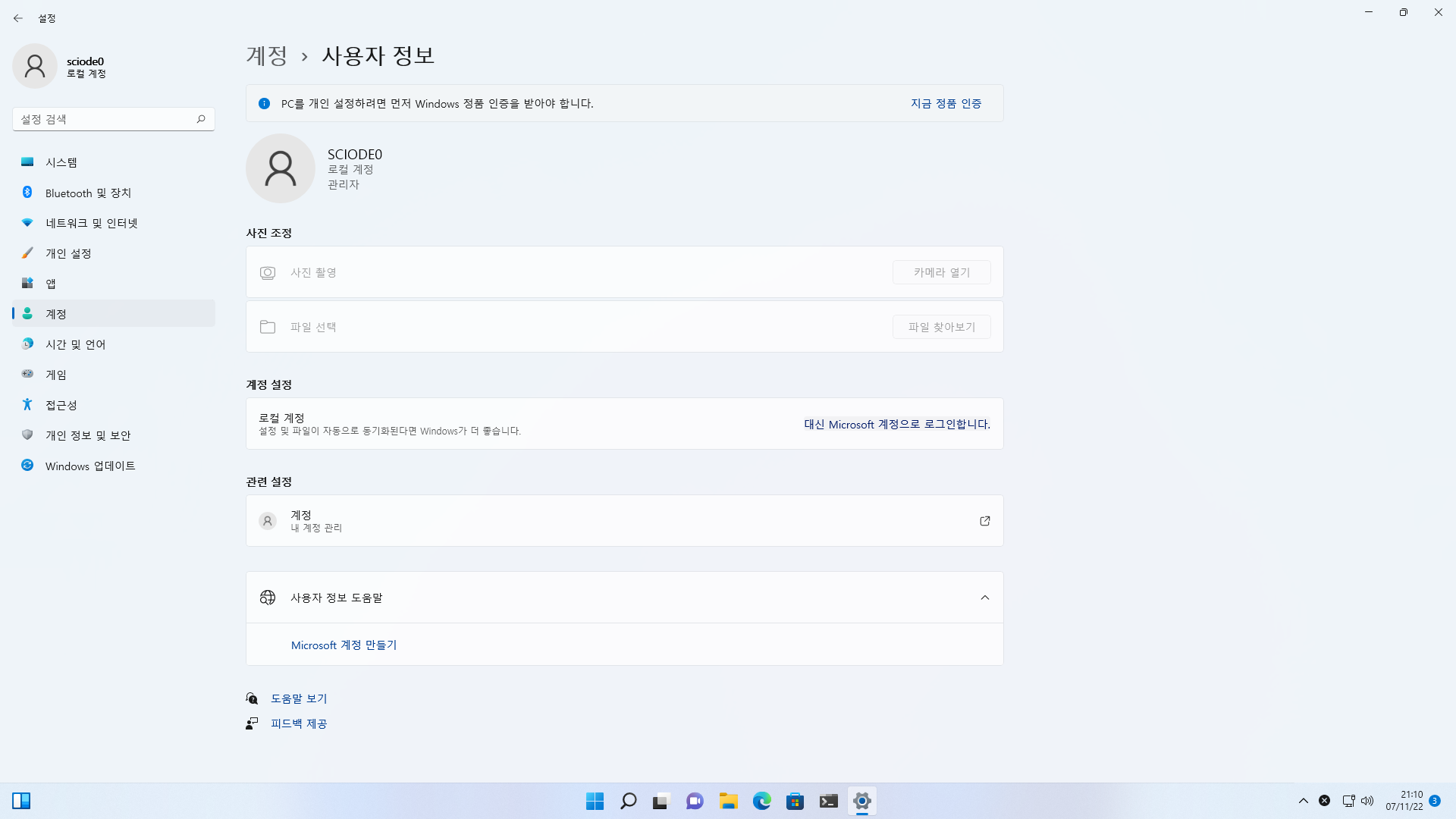
<p><em>앞서 작성한 설치 <a href="/4">가이드라인</a>대로 진행했다면 이미 계정 및 비밀번호(PIN) 설정이 돼 있을 테니 이미 설정됐다면 건너뛰어도 된다.</em></p>

<ol>
  <li>
    <p><strong>마이크로소프트 계정</strong></p>

    <p><code class="language-plaintext highlighter-rouge">C:\Users</code>로 이동해서 사용자 폴더 이름이 잘 설정됐는지 확인하고, 마이크로소프트 계정을 연결한다.</p>

    <table>
      <thead>
        <tr>
          <th style="text-align: center"> </th>
        </tr>
      </thead>
      <tbody>
        <tr>
          <td style="text-align: center"><img width="603" alt="daf" src="/assets/images/posts/Windows/4_25.png" onclick="window.open(this.src)" /></td>
        </tr>
      </tbody>
    </table>

    <div class="language-bash highlighter-rouge"><div class="highlight"><pre class="highlight"><code> 설정 <span class="o">&gt;</span> 계정 <span class="o">&gt;</span> 사용자 정보 <span class="o">&gt;</span> 계정 설정 <span class="o">&gt;</span> <span class="s2">"대신 Microsoft 계정으로 로그인합니다."</span>
</code></pre></div>    </div>

    <p>마이크로소프트 계정에 연계된 디지털 라이선스가 있다면 자동으로 정품 인증이 될 것이고, 본 계정에 사용자 정보 동기화, 정품 인증 정보 저장 등 편리한 기능이 제공된다.</p>
  </li>
  <li>
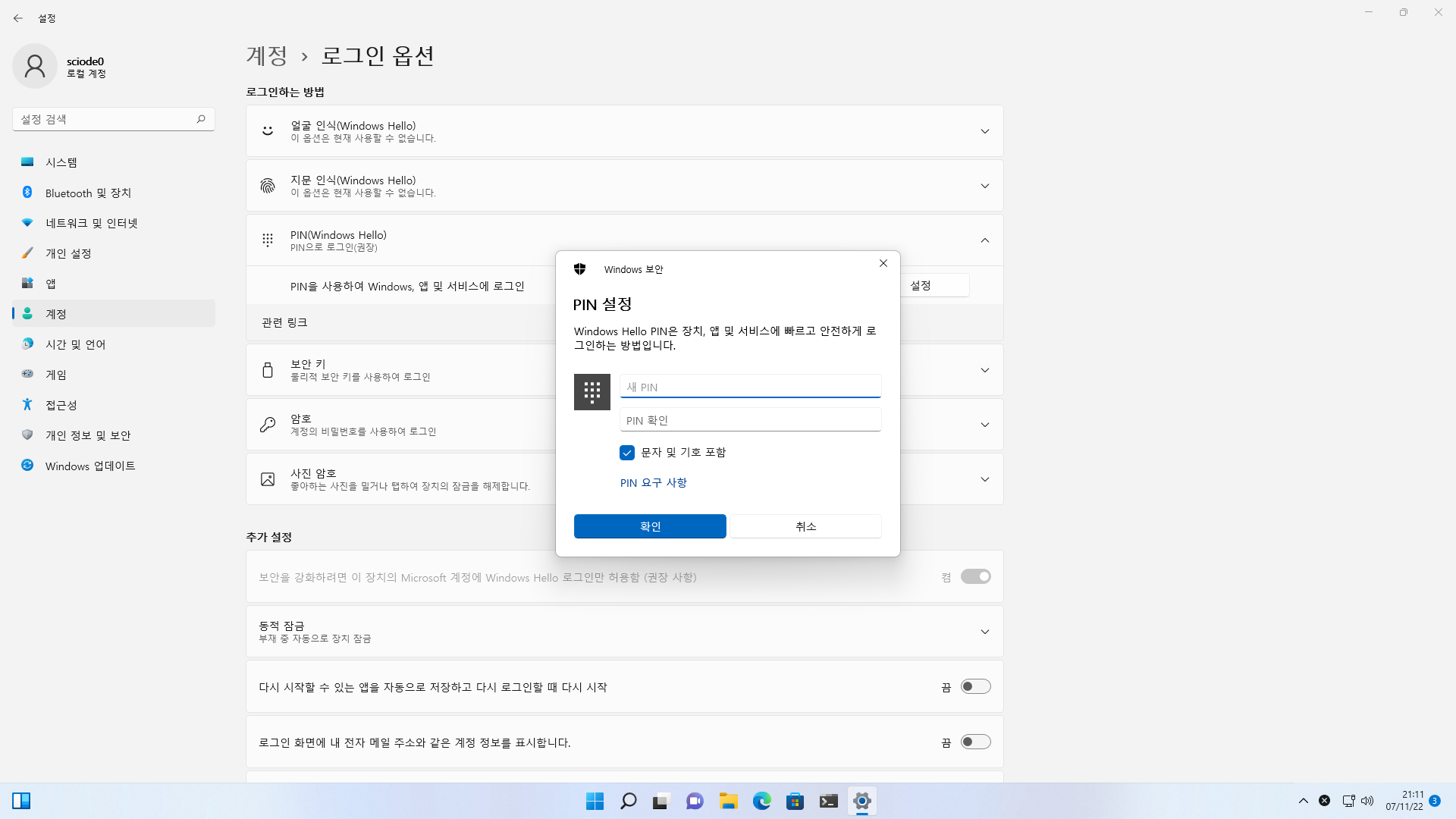
    <p><strong>PIN 설정</strong></p>

    <p>일반 (로컬/온라인) 비밀번호 보다 PIN의 보안성이 더 안전하다고 알려졌다 (<a href="https://docs.microsoft.com/en-us/windows/security/identity-protection/hello-for-business/hello-why-pin-is-better-than-password">source</a>). 마이크로소프트 계정을 연결하고 PIN 로그인을 설정하도록 한다.</p>

    <table>
      <thead>
        <tr>
          <th style="text-align: center"> </th>
        </tr>
      </thead>
      <tbody>
        <tr>
          <td style="text-align: center"><img width="603" alt="daf" src="/assets/images/posts/Windows/4_26.png" onclick="window.open(this.src)" /></td>
        </tr>
      </tbody>
    </table>

    <div class="language-bash highlighter-rouge"><div class="highlight"><pre class="highlight"><code> 설정 <span class="o">&gt;</span> 계정 <span class="o">&gt;</span> 로그인 옵션 <span class="o">&gt;</span> PIN<span class="o">(</span>Windows Hello<span class="o">)</span> <span class="o">&gt;</span> 문자 및 기호 포함
</code></pre></div>    </div>

    <p><em>길이가 최소 4자 이상이어야 하고, 대소문자 구별, 특수 문자를 사용할 수 있다.</em></p>
  </li>
</ol>

<h4 id="12-윈도우-업데이트">1.2. 윈도우 업데이트</h4>

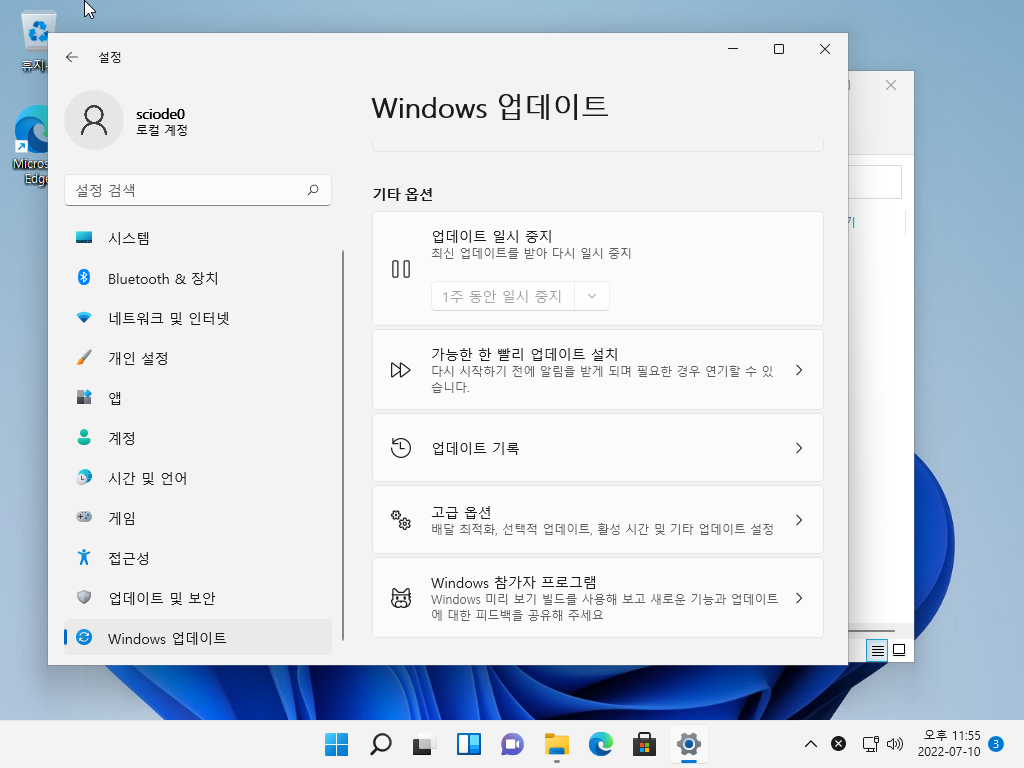
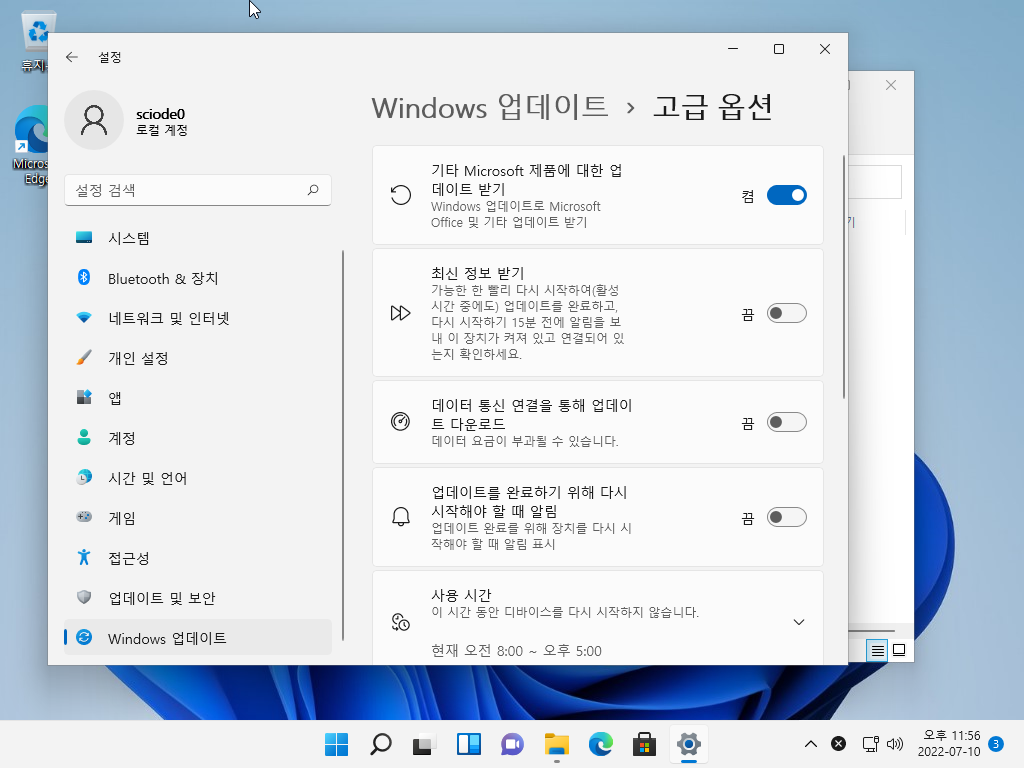
<p>새로운 기능 추가, 성능 향상, 보안 업데이트 등 최적의 환경을 위하여 주기적으로 업데이트를 확인하여 윈도우를 최신화시켜주는 것이 권장된다.</p>

<table>
  <thead>
    <tr>
      <th style="text-align: center"> </th>
      <th style="text-align: center"> </th>
    </tr>
  </thead>
  <tbody>
    <tr>
      <td style="text-align: center"><img width="603" alt="daf" src="/assets/images/posts/Windows/5_2.png" onclick="window.open(this.src)" /></td>
      <td style="text-align: center"><img width="603" alt="daf" src="/assets/images/posts/Windows/5_3.png" onclick="window.open(this.src)" /></td>
    </tr>
  </tbody>
</table>

<div class="language-bash highlighter-rouge"><div class="highlight"><pre class="highlight"><code>설정 <span class="o">&gt;</span> Windows 업데이트 <span class="o">&gt;</span> 업데이트 확인 및 설치
설정 <span class="o">&gt;</span> Windows 업데이트 <span class="o">&gt;</span> 기타 옵션 <span class="o">&gt;</span> 고급 옵션 <span class="o">&gt;</span> 기타 Microsoft 제품에 대한 업데이트 받기
</code></pre></div></div>

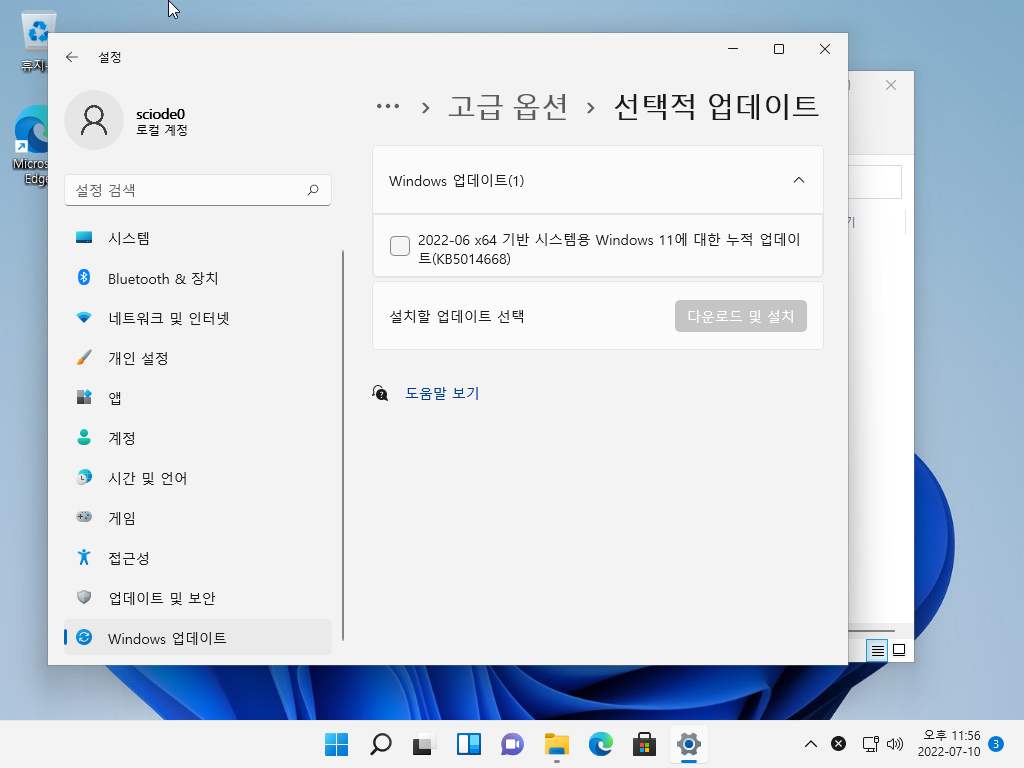
<p>윈도우 11에서 마이크로소프트 제품 이외의 드라이버 업데이트를 제공하는 경우도 있다.</p>

<table>
  <thead>
    <tr>
      <th style="text-align: center"> </th>
    </tr>
  </thead>
  <tbody>
    <tr>
      <td style="text-align: center"><img width="603" alt="daf" src="/assets/images/posts/Windows/5_4.png" onclick="window.open(this.src)" /></td>
    </tr>
  </tbody>
</table>

<div class="language-bash highlighter-rouge"><div class="highlight"><pre class="highlight"><code>설정 <span class="o">&gt;</span> Windows 업데이트 <span class="o">&gt;</span> 기타 옵션 <span class="o">&gt;</span> 고급 옵션 <span class="o">&gt;</span> 추가 옵션 <span class="o">&gt;</span> 선택적 업데이트
</code></pre></div></div>

<h4 id="13-잠금">1.3. 잠금</h4>

<h5 id="131-화면-끄기-및-절전">1.3.1. 화면 끄기 및 절전</h5>

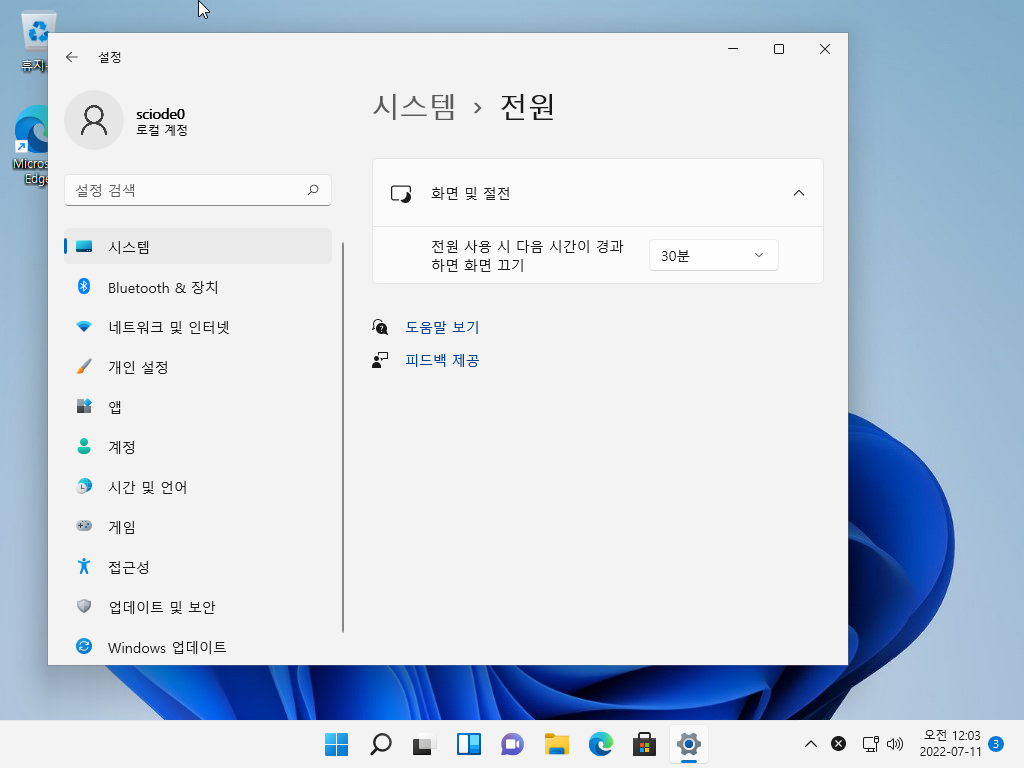
<p>사용자가 일정 시간 동안 작업을 수행하지 않을 경우, 자동으로 잠자기 또는 화면 보호기가 시작되도록 설정한다.</p>

<table>
  <thead>
    <tr>
      <th style="text-align: center"> </th>
    </tr>
  </thead>
  <tbody>
    <tr>
      <td style="text-align: center"><img width="603" alt="daf" src="/assets/images/posts/Windows/5_5.png" onclick="window.open(this.src)" /></td>
    </tr>
  </tbody>
</table>

<div class="language-bash highlighter-rouge"><div class="highlight"><pre class="highlight"><code>설정 <span class="o">&gt;</span> 시스템 <span class="o">&gt;</span> 전원 <span class="o">&gt;</span> 화면 끄기 30분, 절전 30분
</code></pre></div></div>

<h4 id="14-방화벽-활성화">1.4. 방화벽 활성화</h4>

<p>방화벽은 윈도우 설치를 통해 자동으로 활성화되지만, 비활성화돼 있다면 다시 활성화하는 것이 권장된다. 그 외에도, 방화벽 상태를 모니터링하고 싶다면 아래에서 가능하다.</p>

<div class="language-bash highlighter-rouge"><div class="highlight"><pre class="highlight"><code>설정 <span class="o">&gt;</span> 개인 정보 및 보안 <span class="o">&gt;</span> Windows 보안 <span class="o">&gt;</span> 방화벽 및 네트워크 보호
</code></pre></div></div>

<h3 id="2-네트워크">2. 네트워크</h3>

<h4 id="21-dns-구성">2.1. DNS 구성</h4>

<p>굳이 설정을 변경하지 않더라도 인터넷을 사용하는 데는 큰 지장은 없을 것이다. 하지만, DNS 설정 변경으로 검열, 로깅, 프라이버시 보호와 동시에 인터넷 속도도 개선 시킬 수 있으니 강력히 권장된다.</p>

<h5 id="211-권장-dns-서비스-목록">2.1.1. 권장 DNS 서비스 목록</h5>

<table>
  <thead>
    <tr>
      <th style="text-align: center"> </th>
      <th style="text-align: center">IPv4</th>
      <th style="text-align: center"> </th>
    </tr>
  </thead>
  <tbody>
    <tr>
      <td style="text-align: center">Cloudflare</td>
      <td style="text-align: center">1.1.1.1<br />1.0.0.1</td>
      <td style="text-align: center"><a href="https://developers.cloudflare.com/1.1.1.1/setup-1.1.1.1/macos/">(추천)</a></td>
    </tr>
    <tr>
      <td style="text-align: center">Google</td>
      <td style="text-align: center">8.8.8.8<br />8.8.4.4</td>
      <td style="text-align: center"> </td>
    </tr>
    <tr>
      <td style="text-align: center">OpenDNS</td>
      <td style="text-align: center">208.67.222.222<br />208.67.220.220</td>
      <td style="text-align: center"> </td>
    </tr>
  </tbody>
</table>

<h5 id="212-설정-방법">2.1.2. 설정 방법</h5>

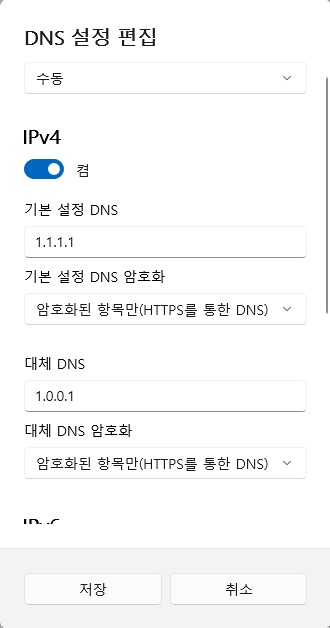
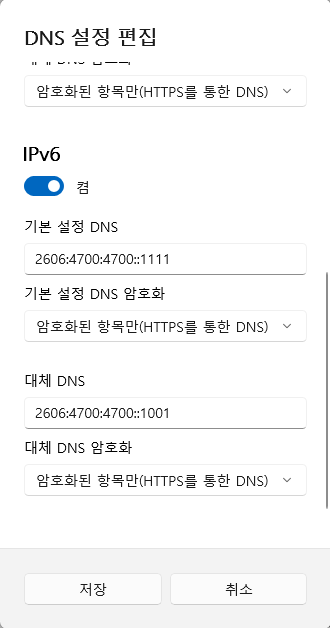
<p>각 서비스당 두 개의 DNS 주소가 있는데, 메인과 보조 주소 개념이다. 둘 다 기재해야 한다.</p>

<table>
  <thead>
    <tr>
      <th style="text-align: center"> </th>
      <th style="text-align: center"> </th>
    </tr>
  </thead>
  <tbody>
    <tr>
      <td style="text-align: center"><img width="240" alt="daf" src="/assets/images/posts/Windows/5_6.png" onclick="window.open(this.src)" /></td>
      <td style="text-align: center"><img width="240" alt="daf" src="/assets/images/posts/Windows/5_7.png" onclick="window.open(this.src)" /></td>
    </tr>
  </tbody>
</table>

<div class="language-bash highlighter-rouge"><div class="highlight"><pre class="highlight"><code>설정 <span class="o">&gt;</span> 네트워크 및 인터넷 <span class="o">&gt;</span> 이더넷 <span class="o">&gt;</span> DNS 서버 할당 <span class="o">&gt;</span> IPv4, IPv6 수동 설정
</code></pre></div></div>

<p>IPv4</p>

<div class="language-bash highlighter-rouge"><div class="highlight"><pre class="highlight"><code>기본 설정 DNS: 1.1.1.1
기본 설정 DNS 암호화: 암호화된 항목만 <span class="o">(</span>HTTPS를 통한 DNS<span class="o">)</span>
대체 DNS: 1.0.0.1
대체 DNS 암호화: 암호화된 항목만 <span class="o">(</span>HTTPS를 통한 DNS<span class="o">)</span>
</code></pre></div></div>

<p>IPv6</p>

<div class="language-bash highlighter-rouge"><div class="highlight"><pre class="highlight"><code>기본 설정 DNS: 2606:4700:4700::1111
기본 설정 DNS 암호화: 암호화된 항목만 <span class="o">(</span>HTTPS를 통한 DNS<span class="o">)</span>
대체 DNS: 2606:4700:4700::1001
대체 DNS 암호화: 암호화된 항목만 <span class="o">(</span>HTTPS를 통한 DNS<span class="o">)</span>
</code></pre></div></div>

<blockquote>
  <p>저장 후 <a href="https://1.1.1.1/help">https://1.1.1.1/help</a> 에서 확인 가능</p>
</blockquote>

<h3 id="3-브라우저">3. 브라우저</h3>

<h4 id="31-microsoft-edge">3.1. Microsoft Edge</h4>

<p>Edge를 기본 브라우저로 사용할 계획이 없더라도, 한 번은 실행시켜 설정할 것이 권장된다.</p>

<h3 id="4-선택-사용자-선택-사항">4. (선택: 사용자 선택 사항)</h3>

<p>아래 항목은 주관적인 설정으로 선택 사항이다.</p>

<h4 id="41-다크-모드">4.1. 다크 모드</h4>

<p>개인적으로 밝은 라이트 모드 보다 다크 모드가 더 편안함으로 변경한다.</p>

<div class="language-bash highlighter-rouge"><div class="highlight"><pre class="highlight"><code>설정 <span class="o">&gt;</span> 개인 설정 <span class="o">&gt;</span> 색 <span class="o">&gt;</span> 모드 선택 <span class="o">&gt;</span> 다크
설정 <span class="o">&gt;</span> 개인 설정 <span class="o">&gt;</span> 테마 <span class="o">&gt;</span> 현재 테마 <span class="o">&gt;</span> <span class="s2">"어두운"</span>
</code></pre></div></div>

<h4 id="42-기본-프로그램-설정">4.2. 기본 프로그램 설정</h4>

<div class="language-bash highlighter-rouge"><div class="highlight"><pre class="highlight"><code>설정 <span class="o">&gt;</span> 앱 <span class="o">&gt;</span> 기본 앱
</code></pre></div></div>

<h4 id="43-최근-연-항목-표시-끄기">4.3. 최근 연 항목 표시 끄기</h4>

<div class="language-bash highlighter-rouge"><div class="highlight"><pre class="highlight"><code>설정 <span class="o">&gt;</span> 개인 설정 <span class="o">&gt;</span> 시작 <span class="o">&gt;</span> 시작, 점프 목록 및 파일 탐색기에서 최근에 연 항목 표시 <span class="o">&gt;</span> 해제
</code></pre></div></div>

<h4 id="44-디스플레이-해상도-변경">4.4. 디스플레이 해상도 변경</h4>

<div class="language-bash highlighter-rouge"><div class="highlight"><pre class="highlight"><code>설정 <span class="o">&gt;</span> 시스템 <span class="o">&gt;</span> 디스플레이 <span class="o">&gt;</span> 디스플레이 해상도 <span class="o">&gt;</span> 권장 설정 변경
</code></pre></div></div>

<h4 id="45-바탕화면에-표시할-아이콘">4.5. 바탕화면에 표시할 아이콘</h4>

<div class="language-bash highlighter-rouge"><div class="highlight"><pre class="highlight"><code>설정 <span class="o">&gt;</span> 개인 설정 <span class="o">&gt;</span> 테마 <span class="o">&gt;</span> 현재 테마 <span class="o">&gt;</span> 바탕 화면 아이콘 설정 <span class="o">&gt;</span> <span class="s2">"컴퓨터"</span>, <span class="s2">"문서"</span>, <span class="s2">"휴지통"</span> 선택
</code></pre></div></div>

<h4 id="46-시작-메뉴-전원-버튼-옆-표시할-폴더">4.6. 시작 메뉴 전원 버튼 옆 표시할 폴더</h4>

<div class="language-bash highlighter-rouge"><div class="highlight"><pre class="highlight"><code>설정 <span class="o">&gt;</span> 개인 설정 <span class="o">&gt;</span> 시작 <span class="o">&gt;</span> 폴더 <span class="o">&gt;</span> <span class="s2">"설정"</span>, <span class="s2">"문서"</span> 
</code></pre></div></div>

<h4 id="47-시간-표시-형식">4.7. 시간 표시 형식</h4>

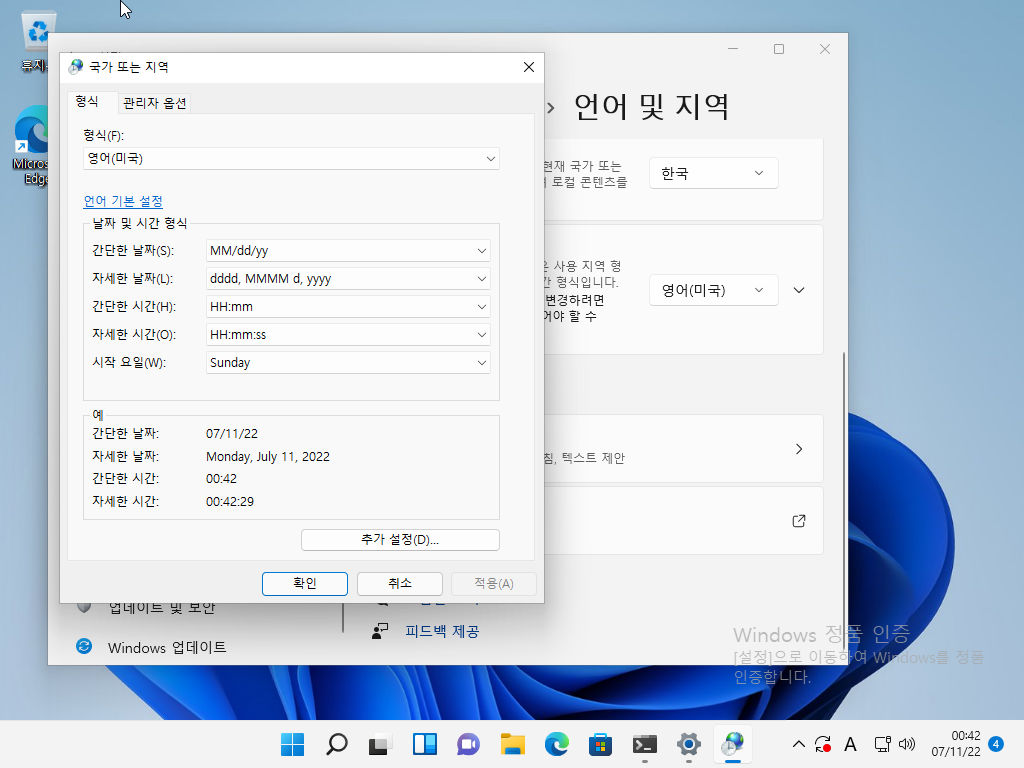
<p>작업표시줄에 나타나는 시간 형식을 변경하고 싶으면 아래에서 가능하다. 24시간 형식도 가능하고, 날짜 표기를 연월일 또는 월일연 등 설정할 수 있다.</p>

<table>
  <thead>
    <tr>
      <th style="text-align: center"> </th>
    </tr>
  </thead>
  <tbody>
    <tr>
      <td style="text-align: center"><img width="603" alt="daf" src="/assets/images/posts/Windows/5_8.png" onclick="window.open(this.src)" /></td>
    </tr>
  </tbody>
</table>

<div class="language-bash highlighter-rouge"><div class="highlight"><pre class="highlight"><code>설정 <span class="o">&gt;</span> 시간 및 언어 <span class="o">&gt;</span> 언어 및 지역 <span class="o">&gt;</span> 기본 언어 설정 <span class="o">&gt;</span> 형식
</code></pre></div></div>

<h3 id="5-선택-nvidia-사용자-대상-nvidia-드라이버-설치-및-설정">5. (선택: NVIDIA 사용자 대상) NVIDIA 드라이버 설치 및 설정</h3>

<p><a href="https://www.nvidia.co.kr/Download/index.aspx?lang=kr">NVIDIA 공식 페이지</a>에 접속하여 본인 그래픽카드와 운영체제에 맞게 설정한다. 최신 게임에 최신 패치가 필요한 유저는 다운로드 타입에 Game Ready 드라이버를 선택하면 되지만, 필자는 안정성을 더 중요시하기 때문에 Studio 드라이버를 선택했다.</p>

<blockquote>
  <p><em>드라이버 버전, 장/단기 드라이버 버전에 대해 정보가 더 필요하면 <a href="https://docs.nvidia.com/datacenter/tesla/drivers/index.html#cuda-drivers">여기</a>와 <a href="https://www.nvidia.co.kr/download/Help.aspx?lang=kr">여기</a>를 참고하면 된다.</em></p>
</blockquote>

<div class="language-bash highlighter-rouge"><div class="highlight"><pre class="highlight"><code>NVIDIA 제어판 <span class="o">&gt;</span> 해상도 변경 <span class="o">&gt;</span> 3. 다음 설정을 적용합니다. <span class="o">&gt;</span> NVIDIA 컬러 설정 사용 <span class="o">&gt;</span> 전체
NVIDIA 제어판 <span class="o">&gt;</span> 비디오 컬러 설정 변경 <span class="o">&gt;</span> 2. 컬러 조정 방법 <span class="o">&gt;</span> NVIDIA 설정 사용<span class="o">(</span>N<span class="o">)</span> <span class="o">&gt;</span> 고급 <span class="o">&gt;</span> 전체
</code></pre></div></div>

<h2 id="references">References</h2>

<p>-</p>]]></content><author><name>W. Choi</name></author><category term="Tech" /><category term="Guides" /><category term="windows" /><category term="setup" /><category term="win11" /><summary type="html"><![CDATA[최초 작성일: 2022년 07월 10일 최근 수정일: 2022년 08월 13일]]></summary></entry><entry><title type="html">[RHEL 9] 설치 (단독/듀얼부팅)</title><link href="https://blog.sciode.com/tech/guides/7/" rel="alternate" type="text/html" title="[RHEL 9] 설치 (단독/듀얼부팅)" /><published>2022-06-07T00:00:00+09:00</published><updated>2022-06-07T00:00:00+09:00</updated><id>https://blog.sciode.com/tech/guides/7</id><content type="html" xml:base="https://blog.sciode.com/tech/guides/7/"><![CDATA[<p><em>최초 작성일: 2022년 06월 07일</em><br />
<em>최근 수정일: 2022년 08월 13일</em></p>

<h2 id="요약">요약</h2>

<p>2022년 5월 18일에 RHEL 9.0이 정식 출시 되었습니다. 단독 설치 및 듀얼 부팅 설치를 진행합니다.</p>

<h2 id="설명">설명</h2>

<p>IBM의 정책 변경으로 RHEL의 무료 배포판인 CentOS 8이 2021년 말 지원종료(EOS) 됐습니다. 모두가 새로운 솔루션을 찾고 변화에 빠르게 적응할 수 있는 인프라를 가지고 있는 것은 아니기에, 이 소식은 많은 기업과 개발자들에게 갑작스러웠으며 타격이 컸을 것으로 예상합니다.</p>

<p>기존의 CentOS는 CentOS Stream으로 전환됐는데 이것은 RHEL 공식 배포판과 다른 RHEL 업스트림 브랜치 기반입니다. (업스트림 브랜치란 실시간으로 변화/업데이트가 적용됩니다. 안정성, 보안 등 장단점이 존재합니다) 레드햇은 기존 사용자들이 RHEL 호환 리눅스를 잃은 상황에서 대안으로 Red Hat Developer Program에 RHEL 무상 이용 조건을 확대했습니다.<sup id="fnref:1" role="doc-noteref"><a href="#fn:1" class="footnote" rel="footnote">1</a></sup> 다른 대안으로
 <a href="https://rockylinux.org/">Rocky Linux (로키 리눅스)</a>, <a href="https://almalinux.org/">AlmaLinux (알마리눅스)</a> 등 CentOS 대체 리눅스도 등장했습니다.</p>

<p>‘Red Hat Developer Subscription for Individuals’에 등록하여 RHEL을 무상으로 사용할 수 있습니다. 프로그램 가입은 무료입니다.
본 게시글에서는 Red Hat Developer 프로그램 무료 구독부터 설치까지 다룹니다.</p>

<h2 id="솔루션">솔루션</h2>

<blockquote>
  <p>윈도우와 리눅스의 듀얼 부팅 예정이라면, 윈도우를 먼저 설치해야 한다. 리눅스를 먼저 설치하고 그 위에 윈도우를 설치할 경우, 윈도우는 기존 리눅스의 부트로더를 덮어쓰기 때문에 리눅스는 부팅불가 상태가 된다.<sup id="fnref:2" role="doc-noteref"><a href="#fn:2" class="footnote" rel="footnote">2</a></sup></p>
</blockquote>

<p>지원되는 아키텍처:</p>

<ul>
  <li>AMD, Intel 및 ARM 64비트 아키텍처</li>
  <li>
    <p>IBM Power Systems, Little Endian</p>

    <ul>
      <li>IBM Power System LC 서버</li>
      <li>IBM Power System AC 서버</li>
      <li>IBM Power System L 서버</li>
    </ul>
  </li>
  <li>64-bit IBM Z</li>
</ul>

<h3 id="0-gpt-형식으로-디스크-설정">0. GPT 형식으로 디스크 설정</h3>

<h3 id="1-레드햇-가입-로그인-iso-다운">1. 레드햇 가입, 로그인, ISO 다운</h3>

<p>먼저, 가입해야 다운받을 수 있다.</p>

<h4 id="11-가입">1.1. 가입</h4>

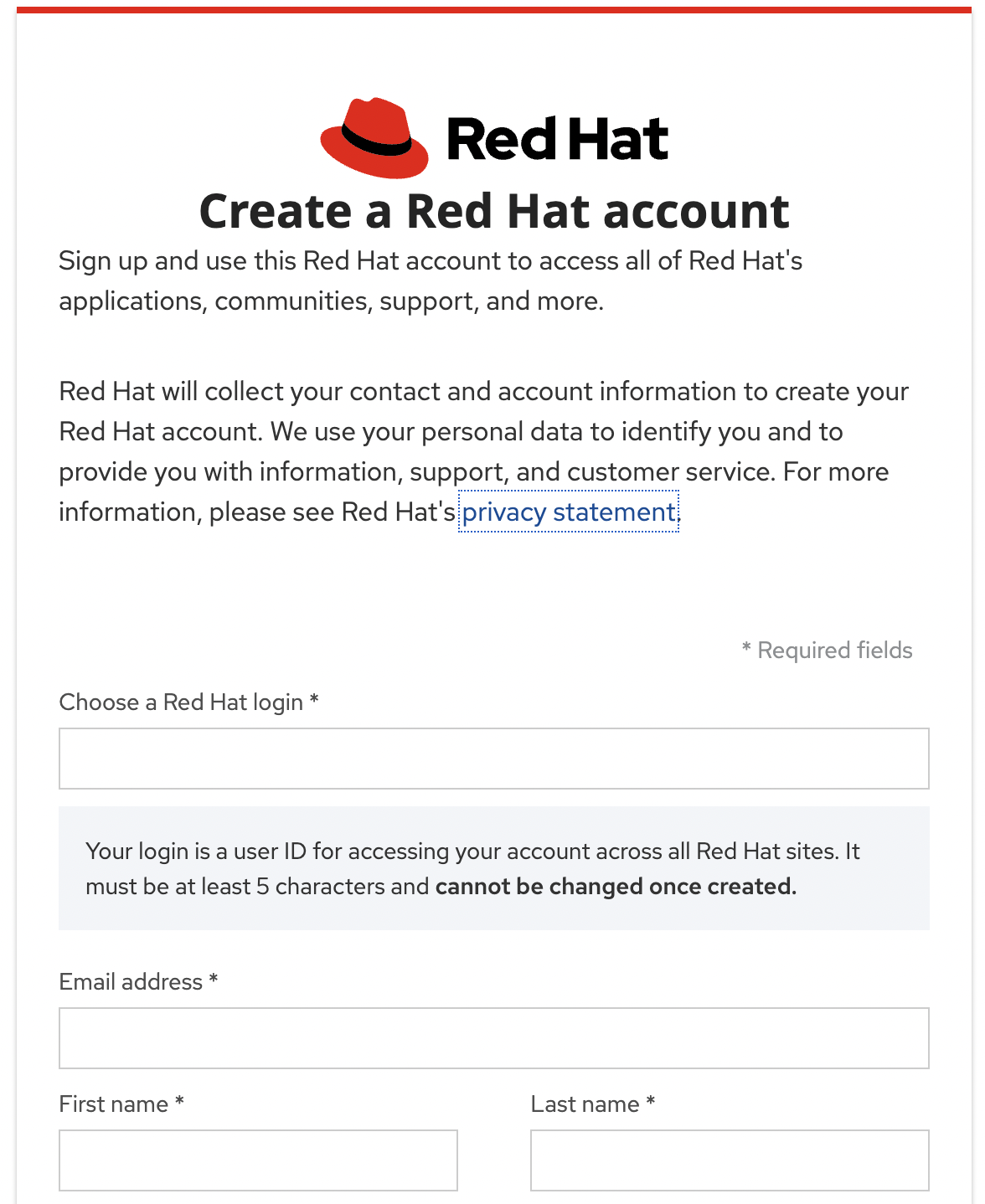
<p><a href="https://developers.redhat.com/register">developers.redhat.com/register</a>에 가입 후 로그인한다.</p>

<table>
  <thead>
    <tr>
      <th style="text-align: center"> </th>
    </tr>
  </thead>
  <tbody>
    <tr>
      <td style="text-align: center"><img width="302" alt="daf" src="/assets/images/posts/Linux/7_1.png" onclick="window.open(this.src)" /></td>
    </tr>
  </tbody>
</table>

<h4 id="12-다운">1.2. 다운</h4>

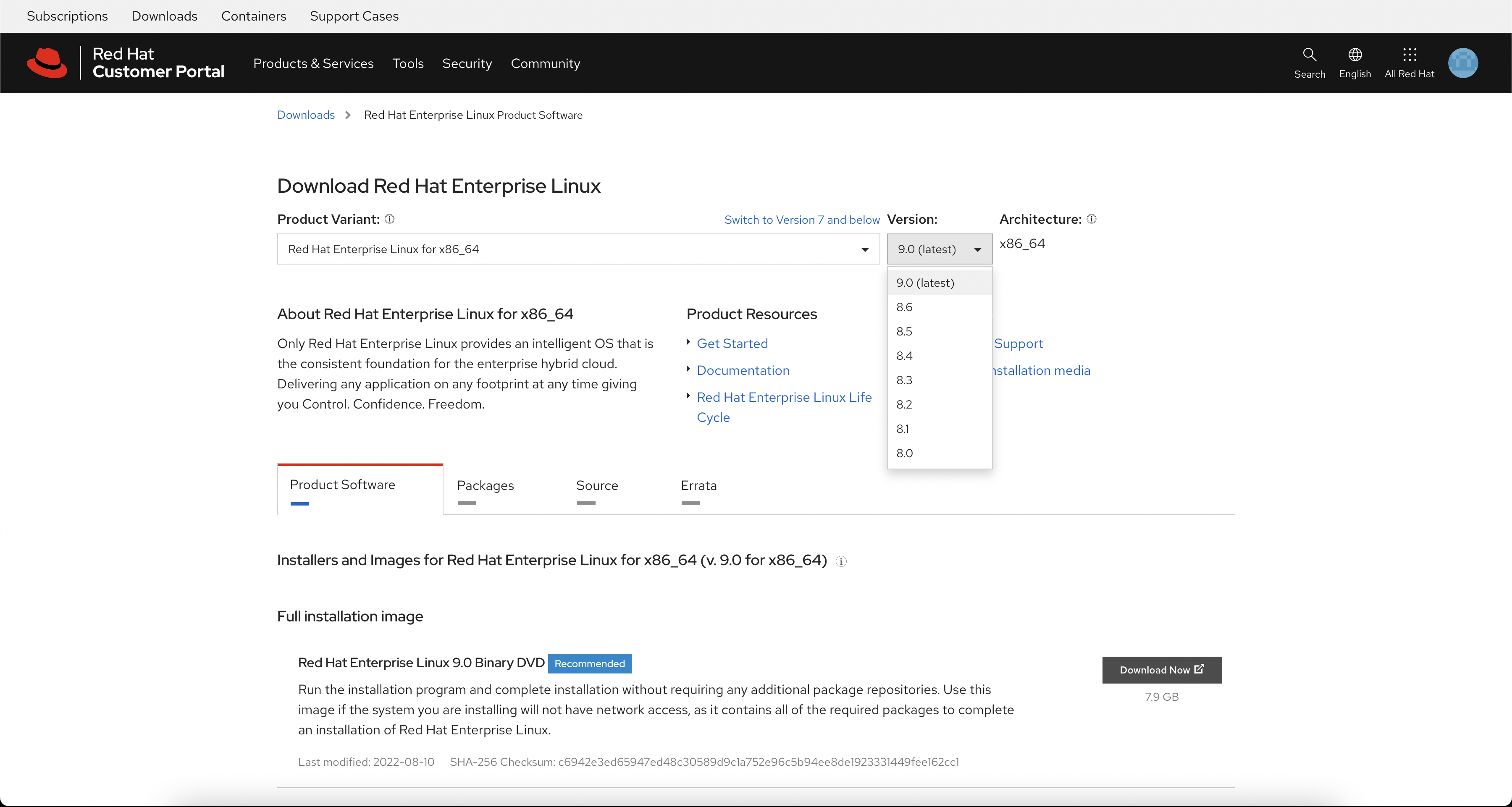
<p><a href="https://access.redhat.com/downloads/content/479/">Red Hat Customer Portal</a>에서 Product Variant와 버전을 선택하고 <code class="language-plaintext highlighter-rouge">Red Hat Enterprise Linux x.y Binary DVD</code>를 다운로드받으면 된다.</p>

<table>
  <thead>
    <tr>
      <th style="text-align: center"> </th>
    </tr>
  </thead>
  <tbody>
    <tr>
      <td style="text-align: center"><img width="905" alt="daf" src="/assets/images/posts/Linux/7_2.png" onclick="window.open(this.src)" /></td>
    </tr>
  </tbody>
</table>

<blockquote>
  <p>Product Variant 메뉴에서 x86_64 또는 ARM 64 등 본인 CPU 아키텍쳐에 맞게 설정하면 되며, 글 작성 시점 9.0이 최신 버전이었다.</p>
</blockquote>

<h5 id="121-설치-iso-이미지-유형">1.2.1. 설치 ISO 이미지 유형</h5>

<ul>
  <li>Boot ISO (최소 부팅 이미지)
    <ul>
      <li>설치에 필요한 파일을 설치를 진행하면서 네트워크를 통해 다운받음</li>
    </ul>
  </li>
  <li>Binary DVD (전체 설치 이미지) (<strong>Recommended!</strong>)
    <ul>
      <li>설치에 필요한 파일을 다운받아 놓고 설치를 진행 함</li>
      <li>BaseOS 및 AppStream 리포지토리가 포함됨</li>
      <li>추가 리포지토리와 네트워크 연결이 필요 없음</li>
    </ul>
  </li>
</ul>

<h3 id="2-설치-미디어-생성">2. 설치 미디어 생성</h3>

<p><em>다운받은 ISO 이미지보다 큰 USB 드라이브가 필요하며, macOS, 윈도우, 리눅스에서 설치 미디어를 만들 수 있다.</em></p>

<blockquote>
  <p>경고: USB 드라이브의 모든 데이터는 삭제됩니다.</p>
</blockquote>

<h4 id="a-윈도우-wip">a) 윈도우 (WIP)</h4>

<p>1.</p>

<div class="language-bash highlighter-rouge"><div class="highlight"><pre class="highlight"><code>
</code></pre></div></div>

<h4 id="b-macos">b) macOS</h4>

<ol>
  <li>
    <p>USB 드라이브 연결 및 할당된 장치 아이디 확인</p>

    <p><code class="language-plaintext highlighter-rouge">diskutil list</code> 명령을 사용하여 장치 경로를 식별한다. 장치 경로의 형식은 <em>/dev/diskX</em>이며, X는 숫자다. 일반적으로 Disk 0은 OS X 복구 디스크이며 Disk 1은 기본 OS X 설치이다.</p>

    <div class="language-bash highlighter-rouge"><div class="highlight"><pre class="highlight"><code> diskutil list
</code></pre></div>    </div>

    <p>예를 들어, <code class="language-plaintext highlighter-rouge">diskX</code>와 같이 타겟 USB 드라이브에 해당하는 장치를 확인한다.</p>
  </li>
  <li>
    <p>USB 드라이브 마운트 해제</p>

    <div class="language-bash highlighter-rouge"><div class="highlight"><pre class="highlight"><code> diskutil unmountDisk /dev/diskX
</code></pre></div>    </div>

    <blockquote>
      <p><code class="language-plaintext highlighter-rouge">diskX</code>에 본인의 USB 드라이브 노드로 교체한다.<br />
장치의 파티션 이름이 아니라, 전체 드라이브를 사용해야 한다.<br />
예를 들어, <code class="language-plaintext highlighter-rouge">diskX</code>는 장치 이름이고, <code class="language-plaintext highlighter-rouge">diskXsY</code>는 장치 <code class="language-plaintext highlighter-rouge">diskX</code>의 파티션 이름이다.</p>
    </blockquote>
  </li>
  <li>
    <p>USB 드라이브에 ISO 이미지 작성</p>

    <div class="language-bash highlighter-rouge"><div class="highlight"><pre class="highlight"><code> <span class="nb">sudo dd </span><span class="k">if</span><span class="o">=</span>/image_directory/image.iso <span class="nv">of</span><span class="o">=</span>/dev/rdiskX <span class="nv">bs</span><span class="o">=</span>4M <span class="nv">status</span><span class="o">=</span>progress
</code></pre></div>    </div>

    <blockquote>
      <p>참고:</p>

      <ul>
        <li>Mac OS X는 각 스토리지 장치에 블록 (/dev/disk<em>) 및 문자 장치 (/dev/rdisk</em>) 파일을 모두 제공하는데 /dev/rdisknumber 문자 장치에 이미지를 쓰는 것이 /dev/disknumber 블록 장치에 쓰는 것보다 빠르다.</li>
        <li><code class="language-plaintext highlighter-rouge">/image_directory/image.iso</code> 를 다운로드한 ISO 이미지 파일의 전체 경로로 교체하고, <code class="language-plaintext highlighter-rouge">rdiskX</code>는 위에서 확인한 장치 이름으로 교체한다.</li>
        <li><code class="language-plaintext highlighter-rouge">bs</code>는 blocksize를 의미하며, <code class="language-plaintext highlighter-rouge">status</code>는 진행 상태를 출력한다.</li>
      </ul>
    </blockquote>

    <p>이 예에서 ISO 이미지의 전체 경로는 <code class="language-plaintext highlighter-rouge">/Users/testuser/Downloads/rhel-baseos-9.0-x86_64-dvd.iso</code> 이며 장치 이름은 <code class="language-plaintext highlighter-rouge">diskX</code>를 사용한다.</p>

    <div class="language-bash highlighter-rouge"><div class="highlight"><pre class="highlight"><code> <span class="nb">sudo dd </span><span class="k">if</span><span class="o">=</span>/Users/testuser/Downloads/rhel-baseos-9.0-x86_64-dvd.iso <span class="nv">of</span><span class="o">=</span>/dev/rdiskX <span class="nv">bs</span><span class="o">=</span>4M <span class="nv">status</span><span class="o">=</span>progress
</code></pre></div>    </div>
  </li>
</ol>

<h4 id="c-rhel">c) RHEL</h4>

<ol>
  <li>
    <p>USB 드라이브 연결 및 할당된 장치 아이디 확인</p>

    <div class="language-bash highlighter-rouge"><div class="highlight"><pre class="highlight"><code> lsblk
</code></pre></div>    </div>

    <p>예를 들어, <code class="language-plaintext highlighter-rouge">sdd</code>와 같이 타겟 USB 드라이브에 해당하는 장치를 확인한다.</p>
  </li>
  <li>
    <p>USB 드라이브 마운트 해제</p>

    <div class="language-bash highlighter-rouge"><div class="highlight"><pre class="highlight"><code> umount /dev/device
</code></pre></div>    </div>

    <blockquote>
      <p><code class="language-plaintext highlighter-rouge">device</code>에 본인의 USB 드라이브 노드로 교체한다.<br />
장치의 파티션 이름이 아니라, 전체 드라이브를 사용해야 한다.<br />
예를 들어, <code class="language-plaintext highlighter-rouge">sdd</code>는 장치 이름이고, <code class="language-plaintext highlighter-rouge">sdd1</code>은 장치 <code class="language-plaintext highlighter-rouge">sdd</code>의 파티션 이름이다.</p>
    </blockquote>
  </li>
  <li>
    <p>USB 드라이브에 ISO 이미지 작성</p>

    <div class="language-bash highlighter-rouge"><div class="highlight"><pre class="highlight"><code> <span class="nb">sudo dd </span><span class="k">if</span><span class="o">=</span>/image_directory/image.iso <span class="nv">of</span><span class="o">=</span>/dev/device <span class="nv">bs</span><span class="o">=</span>4M <span class="nv">status</span><span class="o">=</span>progress
</code></pre></div>    </div>

    <blockquote>
      <p>참고:</p>

      <ul>
        <li><code class="language-plaintext highlighter-rouge">/image_directory/image.iso</code> 를 다운로드한 ISO 이미지 파일의 전체 경로로 교체하고, <code class="language-plaintext highlighter-rouge">device</code>는 위에서 확인한 장치 이름으로 교체한다.</li>
        <li><code class="language-plaintext highlighter-rouge">bs</code>는 blocksize를 의미하며, <code class="language-plaintext highlighter-rouge">status</code>는 진행 상태를 출력한다.</li>
      </ul>
    </blockquote>

    <p>이 예에서 ISO 이미지의 전체 경로는 <code class="language-plaintext highlighter-rouge">/home/testuser/Downloads/rhel-baseos-9.0-x86_64-dvd.iso</code> 이며 장치 이름은 <code class="language-plaintext highlighter-rouge">sdd</code>를 사용한다.</p>

    <div class="language-bash highlighter-rouge"><div class="highlight"><pre class="highlight"><code> <span class="nb">sudo dd </span><span class="k">if</span><span class="o">=</span>/home/testuser/Downloads/rhel-baseos-9.0-x86_64-dvd.iso <span class="nv">of</span><span class="o">=</span>/dev/sdd <span class="nv">bs</span><span class="o">=</span>4M <span class="nv">status</span><span class="o">=</span>progress
</code></pre></div>    </div>
  </li>
</ol>

<h3 id="3-설치-부팅">3. 설치 부팅</h3>

<p>설치 대상 컴퓨터에 USB를 연결한 상태에서 컴퓨터를 다시 시작한다.</p>

<blockquote>
  <p>BIOS/UEFI 설정 메뉴에서 부팅 우선순위를 설치 미디어(USB)로 설정해야 한다.</p>
</blockquote>

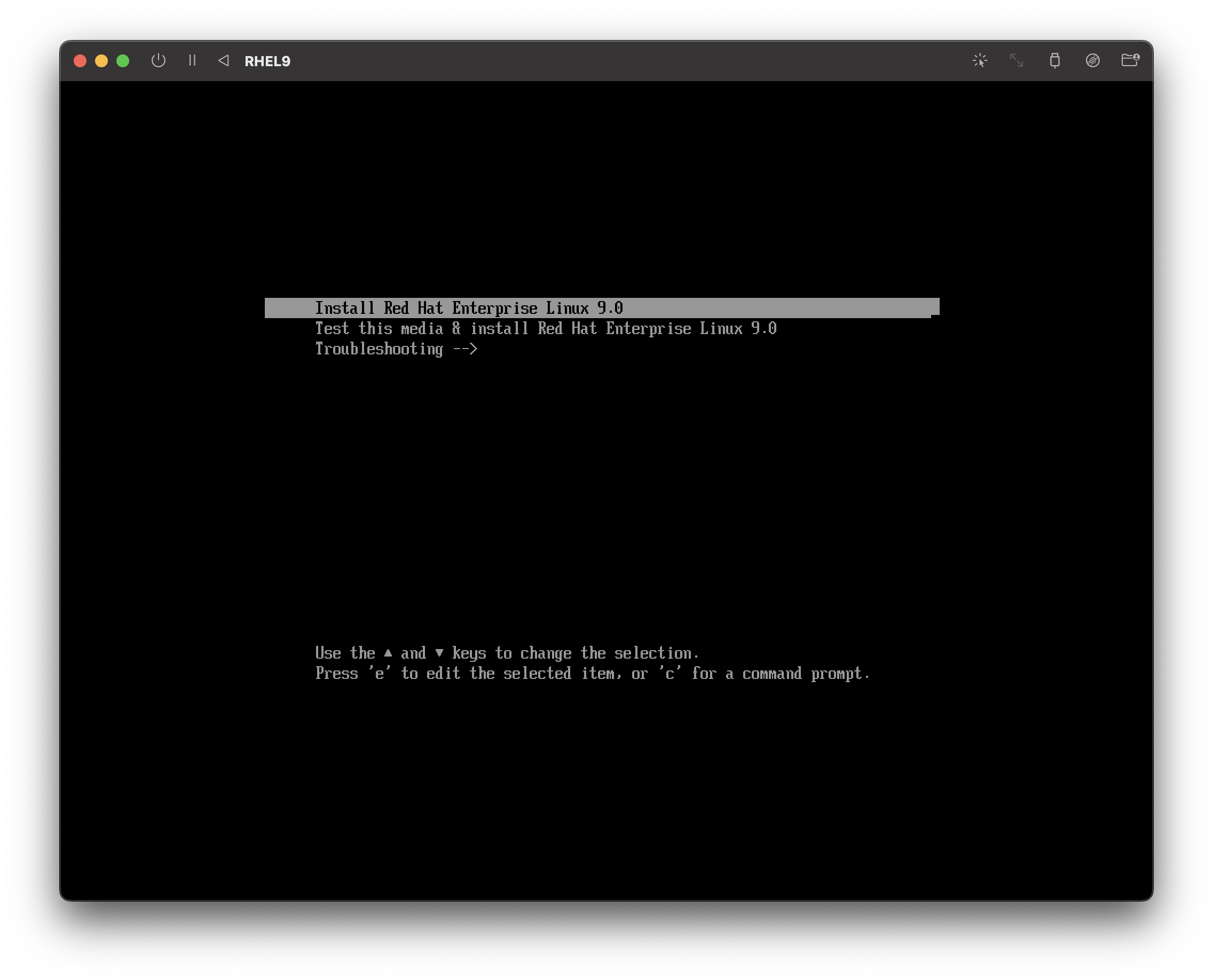
<p>설치 USB가 정상적으로 인식되고 부팅 미디어가 로드된 경우 <strong>GRand Unified Bootloader 2</strong> (GRUB2)에 부팅 메뉴가 표시된다.</p>

<table>
  <thead>
    <tr>
      <th style="text-align: center"> </th>
    </tr>
  </thead>
  <tbody>
    <tr>
      <td style="text-align: center"><img width="603" alt="daf" src="/assets/images/posts/Linux/7_3.png" onclick="window.open(this.src)" /></td>
    </tr>
  </tbody>
</table>

<table>
  <thead>
    <tr>
      <th style="text-align: left">부팅 메뉴 옵션</th>
      <th style="text-align: left">설명</th>
    </tr>
  </thead>
  <tbody>
    <tr>
      <td style="text-align: left">Install Red Hat Enterprise Linux X.Y</td>
      <td style="text-align: left">그래픽 설치 프로그램</td>
    </tr>
    <tr>
      <td style="text-align: left">Test this media &amp; install Red Hat Enterprise Linux X.Y</td>
      <td style="text-align: left">설치 미디어의 무결성을 확인 후 설치</td>
    </tr>
    <tr>
      <td style="text-align: left">Troubleshooting</td>
      <td style="text-align: left">다양한 설치 문제를 해결</td>
    </tr>
  </tbody>
</table>

<h3 id="4-설치">4. 설치</h3>

<p>GRUB2 부팅 메뉴 중에서 맨 위 <code class="language-plaintext highlighter-rouge">Install Red Hat Enterprise Linux X.Y</code>옵션을 선택하여 GUI 설치에 진입한다.</p>

<h4 id="41-설치-시작">4.1. 설치 시작</h4>

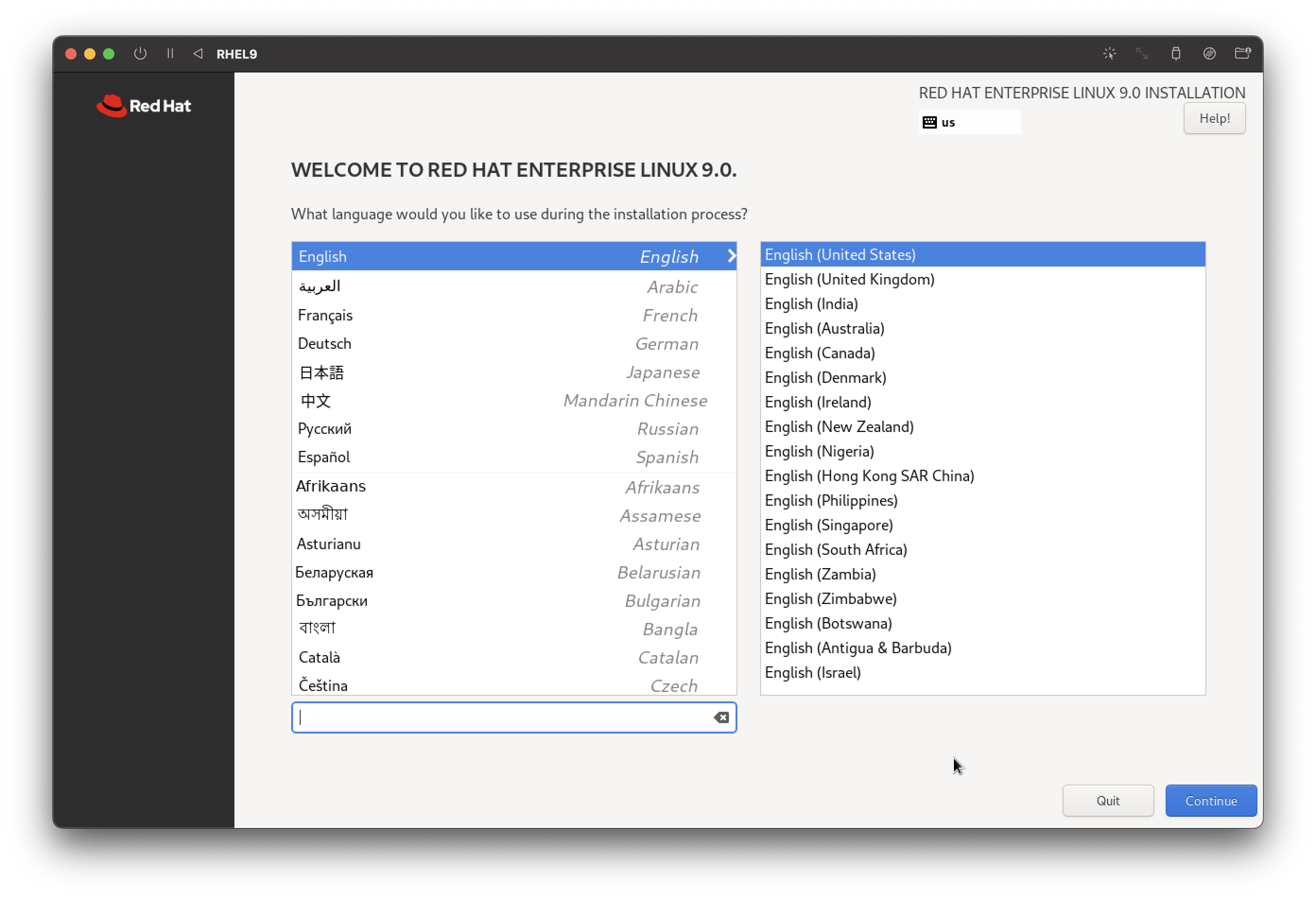
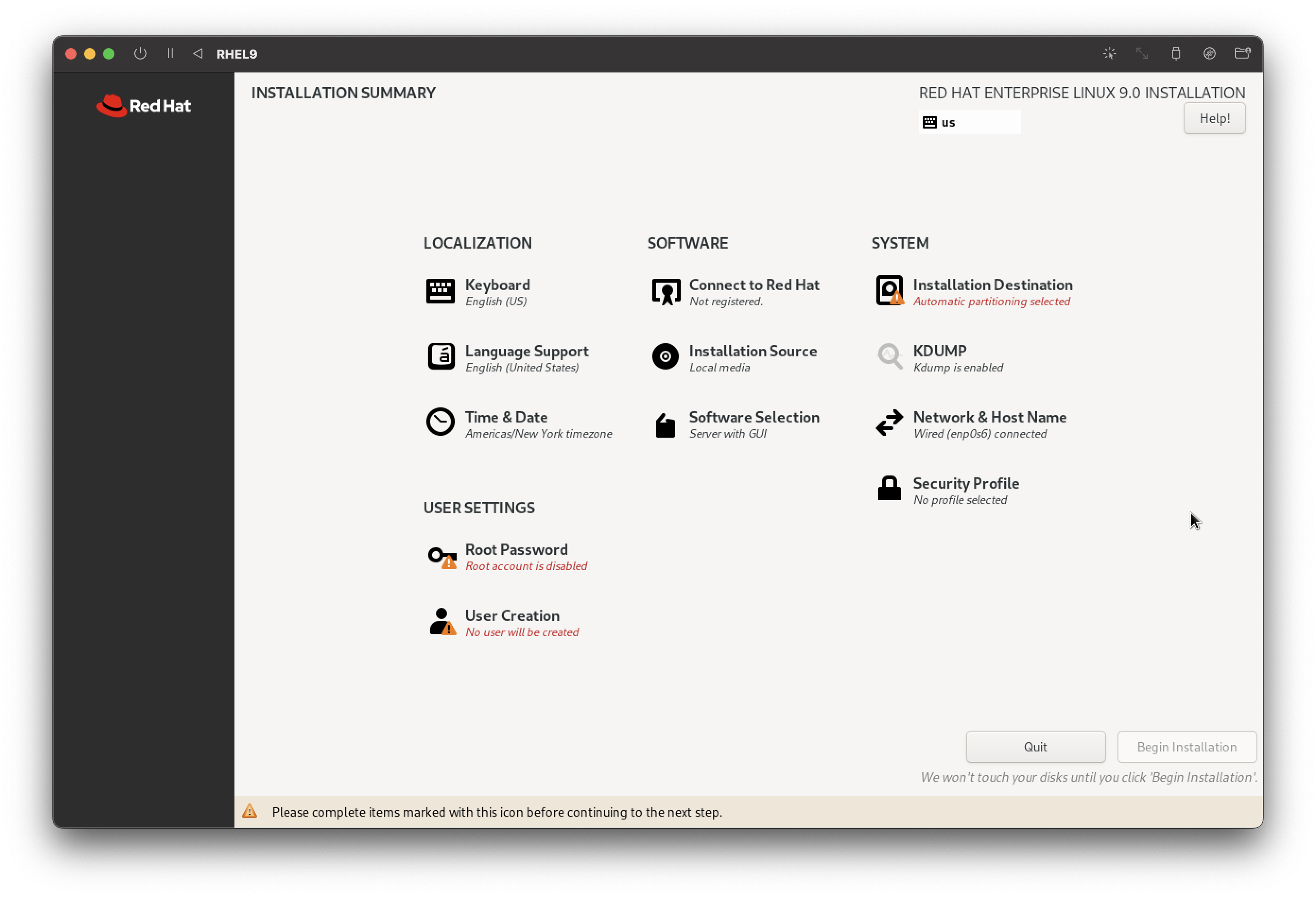
<p>시작 창에서 언어와 위치를 선택하고 <strong>Installation Summary</strong>으로 이동한다.</p>

<table>
  <thead>
    <tr>
      <th style="text-align: center"> </th>
      <th style="text-align: center"> </th>
    </tr>
  </thead>
  <tbody>
    <tr>
      <td style="text-align: center"><img width="603" alt="daf" src="/assets/images/posts/Linux/7_4.png" onclick="window.open(this.src)" /></td>
      <td style="text-align: center"><img width="603" alt="daf" src="/assets/images/posts/Linux/7_5.png" onclick="window.open(this.src)" /></td>
    </tr>
  </tbody>
</table>

<h4 id="42-현지화-옵션-구성">4.2 현지화 옵션 구성</h4>

<ol>
  <li>
    <p><strong>Localization &gt; Keyboard</strong></p>

    <p>다른 언어의 키보드 레이아웃을 추가할 수 있는데, 설치 후에 한글을 별도 추가할 예정이므로 건너뛴다.</p>
  </li>
  <li>
    <p><strong>Localization &gt; Language Support</strong></p>

    <p>시스템 지원 언어팩을 추가 할 수 있다. 한글 언어팩이 필요하면 검색창에 <code class="language-plaintext highlighter-rouge">korean</code> 검색 후 한국어를 추가하면 된다.</p>
  </li>
  <li>
    <p><strong>Localization &gt; Time &amp; Date</strong></p>

    <p>지역을 선택하여 타임존을 선택할 수 있다. NTP를 활성화하면 네트워크를 통해 시간이 자동 설정된다.</p>
  </li>
</ol>

<h4 id="43-시스템-옵션-구성">4.3. 시스템 옵션 구성</h4>

<ol>
  <li>
    <p><strong>System &gt; Installation Destination</strong></p>

    <p><strong>로컬 표준 디스크</strong> 창에서 설치 대상 디스크 선택<br />
 수동 파티션 설정 (WIP)</p>
  </li>
  <li>
    <p><strong>System &gt; KDUMP</strong> (커널 크래시 덤프)</p>

    <p>시스템 오류가 발생했을 때 시스템 메모리의 콘텐츠를 캡처하고, 시스템 오류 원인을 찾기 위해 분석할 수 있다.<br />
 Enable, Auto 선택.</p>
  </li>
  <li>
    <p><strong>System &gt; Network &amp; Host Name</strong> (네트워크 및 호스트 이름 옵션 구성)</p>

    <p>이더넷 혹은 와이파이를 활성화하여 인터넷에 연결한다.</p>
  </li>
</ol>

<h4 id="44-소프트웨어-옵션-구성">4.4. 소프트웨어 옵션 구성</h4>

<ol>
  <li>
    <p><strong>Software &gt; Connect to Red Hat</strong></p>

    <p>설치 중에 시스템을 레드햇에 등록하는 옵션인데, 설치 완료 후에 등록 예정이므로 건너뛴다.</p>
  </li>
  <li>
    <p><strong>Software &gt; Installation Source</strong></p>

    <p>설치에 필요한 파일 위치를 지정하는데, Binary DVD는 필요한 파일을 모두 포함하고 있으므로 인터넷에 연결할 필요도 없고, 다른 레포지토리를 추가할 필요도 없다.</p>
  </li>
  <li>
    <p><strong>Software &gt; Software Selection</strong></p>

    <p>환경 유형과 추가 소프트웨어를 설정 할 수 있다.<br />
 <strong>Base Environment</strong>에서 <code class="language-plaintext highlighter-rouge">Server with GUI</code> 선택.<br />
 <strong>Additional software</strong>에서 필요한 소프트웨어 그룹을 선택. 설치 완료 후에도 추가 할 수 있다.</p>
  </li>
</ol>

<h4 id="45-사용자-설정">4.5 사용자 설정</h4>

<ol>
  <li>
    <p><strong>User Settings &gt; Root Password</strong></p>

    <p><code class="language-plaintext highlighter-rouge">root</code> 계정에 사용할 암호 입력.<br />
 <code class="language-plaintext highlighter-rouge">"Allow root SSH login with password"</code> 활성화.</p>
  </li>
  <li>
    <p><strong>User Settings &gt; User Creation</strong></p>

    <p><code class="language-plaintext highlighter-rouge">root</code> 계정 외에 메인으로 사용할 유저 생성을 추천한다.</p>

    <ul>
      <li>
        <p>생성할 계정의 <code class="language-plaintext highlighter-rouge">username</code>을 입력. <code class="language-plaintext highlighter-rouge">Full name</code>은 입력하지 않아도 된다.</p>
      </li>
      <li>
        <p><strong>Make this user administrator</strong> 및 <strong>Require a password to use this account</strong> 확인란 선택.</p>
      </li>
    </ul>
  </li>
</ol>

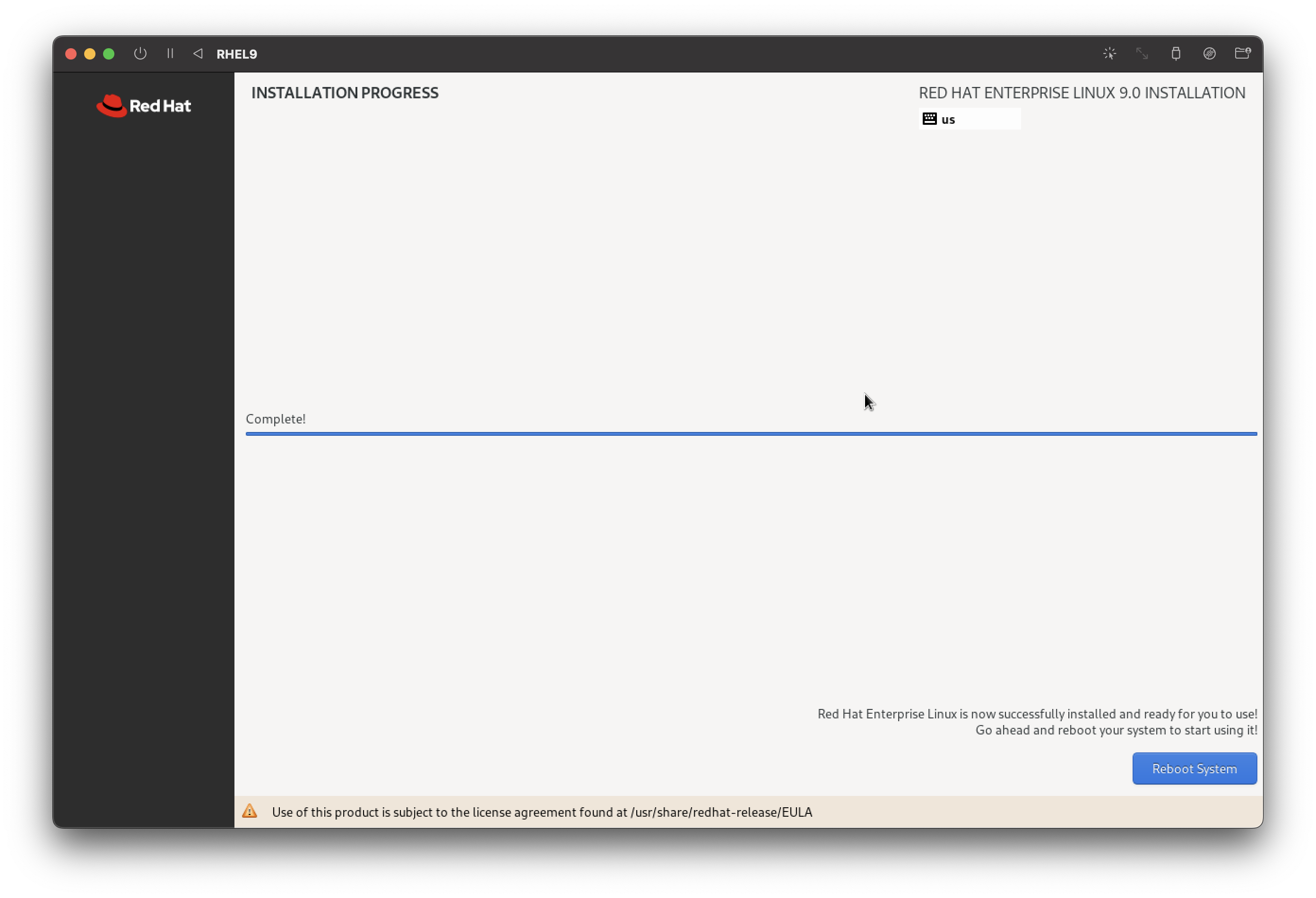
<h4 id="46-설치-마무리">4.6 설치 마무리</h4>

<table>
  <thead>
    <tr>
      <th style="text-align: center"> </th>
    </tr>
  </thead>
  <tbody>
    <tr>
      <td style="text-align: center"><img width="603" alt="daf" src="/assets/images/posts/Linux/7_17.png" onclick="window.open(this.src)" /></td>
    </tr>
  </tbody>
</table>

<ol>
  <li>
    <p><strong>[Begin Installation]</strong> &gt; <strong>[Reboot]</strong></p>
  </li>
  <li>
    <p><strong>Initial Setup</strong> 창에서 라이센스 계약에 동의하고 시스템을 등록.</p>
  </li>
</ol>

<h3 id="5-post-installation-rhel-시스템-등록">5. Post-installation: RHEL 시스템 등록</h3>

<p>RHEL를 등록해야 레드햇 레포지토리 사용 등 정상적인 사용이 가능하다.<br />
RHEL 설치 중에 등록하지 않았거나, 등록 정보를 변경할 때 이 방법으로 등록할 수 있다.</p>

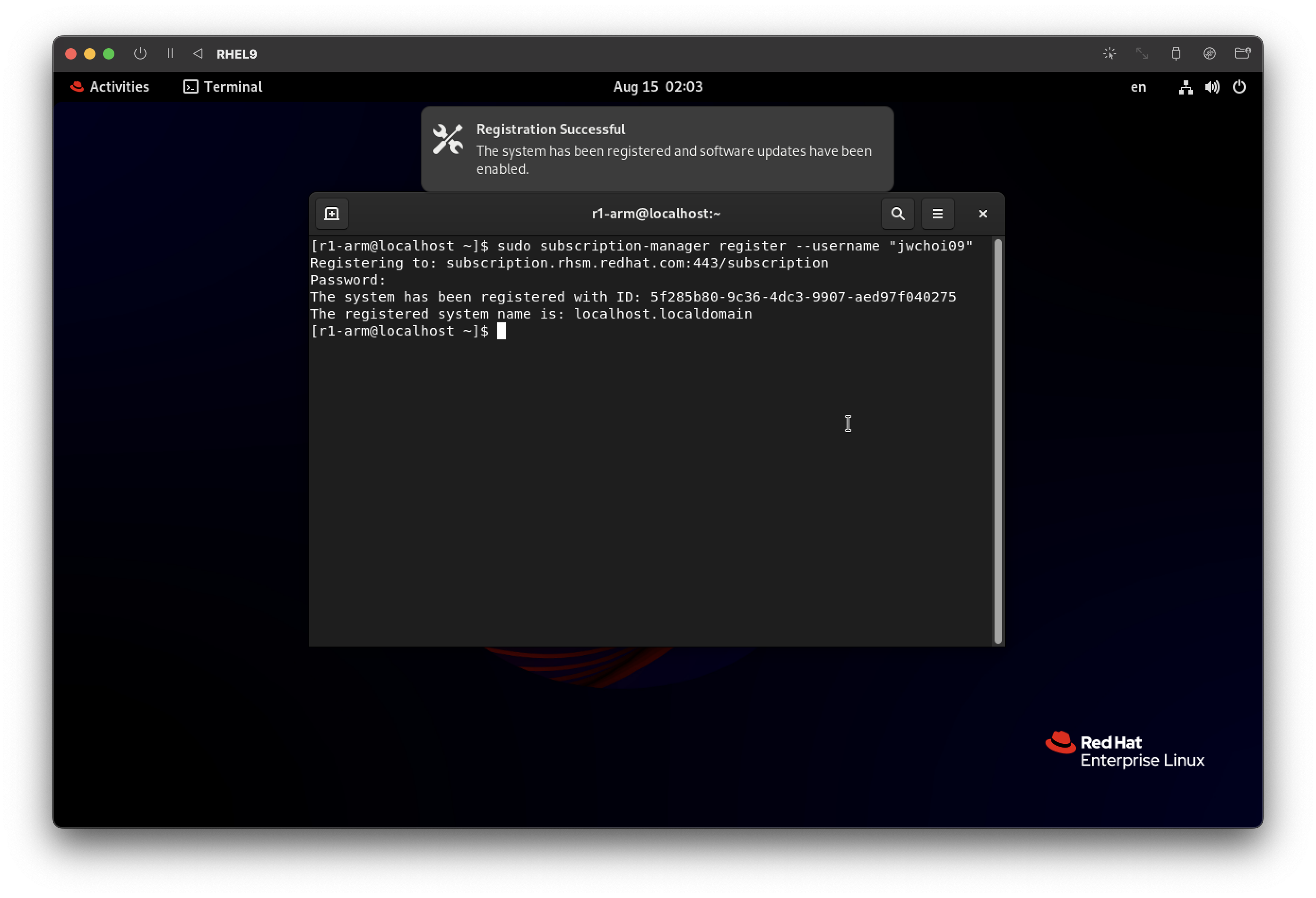
<h4 id="51-터미널에-레드햇-포털-사용자-이름과-암호를-사용하여-rhel-등록">5.1. 터미널에 레드햇 포털 사용자 이름과 암호를 사용하여 RHEL 등록</h4>

<table>
  <thead>
    <tr>
      <th style="text-align: center"> </th>
    </tr>
  </thead>
  <tbody>
    <tr>
      <td style="text-align: center"><img width="603" alt="daf" src="/assets/images/posts/Linux/7_23.png" onclick="window.open(this.src)" /></td>
    </tr>
  </tbody>
</table>

<div class="language-bash highlighter-rouge"><div class="highlight"><pre class="highlight"><code><span class="nb">sudo </span>subscription-manager register <span class="nt">--username</span> <span class="s2">"username"</span>
</code></pre></div></div>

<blockquote>
  <p>비밀번호도 <code class="language-plaintext highlighter-rouge">--password</code>로 입력할 수 있지만, 그렇게 할 경우 명령어 히스토리에 비밀번호가 남기 때문에 위 방법으로 유출 위험성을 최소화할 수 있다.</p>
</blockquote>

<p>시스템이 성공적으로 등록되면 다음과 유사한 출력이 표시된다:</p>

<div class="language-bash highlighter-rouge"><div class="highlight"><pre class="highlight"><code><span class="c"># The system has been registered with ID: 123456abcdef</span>
<span class="c"># The registered system name is: localhost.localdomain</span>
</code></pre></div></div>

<h4 id="52-시스템-역할-서비스-수준-계약sla-용도-설정">5.2 시스템 역할, 서비스 수준 계약(SLA), 용도 설정</h4>

<table>
  <thead>
    <tr>
      <th style="text-align: center"> </th>
      <th style="text-align: center"> </th>
      <th style="text-align: center"> </th>
    </tr>
  </thead>
  <tbody>
    <tr>
      <td style="text-align: center"><img width="452" alt="daf" src="/assets/images/posts/Linux/7_24.png" onclick="window.open(this.src)" /></td>
      <td style="text-align: center"><img width="452" alt="daf" src="/assets/images/posts/Linux/7_25.png" onclick="window.open(this.src)" /></td>
      <td style="text-align: center"><img width="452" alt="daf" src="/assets/images/posts/Linux/7_26.png" onclick="window.open(this.src)" /></td>
    </tr>
  </tbody>
</table>

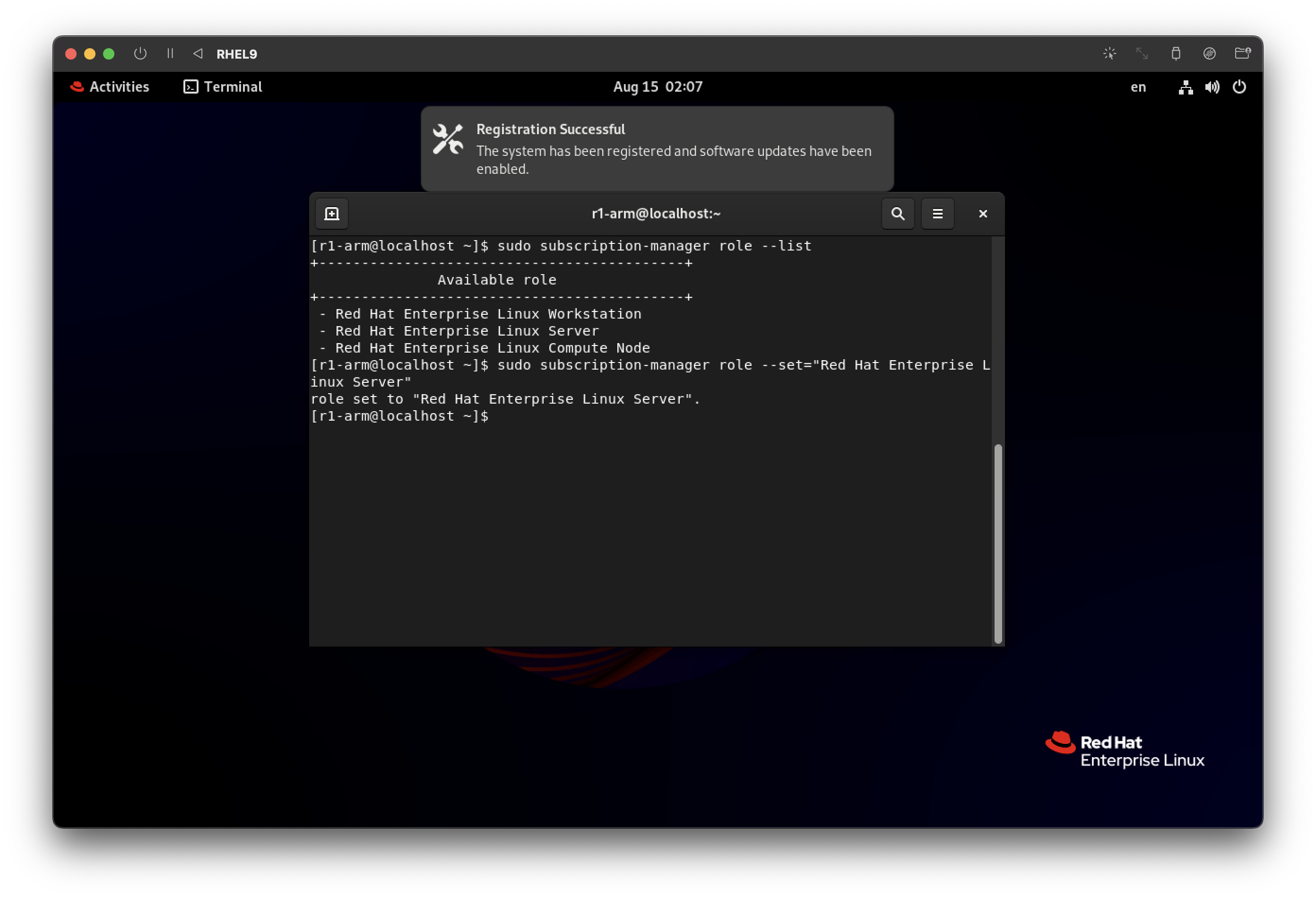
<h5 id="521-시스템-역할-설정">5.2.1 시스템 역할 설정</h5>

<div class="language-bash highlighter-rouge"><div class="highlight"><pre class="highlight"><code>subscription-manager syspurpose role <span class="nt">--list</span>
subscription-manager syspurpose role <span class="nt">--set</span><span class="o">=</span><span class="s2">"Red Hat Enterprise Linux Server"</span>
</code></pre></div></div>

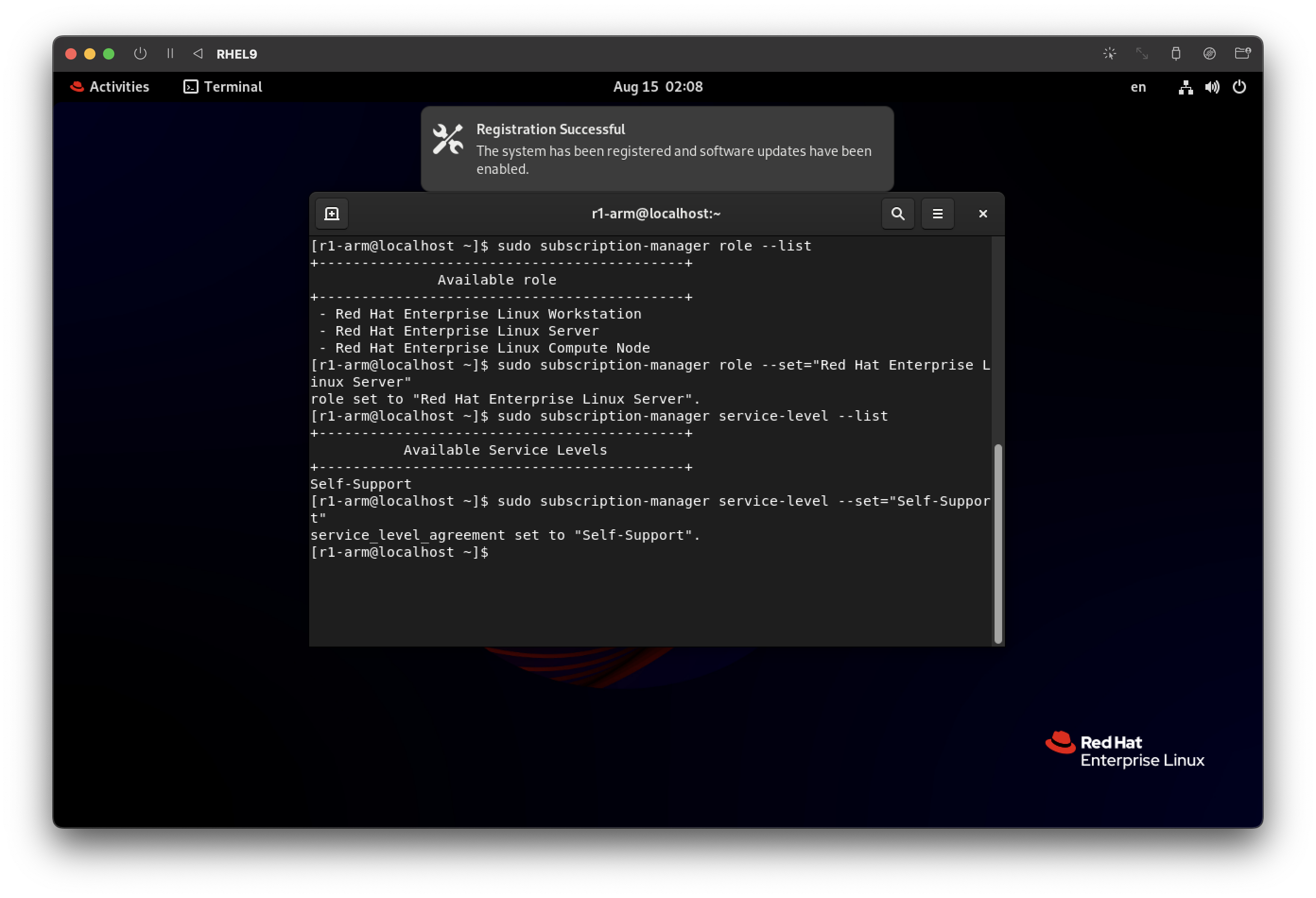
<h5 id="522-시스템의-서비스-수준-계약sla-설정">5.2.2 시스템의 서비스 수준 계약(SLA) 설정</h5>

<div class="language-bash highlighter-rouge"><div class="highlight"><pre class="highlight"><code>subscription-manager syspurpose service-level <span class="nt">--list</span>
subscription-manager syspurpose service-level <span class="nt">--set</span><span class="o">=</span><span class="s2">"Self-Support"</span>
</code></pre></div></div>

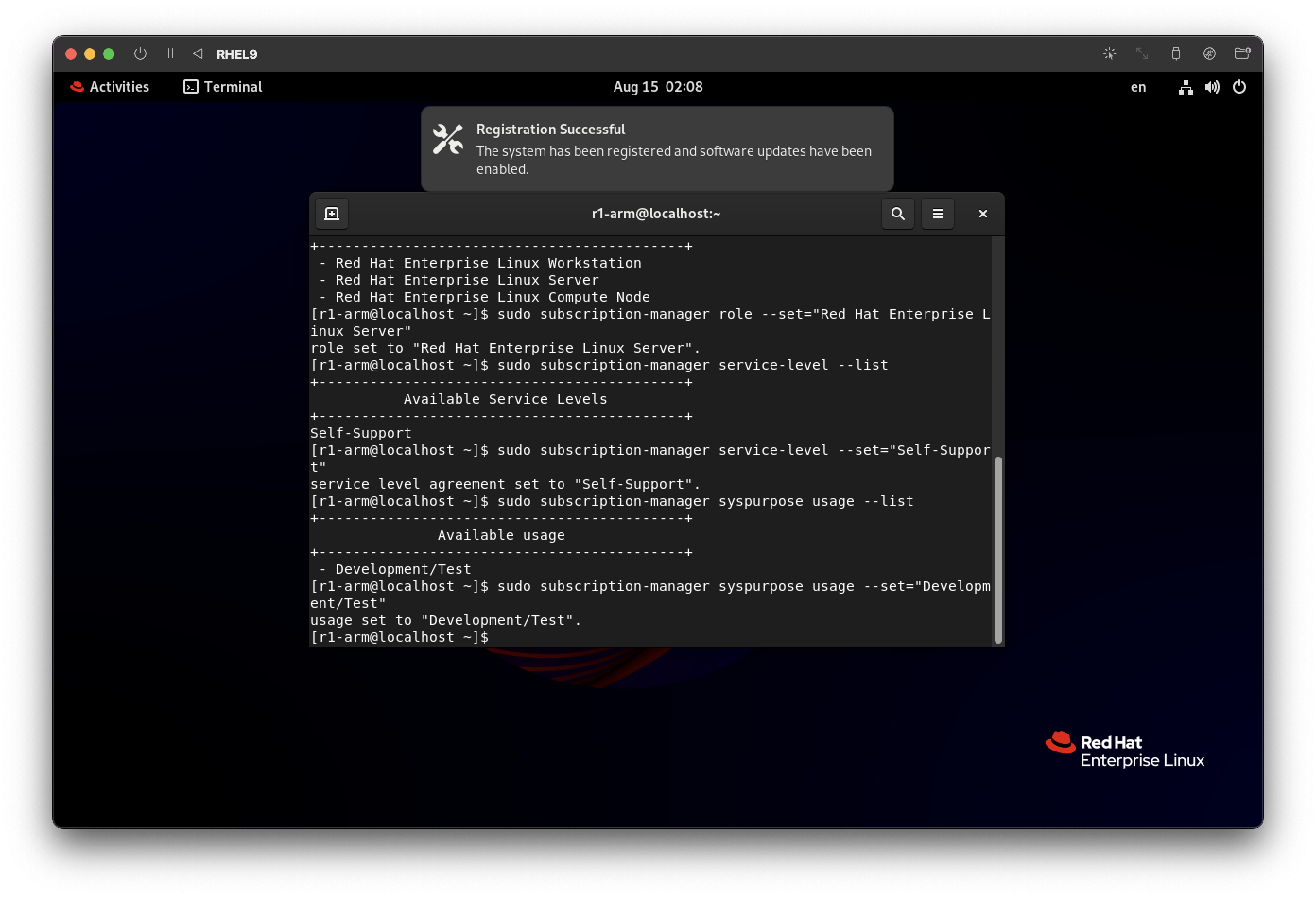
<h5 id="523-시스템의-용도-설정">5.2.3 시스템의 용도 설정</h5>

<div class="language-bash highlighter-rouge"><div class="highlight"><pre class="highlight"><code>subscription-manager syspurpose usage <span class="nt">--list</span>
subscription-manager syspurpose usage <span class="nt">--set</span><span class="o">=</span><span class="s2">"Production"</span>
</code></pre></div></div>

<h4 id="53-호스트-시스템-아키텍처와-일치하는-인타이틀먼트에-시스템-연결">5.3 호스트 시스템 아키텍처와 일치하는 인타이틀먼트에 시스템 연결</h4>

<div class="language-bash highlighter-rouge"><div class="highlight"><pre class="highlight"><code>subscription-manager attach <span class="nt">--auto</span>
</code></pre></div></div>

<p>서브스크립션이 성공적으로 연결되면 다음과 유사한 출력이 표시된다:</p>

<div class="language-bash highlighter-rouge"><div class="highlight"><pre class="highlight"><code>Installed Product Current Status:
Product Name: Red Hat Enterprise Linux <span class="k">for </span>x86_64
Status: Subscribed
</code></pre></div></div>

<h3 id="6-선택-듀얼부팅-사용자-대상-grub-2-부트-로더-구성">6. (선택: 듀얼부팅 사용자 대상) Grub 2 부트 로더 구성</h3>

<p>이 항목은 선택항목이며, 듀얼 부팅 사용자 중 기본 부트 항목을 윈도우(또는 다른 커널)로 설정하고 싶은 사용자를 대상으로 진행한다.</p>

<h4 id="61-기본-부트-항목-변경">6.1. 기본 부트 항목 변경</h4>

<blockquote>
  <p><code class="language-plaintext highlighter-rouge">grubby</code>로 부트로더 구성 설정을 할 수 있다. 기본 부트 항목을 변경, Grub 2 메뉴 항목에서 조건 추가/제거 등 가능하다.</p>
</blockquote>

<p>다음 명령어로 기본 부트 항목을 변경할 수 있다.</p>

<div class="language-bash highlighter-rouge"><div class="highlight"><pre class="highlight"><code>grubby <span class="nt">--set-default</span><span class="o">=</span>kernel-path
grubby <span class="nt">--set-default-index</span><span class="o">=</span>entry-index
grub2-set-default entry-index
</code></pre></div></div>

<p>하지만, 먄약 <code class="language-plaintext highlighter-rouge">entry-index</code>로 기본 부트 항목을 지정할 경우, 새로운 커널 설치 시 인덱싱 순서도 바뀌므로 기본 부트 항목도 따라 바뀐다. 예를 들어, <code class="language-plaintext highlighter-rouge">grub2-set-default 0</code>으로 기본 부트 항목을 인덱스 0으로 지정한 상태에서, 새로운 커널을 설치하면 해당 커널이 인덱스 0이 되므로 기본 부트 항목은 새로 설치된 커널로 적용된다. (새로운 커널=기본 부트)</p>

<p>레드햇<sup id="fnref:3" role="doc-noteref"><a href="#fn:3" class="footnote" rel="footnote">3</a></sup>과 페도라<sup id="fnref:4" role="doc-noteref"><a href="#fn:4" class="footnote" rel="footnote">4</a></sup> 공식 문서에 따르면:</p>

<div class="language-text highlighter-rouge"><div class="highlight"><pre class="highlight"><code>"Note that the position of a menu entry in the list is denoted by a number starting with zero; therefore, in the example above, the third entry will be loaded. This value will be overwritten by the name of the next kernel to be installed.

To force a system to always use a particular menu entry, use the menu entry name as the key to the GRUB_DEFAULT directive in the /etc/default/grub file."
</code></pre></div></div>

<p>요약하자면, 항목 인덱스로 부트 항목을 지정하면 새로운 커널이 설치될 때마다 기본 항목이 덮어 쓰이므로, 이를 방지하기 위해 항목 명으로 기본 부트 항목을 지정하면 된다는 말이다.</p>

<p>듀얼 부팅 상황에서 기본 부트 항목이 항상 윈도우를 선택하도록 <code class="language-plaintext highlighter-rouge">root</code>계정으로 다음과 같이 진행한다.</p>

<ol>
  <li>
    <p>List available menu entries:</p>

    <div class="language-bash highlighter-rouge"><div class="highlight"><pre class="highlight"><code> <span class="nb">awk</span> <span class="nt">-F</span><span class="se">\'</span> <span class="s1">'$1=="menuentry " {print $2}'</span> /etc/grub2.cfg
</code></pre></div>    </div>
  </li>
  <li>
    <p>Copy the desired (Windows) entry</p>

    <p>예를 들어: <code class="language-plaintext highlighter-rouge">"Windows Boot Manager (on /dev/nvme0n1p1)"</code></p>
  </li>
  <li>
    <p>Set the default entry menu</p>

    <div class="language-bash highlighter-rouge"><div class="highlight"><pre class="highlight"><code> grub2-set-default <span class="s2">"Windows Boot Manager (on /dev/nvme0n1p1)"</span>
</code></pre></div>    </div>
  </li>
  <li>
    <p>Rebuild <code class="language-plaintext highlighter-rouge">grub.cfg</code></p>

    <p><code class="language-plaintext highlighter-rouge">/etc/grub2.cfg</code>는 <code class="language-plaintext highlighter-rouge">grub.cfg</code>의 심링크이며, 안정성을 위해 심링크를 사용하지 않고, <code class="language-plaintext highlighter-rouge">grub.cfg</code>의 절대경로에 직접적으로 적용한다.</p>

    <div class="language-bash highlighter-rouge"><div class="highlight"><pre class="highlight"><code> grub2-mkconfig <span class="nt">-o</span> /boot/grub2/grub.cfg
</code></pre></div>    </div>

    <blockquote>
      <p>Fedora 34 또는 RHEL 9 부터는 <code class="language-plaintext highlighter-rouge">grub2-mkconfig -o /boot/efi/EFI/fedora/grub.cfg</code>을 사용하면 안된다.<sup id="fnref:5" role="doc-noteref"><a href="#fn:5" class="footnote" rel="footnote">5</a></sup></p>
    </blockquote>
  </li>
  <li>
    <p>Reboot and confirm</p>

    <p>시스템 재시작을 통해 잘 적용됐는지 확인한다.</p>

    <div class="language-bash highlighter-rouge"><div class="highlight"><pre class="highlight"><code> systemctl reboot
 <span class="nb">sudo </span>grubby <span class="nt">--info</span> DEFAULT
</code></pre></div>    </div>
  </li>
</ol>

<h2 id="references">References</h2>

<ul>
  <li><a href="https://post.naver.com/viewer/postView.naver?memberNo=36733075&amp;volumeNo=33860490">https://post.naver.com/viewer/postView.naver?memberNo=36733075&amp;volumeNo=33860490</a></li>
</ul>

<div class="footnotes" role="doc-endnotes">
  <ol>
    <li id="fn:1" role="doc-endnote">
      <p><a href="https://developers.redhat.com/articles/faqs-no-cost-red-hat-enterprise-linux">“No-cost Red Hat Enterprise Linux Individual Developer Subscription”, Red Hat</a> <a href="#fnref:1" class="reversefootnote" role="doc-backlink">&#8617;</a></p>
    </li>
    <li id="fn:2" role="doc-endnote">
      <p><a href="https://www.pcworld.com/article/422826/dual-booting-linux-with-windows-what-you-need-to-know.html">“Dual-booting Linux with Windows: What you need to know”, PCWorld</a> <a href="#fnref:2" class="reversefootnote" role="doc-backlink">&#8617;</a></p>
    </li>
    <li id="fn:3" role="doc-endnote">
      <p><a href="https://access.redhat.com/documentation/en-us/red_hat_enterprise_linux/7/html/system_administrators_guide/ch-working_with_the_grub_2_boot_loader#sec-Changing_the_Default_Boot_Entry">“RHEL 7 System Administrator’s Guide - Changing the Default Boot Entry”, Red Hat</a> <a href="#fnref:3" class="reversefootnote" role="doc-backlink">&#8617;</a></p>
    </li>
    <li id="fn:4" role="doc-endnote">
      <p><a href="https://docs.fedoraproject.org/en-US/fedora/latest/system-administrators-guide/kernel-module-driver-configuration/Working_with_the_GRUB_2_Boot_Loader/#sec-Changing_the_Default_Boot_Entry">“Fedora System Administrator’s Guide - Changing the Default Boot Entry”, Fedora Project</a> <a href="#fnref:4" class="reversefootnote" role="doc-backlink">&#8617;</a></p>
    </li>
    <li id="fn:5" role="doc-endnote">
      <p><a href="https://fedoraproject.org/wiki/GRUB_2#Updating_the_GRUB_configuration_file">“GRUB 2 - Updating the GRUB configuration file”, Fedora Project</a> <a href="#fnref:5" class="reversefootnote" role="doc-backlink">&#8617;</a></p>
    </li>
  </ol>
</div>]]></content><author><name>W. Choi</name></author><category term="Tech" /><category term="Guides" /><category term="linux" /><category term="rhel" /><category term="setup" /><summary type="html"><![CDATA[최초 작성일: 2022년 06월 07일 최근 수정일: 2022년 08월 13일]]></summary></entry><entry><title type="html">[RHEL 9] 초기 환경 설정</title><link href="https://blog.sciode.com/tech/guides/8/" rel="alternate" type="text/html" title="[RHEL 9] 초기 환경 설정" /><published>2022-06-07T00:00:00+09:00</published><updated>2022-06-07T00:00:00+09:00</updated><id>https://blog.sciode.com/tech/guides/8</id><content type="html" xml:base="https://blog.sciode.com/tech/guides/8/"><![CDATA[<p><em>최초 작성일: 2022년 06월 07일</em><br />
<em>최근 수정일: 2022년 08월 14일</em></p>

<h2 id="요약">요약</h2>

<p>RHEL 9.0 클린 설치 이후 권장된 초기 환경 설정을 적용합니다.</p>

<h2 id="설명">설명</h2>

<p>보안 설정, 네트워크, 브라우저 등 기본 설정을 하여 보안 강화, 성능 향상을 통해 사용자에게 최적화된 사용 환경을 제공합니다.</p>

<h2 id="솔루션">솔루션</h2>

<p><em>RHEL 9.0 설치 후 작성하였습니다.</em></p>

<h3 id="1-보안-설정">1. 보안 설정</h3>

<p>RHEL 설치한 직후 수행해야 하는 보안 관련 절차이다.</p>

<h4 id="11-rhel-업데이트-시스템-최신-상태-유지">1.1. RHEL 업데이트: 시스템 최신 상태 유지</h4>

<p>새로운 기능 추가, 성능 향상, 커널 취약점 공격 예방 등 최적의 환경을 위하여 주기적으로 업데이트를 확인하여 RHEL을 최신화한다.</p>

<div class="language-bash highlighter-rouge"><div class="highlight"><pre class="highlight"><code><span class="nb">sudo </span>dnf update
</code></pre></div></div>

<h4 id="12-잠금">1.2. 잠금</h4>

<p>사용자가 일정 시간 동안 작업을 수행하지 않을 경우, 자동 화면 잠금을 설정해야 한다.</p>

<h5 id="121-디스플레이-끄기">1.2.1. 디스플레이 끄기</h5>

<div class="language-text highlighter-rouge"><div class="highlight"><pre class="highlight"><code>System Settings &gt; Privacy &gt; Screen Lock &gt; Blank Screen Delay &gt; 15 minutes
</code></pre></div></div>

<h5 id="122-자동-잠금">1.2.2. 자동 잠금</h5>

<div class="language-text highlighter-rouge"><div class="highlight"><pre class="highlight"><code>System Settings &gt; Privacy &gt; Screen Lock &gt; Automatic Screen Lock Delay &gt; Screen Turns Off
</code></pre></div></div>

<h4 id="13-방화벽-활성화">1.3. 방화벽 활성화</h4>

<p>방화벽 서비스 <code class="language-plaintext highlighter-rouge">firewalld</code>는 RHEL 설치를 통해 자동으로 활성화되지만, 비활성화돼 있다면 다시 활성화하는 것이 권장된다.</p>

<div class="language-bash highlighter-rouge"><div class="highlight"><pre class="highlight"><code><span class="nb">sudo </span>systemctl start firewalld
<span class="nb">sudo </span>systemctl <span class="nb">enable </span>firewalld
</code></pre></div></div>

<h4 id="14-selinux-사용">1.4. SELinux 사용</h4>

<p>공식 문서 참조<sup id="fnref:1" role="doc-noteref"><a href="#fn:1" class="footnote" rel="footnote">1</a></sup></p>

<h5 id="141-selinux-상태-및-정책-확인">1.4.1. SELinux 상태 및 정책 확인</h5>

<div class="language-bash highlighter-rouge"><div class="highlight"><pre class="highlight"><code>sestatus
</code></pre></div></div>

<h5 id="142-selinux-enforcing모드로-변경">1.4.2. SELinux <code class="language-plaintext highlighter-rouge">enforcing</code>모드로 변경</h5>

<ol>
  <li>
    <p>SELinux 설정 파일 열기</p>

    <div class="language-bash highlighter-rouge"><div class="highlight"><pre class="highlight"><code> <span class="nb">sudo </span>nano /etc/selinux/config
</code></pre></div>    </div>
  </li>
  <li>
    <p><code class="language-plaintext highlighter-rouge">SELINUX=enforcing</code> 옵션 구성</p>

    <div class="language-bash highlighter-rouge"><div class="highlight"><pre class="highlight"><code> <span class="c"># This file controls the state of SELinux on the system.</span>
 <span class="c"># SELINUX= can take one of these three values:</span>
 <span class="c">#       enforcing - SELinux security policy is enforced.</span>
 <span class="c">#       permissive - SELinux prints warnings instead of enforcing.</span>
 <span class="c">#       disabled - No SELinux policy is loaded.</span>
 <span class="nv">SELINUX</span><span class="o">=</span>enforcing
 <span class="c"># SELINUXTYPE= can take one of these two values:</span>
 <span class="c">#       targeted - Targeted processes are protected,</span>
 <span class="c">#       mls - Multi Level Security protection.</span>
 <span class="nv">SELINUXTYPE</span><span class="o">=</span>targeted
</code></pre></div>    </div>
  </li>
  <li>
    <p>변경 사항 저장 및 다시 시작</p>

    <div class="language-bash highlighter-rouge"><div class="highlight"><pre class="highlight"><code> reboot
</code></pre></div>    </div>
  </li>
  <li>
    <p>변경 사항 검증</p>

    <div class="language-bash highlighter-rouge"><div class="highlight"><pre class="highlight"><code> getenforce
</code></pre></div>    </div>
  </li>
</ol>

<h3 id="2-네트워크">2. 네트워크</h3>

<h4 id="21-dns-구성">2.1. DNS 구성</h4>

<p>굳이 설정을 변경하지 않더라도 인터넷을 사용하는 데는 큰 지장은 없을 것이다. 하지만, DNS 설정 변경으로 검열, 로깅, 프라이버시 보호와 동시에 인터넷 속도도 개선 시킬 수 있으니 강력히 권장된다.</p>

<h5 id="211-권장-dns-서비스-목록">2.1.1. 권장 DNS 서비스 목록</h5>

<table>
  <thead>
    <tr>
      <th style="text-align: center"> </th>
      <th style="text-align: center">IPv4</th>
      <th style="text-align: center"> </th>
    </tr>
  </thead>
  <tbody>
    <tr>
      <td style="text-align: center">Cloudflare</td>
      <td style="text-align: center">1.1.1.1<br />1.0.0.1</td>
      <td style="text-align: center"><a href="https://developers.cloudflare.com/1.1.1.1/setup-1.1.1.1/macos/">(추천)</a></td>
    </tr>
    <tr>
      <td style="text-align: center">Google</td>
      <td style="text-align: center">8.8.8.8<br />8.8.4.4</td>
      <td style="text-align: center"> </td>
    </tr>
    <tr>
      <td style="text-align: center">OpenDNS</td>
      <td style="text-align: center">208.67.222.222<br />208.67.220.220</td>
      <td style="text-align: center"> </td>
    </tr>
  </tbody>
</table>

<h5 id="212-설정-방법">2.1.2. 설정 방법</h5>

<p>각 서비스당 두 개의 DNS 주소가 있는데, 메인과 보조 주소 개념이다. 둘 다 기재해야 한다.</p>

<h5 id="2121-연결-이름-확인">2.1.2.1. 연결 이름 확인</h5>

<p>장치 및 연결 상태를 표시하고 CONNECTION 이름을 확인한다.</p>

<div class="language-bash highlighter-rouge"><div class="highlight"><pre class="highlight"><code>nmcli device status

<span class="c"># e.g.,</span>
DEVICE      TYPE      STATE      CONNECTION
enp0s6      ethernet  connected  Example-Connection
</code></pre></div></div>

<blockquote>
  <p>아래 네트워크 구성 예시에서 연결 이름으로 <code class="language-plaintext highlighter-rouge">"Example-Connection"</code>을 사용한다. 본인의 연결 명으로 대체하면 된다.</p>
</blockquote>

<h5 id="2122-ipv4--ipv6-dns-구성">2.1.2.2. IPv4 &amp; IPv6 DNS 구성</h5>

<div class="language-bash highlighter-rouge"><div class="highlight"><pre class="highlight"><code>nmcli connection modify Example-Connection ipv4.dns <span class="s2">"1.1.1.1 1.0.0.1"</span>
nmcli connection modify Example-Connection ipv6.dns <span class="s2">"2606:4700:4700::1111 2606:4700:4700::1001"</span>
</code></pre></div></div>

<h5 id="2123-dhcp-자동-dns-비활성화--연결-활성화">2.1.2.3. DHCP 자동 DNS 비활성화 &amp; 연결 활성화</h5>

<p>DHCP 서버에서 자동으로 송신된 DNS를 무시하고 위에서 수동 설정한 DNS 서버를 연결하기 위해 자동 DNS를 비활성화한다. 그다음, 새로운 네트워크 설정을 적용하기 위해 연결을 다시 활성화한다.</p>

<div class="language-bash highlighter-rouge"><div class="highlight"><pre class="highlight"><code>nmcli connection modify Example-Connection ipv4.ignore-auto-dns <span class="nb">yes </span>ipv6.ignore-auto-dns <span class="nb">yes
</span>nmcli connection up Example-Connection
</code></pre></div></div>

<blockquote>
  <p>저장 후 <a href="https://1.1.1.1/help">https://1.1.1.1/help</a>에서 확인 가능</p>
</blockquote>

<h3 id="3-브라우저">3. 브라우저</h3>

<h4 id="31-firefox">3.1. Firefox</h4>

<p>Firefox를 기본 브라우저로 사용할 계획이 없으면, 삭제해도 무방하다.</p>

<h3 id="4-선택-사용자-선택-사항">4. (선택: 사용자 선택 사항)</h3>

<p>아래 항목은 주관적인 설정으로 선택 사항이다.</p>

<h4 id="41-기본-프로그램">4.1. 기본 프로그램</h4>

<h4 id="42-최근-항목">4.2. 최근 항목</h4>

<h4 id="43-디스플레이-해상도-변경">4.3. 디스플레이 해상도 변경</h4>

<h4 id="44-시스템-언어">4.4. 시스템 언어</h4>

<p>필자는 기본값인 영어를 사용한다. 혹시 시스템 언어를 다른 언어로 변경해야 한다면 아래와 같이 설정할 수 있다.</p>

<div class="language-text highlighter-rouge"><div class="highlight"><pre class="highlight"><code>System Settings &gt; Region &amp; Language &gt; Language &gt; Select &gt; Done &gt; Restart
</code></pre></div></div>

<h4 id="45-한국어-입력-및-키보드-레이아웃-설정">4.5. 한국어 입력 및 키보드 레이아웃 설정</h4>

<p>한국어 입력을 위해 한국어 IME를 설치, 적용, 입력 언어 전환 설정한다.<sup id="fnref:2" role="doc-noteref"><a href="#fn:2" class="footnote" rel="footnote">2</a></sup></p>

<h5 id="451-한국어-ime-설치">4.5.1. 한국어 IME 설치</h5>

<div class="language-bash highlighter-rouge"><div class="highlight"><pre class="highlight"><code><span class="nb">sudo </span>dnf <span class="nb">install </span>ibus-hangul
</code></pre></div></div>

<h5 id="452-한국어-ime-추가">4.5.2. 한국어 IME 추가</h5>

<div class="language-text highlighter-rouge"><div class="highlight"><pre class="highlight"><code>System Settings &gt; Keyboard &gt; Input Sources &gt; [+] &gt; "Korean (Hangul)" &gt; Add
</code></pre></div></div>

<h5 id="453-입력-방법-전환-설정">4.5.3. 입력 방법 전환 설정</h5>

<div class="language-text highlighter-rouge"><div class="highlight"><pre class="highlight"><code>System Settings &gt; Keyboard &gt; Input Sources &gt; "Korean (Hangul)" &gt; Preferences &gt; Hangul Toggle Key &gt; Add &gt; Apply
System Settings &gt; Keyboard &gt; Keyboard Shortcuts &gt; Customize Shortcuts &gt; Typying &gt; Switch to next input source &gt; \&lt;your preferred keys&gt; (Ctrl + Space)
</code></pre></div></div>

<h3 id="5-선택-nvidia-사용자-대상-nvidia-드라이버-설치-및-설정">5. (선택: NVIDIA 사용자 대상) NVIDIA 드라이버 설치 및 설정</h3>

<p>WIP</p>

<h2 id="references">References</h2>

<ul>
  <li><a href="https://access.redhat.com/documentation/en-us/red_hat_enterprise_linux/9/html/configuring_and_using_a_cups_printing_server/configuring-printing_configuring-and-using-a-cups-printing-server">https://access.redhat.com/documentation/en-us/red_hat_enterprise_linux/9/html/configuring_and_using_a_cups_printing_server/configuring-printing_configuring-and-using-a-cups-printing-server</a></li>
</ul>

<div class="footnotes" role="doc-endnotes">
  <ol>
    <li id="fn:1" role="doc-endnote">
      <p><a href="https://access.redhat.com/documentation/en-us/red_hat_enterprise_linux/9/html-single/using_selinux/index#changing-to-enforcing-mode_changing-selinux-states-and-modes">“Using SELinux - Changing to enforcing mode”, Red Hat</a> <a href="#fnref:1" class="reversefootnote" role="doc-backlink">&#8617;</a></p>
    </li>
    <li id="fn:2" role="doc-endnote">
      <p><a href="https://access.redhat.com/documentation/en-us/red_hat_enterprise_linux/8/html/using_the_desktop_environment_in_rhel_8/assembly_enabling-chinese-japanese-or-korean-text-input_using-the-desktop-environment-in-rhel-8">“Using the desktop environment in RHEL 8 - Enabling Chinese, Japanese, or Korean text input”, Red Hat</a> <a href="#fnref:2" class="reversefootnote" role="doc-backlink">&#8617;</a></p>
    </li>
  </ol>
</div>]]></content><author><name>W. Choi</name></author><category term="Tech" /><category term="Guides" /><category term="linux" /><category term="rhel" /><category term="setup" /><summary type="html"><![CDATA[최초 작성일: 2022년 06월 07일 최근 수정일: 2022년 08월 14일]]></summary></entry><entry><title type="html">[RHEL 9] 개발 환경 설정</title><link href="https://blog.sciode.com/tech/guides/9/" rel="alternate" type="text/html" title="[RHEL 9] 개발 환경 설정" /><published>2022-06-07T00:00:00+09:00</published><updated>2022-06-07T00:00:00+09:00</updated><id>https://blog.sciode.com/tech/guides/9</id><content type="html" xml:base="https://blog.sciode.com/tech/guides/9/"><![CDATA[<p><em>최초 작성일: 2022년 06월 07일</em><br />
<em>최근 수정일: 2022년 08월 15일</em></p>

<h2 id="요약">요약</h2>

<p>RHEL 9.0 초기 환경 설정 후, 개발 환경 설정을 적용합니다.</p>

<h2 id="설명">설명</h2>

<p>일관성 있는 개발 환경으로 버전 호환성 등 문제를 최소화하고 효율적으로 개발을 시작할 수 있습니다.</p>

<h2 id="솔루션">솔루션</h2>

<p><em>RHEL 9 초기 설정 후 작성하였습니다.</em></p>

<h3 id="1-패키지-관리자-flatpak">1. 패키지 관리자: Flatpak</h3>

<p><a href="https://docs.flatpak.org/en/latest/using-flatpak.html">Flatpak</a>은 리눅스용 패키지 관리자로 앱 관리(검색, 설치, 업그레이드, 제거 등)가 가능하고 앱 구축, 배포 및 설치를 위한 샌드박스 환경을 제공한다. 앞으로 리눅스에서 서드파티 프로그램을 설치할 때 몇 예외 상황을 제외하고 최우선 순위로 사용될 예정이다.</p>

<h4 id="11-설치">1.1. 설치</h4>

<div class="language-bash highlighter-rouge"><div class="highlight"><pre class="highlight"><code><span class="nb">sudo </span>dnf <span class="nb">install </span>flatpak
</code></pre></div></div>

<h5 id="111-flathub-flatpak-remote-활성화">1.1.1. <code class="language-plaintext highlighter-rouge">flathub</code> Flatpak remote 활성화</h5>

<div class="language-bash highlighter-rouge"><div class="highlight"><pre class="highlight"><code>flatpak remote-add <span class="nt">--user</span> <span class="nt">--if-not-exists</span> flathub https://flathub.org/repo/flathub.flatpakrepo
</code></pre></div></div>

<blockquote>
  <p><code class="language-plaintext highlighter-rouge">--user</code> flag is needed to install repo and packages to the user directory instead of system wide installation</p>
</blockquote>

<h4 id="12-flatpak-사용-방법">1.2. Flatpak 사용 방법</h4>

<p>아래 명령어를 터미널에서 실행:</p>

<h5 id="121-앱-업데이트">1.2.1. 앱 업데이트</h5>

<ol>
  <li>
    <p>전체</p>

    <div class="language-bash highlighter-rouge"><div class="highlight"><pre class="highlight"><code> flatpak update
</code></pre></div>    </div>
  </li>
  <li>
    <p>특정 앱</p>

    <div class="language-bash highlighter-rouge"><div class="highlight"><pre class="highlight"><code> flatpak update &lt;앱 ID&gt;
 e.g., flatpak update org.chromium.Chromium
</code></pre></div>    </div>
  </li>
</ol>

<h5 id="122-앱-검색">1.2.2. 앱 검색</h5>

<div class="language-bash highlighter-rouge"><div class="highlight"><pre class="highlight"><code>flatpak search &lt;앱 이름&gt;
e.g., flatpak search chromium
</code></pre></div></div>

<h5 id="123-앱-설치">1.2.3. 앱 설치</h5>

<div class="language-bash highlighter-rouge"><div class="highlight"><pre class="highlight"><code>flatpak <span class="nb">install</span> &lt;remote&gt; &lt;앱 ID&gt; <span class="nt">--user</span>
e.g., flatpak <span class="nb">install </span>flathub org.chromium.Chromium <span class="nt">--user</span>
</code></pre></div></div>

<h5 id="124-앱-실행">1.2.4. 앱 실행</h5>

<div class="language-bash highlighter-rouge"><div class="highlight"><pre class="highlight"><code>flatpak run &lt;앱 ID&gt;
e.g., flatpak run org.chromium.Chromium
</code></pre></div></div>

<h5 id="125-앱-제거">1.2.5. 앱 제거</h5>

<div class="language-bash highlighter-rouge"><div class="highlight"><pre class="highlight"><code>flatpak uninstall &lt;앱 ID&gt;
e.g., flatpak unisntall org.chromium.Chromium
</code></pre></div></div>

<h5 id="126-기타">1.2.6. 기타</h5>

<ul>
  <li><code class="language-plaintext highlighter-rouge">winget</code> 관련 상세 명령어는 <a href="https://docs.flatpak.org/en/latest/using-flatpak.html">공식 문서</a>를 참고하면 된다.</li>
  <li><a href="https://flathub.org/home">https://flathub.org/home</a>
에서 <code class="language-plaintext highlighter-rouge">flathub</code> 레포에서 설치 가능한 패키지를 편리하게 검색할 수 있다.</li>
</ul>

<h3 id="2">2</h3>

<h3 id="3-git">3. Git</h3>

<h4 id="31-git-설치">3.1. Git 설치</h4>

<p>RHEL 9 설치 시 “Development Tools” 그룹을 설치했으면 <code class="language-plaintext highlighter-rouge">git</code>은 이미 설치 돼 있을 것이다.</p>

<div class="language-bash highlighter-rouge"><div class="highlight"><pre class="highlight"><code><span class="nb">sudo </span>dnf <span class="nb">install </span>git
</code></pre></div></div>

<h4 id="32-git-등록">3.2. Git 등록</h4>

<p>Git 사용 시작 전에 시스템에 사용자 Git 정보를 등록해야 한다.</p>

<div class="language-bash highlighter-rouge"><div class="highlight"><pre class="highlight"><code>git config <span class="nt">--global</span> user.name <span class="s2">"username"</span>
git config <span class="nt">--global</span> user.email <span class="s2">"user@domain.com"</span>
</code></pre></div></div>

<blockquote>
  <p><code class="language-plaintext highlighter-rouge">global</code> 옵션은 현재 사용자 계정에서 작업하는 모든 리포지토리에 적용한다.</p>
</blockquote>

<h3 id="4-text-editor">4. Text Editor</h3>

<p>텍스트 편집기로는 <a href="https://code.visualstudio.com/">Visual Studio Code</a>를 추천한다. 리눅스, 맥, 윈도우 3가지 OS에서 모두 호환이 잘 된다. 다만, Microsoft에서 출시되는 VS Code는 텔레메트리가 자동으로 활성화돼 있는데, 이를 방지하기 위해 <a href="https://vscodium.com/">VSCodium</a>을 사용해도 된다.</p>

<blockquote>
  <p><em>텔레메트리 데이터란 수집된 사용자 데이터를 의미하며, 주기적으로 전송된다.</em></p>
</blockquote>

<ol>
  <li>
    <p><a href="https://code.visualstudio.com/docs/setup/linux#_rhel-fedora-and-centos-based-distributions">VSCode</a></p>

    <div class="language-bash highlighter-rouge"><div class="highlight"><pre class="highlight"><code> <span class="nb">sudo </span>rpm <span class="nt">--import</span> https://packages.microsoft.com/keys/microsoft.asc
 <span class="nb">sudo </span>sh <span class="nt">-c</span> <span class="s1">'echo -e "[code]\nname=Visual Studio Code\nbaseurl=&lt;https://packages.microsoft.com/yumrepos/vscode\nenabled=1\ngpgcheck=1\ngpgkey=https://packages.microsoft.com/keys/microsoft.asc&gt;" &gt; /etc/yum.repos.d/vscode.repo'</span>
 <span class="nb">sudo </span>dnf update
 <span class="nb">sudo </span>dnf <span class="nb">install </span>code
</code></pre></div>    </div>
  </li>
</ol>

<blockquote>
  <p><code class="language-plaintext highlighter-rouge">flatpak</code>으로 VSCode를 설치할 수도 있지만, 개발에 사용될 텍스트 에디터 외 다른 IDE를 샌드박스 환경에 설치 시 권한 문제와 의존성 패키지의 중복 설치 관련 효율성이 떨어질 수 있으므로 네이티브 설치를 진행한다.<br />
예를 들어, <code class="language-plaintext highlighter-rouge">flatpak</code>으로 <code class="language-plaintext highlighter-rouge">Android Studio</code>와 <code class="language-plaintext highlighter-rouge">IntelliJ IDEA</code> (자바 전용 IDE) 설치 시, 의존성 패키지인 JDK가 각자 설치된다. 네이티브 설치 시 시스템에 필요버전 하나씩만 설치돼있으면 된다.</p>
</blockquote>

<h3 id="5-개발툴">5. 개발툴</h3>

<h4 id="51-jdk-temurin">5.1. JDK (Temurin)</h4>

<p>다양한 JDK 제공자들이 있는데, 라이선싱 및 지원 문제를 피하기 위해 Adoptium의 Temurin을 사용한다.</p>

<h5 id="511-설치">5.1.1. 설치</h5>

<p>본인에게 필요한 버전을 설치하면 된다:</p>

<div class="language-bash highlighter-rouge"><div class="highlight"><pre class="highlight"><code><span class="nb">sudo </span>dnf <span class="nb">install </span>java-1.8.0-openjdk-devel
<span class="nb">sudo </span>dnf <span class="nb">install </span>java-11-openjdk-devel
<span class="nb">sudo </span>dnf <span class="nb">install </span>java-17-openjdk-devel
</code></pre></div></div>

<h5 id="512-현재-버전-확인">5.1.2. 현재 버전 확인</h5>

<div class="language-bash highlighter-rouge"><div class="highlight"><pre class="highlight"><code>java <span class="nt">--version</span>
javac <span class="nt">--version</span>
</code></pre></div></div>

<h5 id="513-기본-버전-변경">5.1.3. 기본 버전 변경</h5>

<div class="language-bash highlighter-rouge"><div class="highlight"><pre class="highlight"><code><span class="nb">sudo </span>update-alternatives <span class="nt">--config</span> <span class="s1">'java'</span>
</code></pre></div></div>

<h4 id="52-python">5.2. Python</h4>

<blockquote>
  <p>별도 게시글로 이동함.<br />
<a href="/3">[윈도우 / M1 macOS / RHEL] conda 설치</a></p>
</blockquote>

<h4 id="53-jetbrains-toolbox">5.3. JetBrains Toolbox</h4>

<p>필자는 자바 IDE로 <code class="language-plaintext highlighter-rouge">IntelliJ IDEA</code>를, 안드로이드 IDE는 <code class="language-plaintext highlighter-rouge">Android Studio</code>를, 그리고 파이썬은 <code class="language-plaintext highlighter-rouge">PyCharm</code>을 사용한다. 전에 3가지 툴을 수동으로 다운 및 설치를 해봤는데 설치 경로, 환경 설정, 업데이트, 권한 등 귀찮은 문제가 자주 발생했었다. 이를 방지하기 위해 <code class="language-plaintext highlighter-rouge">JetBrains Toolbox</code>를 먼저 설치하면, IDE 설치/제거/업데이트/관리가 굉자히 편리해진다.</p>

<h5 id="531-설치">5.3.1. 설치</h5>

<p><a href="https://www.jetbrains.com/help/idea/installation-guide.html#toolbox">설치가이드</a></p>

<div class="language-bash highlighter-rouge"><div class="highlight"><pre class="highlight"><code>curl <span class="nt">-fsSL</span> https://raw.githubusercontent.com/nagygergo/jetbrains-toolbox-install/master/jetbrains-toolbox.sh | bash
</code></pre></div></div>

<h5 id="532-intellij-idea--android-studio--pycharm-설치">5.3.2. IntelliJ IDEA / Android Studio / PyCharm 설치</h5>

<div class="language-bash highlighter-rouge"><div class="highlight"><pre class="highlight"><code>위에서 설치한 JetBrains Toolbox를 실행하면 필요한 IDE를 간편히 설치할 수 있다.
</code></pre></div></div>

<h3 id="6-etc">6. ETC</h3>

<h2 id="references">References</h2>

<p>-</p>]]></content><author><name>W. Choi</name></author><category term="Tech" /><category term="Guides" /><category term="linux" /><category term="rhel" /><category term="setup" /><summary type="html"><![CDATA[최초 작성일: 2022년 06월 07일 최근 수정일: 2022년 08월 15일]]></summary></entry><entry><title type="html">[윈도우 / M1 macOS / RHEL] conda 설치</title><link href="https://blog.sciode.com/tech/guides/3/" rel="alternate" type="text/html" title="[윈도우 / M1 macOS / RHEL] conda 설치" /><published>2022-04-28T00:00:00+09:00</published><updated>2022-04-28T00:00:00+09:00</updated><id>https://blog.sciode.com/tech/guides/3</id><content type="html" xml:base="https://blog.sciode.com/tech/guides/3/"><![CDATA[<p><em>최초 작성일: 2022년 4월 28일</em><br />
<em>최근 수정일: 2022년 7월 11일</em></p>

<h2 id="요약">요약</h2>

<p>3가지 OS (윈도우 / M1 macOS / RHEL)에서 파이썬 가상환경을 만들기 위해 conda를 설치합니다.</p>

<h2 id="설명">설명</h2>

<p>파이썬으로 개발(데이터 사이언스/머신러닝/딥러닝 등)을 할 때 파이썬 버전과 라이브러리 호환 문제를 많이 겪었습니다. 파이썬이 내장된 경우 내장된 파이썬을 사용하거나 시스템에 파이썬을 설치할 수 있지만, 시스템 장애를 일으킬 수 있기 때문에 추천하지 않습니다.</p>

<p>이를 방지하기 위하여 가상 환경을 사용합니다. <code class="language-plaintext highlighter-rouge">conda</code>는 많은 언어의 의존성, 패키지, 환경을 관리해주는 플랫폼이고, 크게 3가지로 나뉩니다.</p>

<h3 id="anaconda">Anaconda</h3>

<blockquote>
  <p>데이터 사이언스 목적으로 쓰이는 GUI 플랫폼이다. 불필요한 툴들도 딸려오고 GUI 툴이다 보니 굉장히 무겁다.</p>
</blockquote>

<h3 id="miniconda">miniconda</h3>

<blockquote>
  <p>Anaconda에서 GUI와 부가적인 패키지들을 제외한 가벼운 버전이다.</p>
</blockquote>

<h3 id="miniforge">miniforge</h3>

<blockquote>
  <p>Anaconda와 miniconda는 둘 다 패키지를 anaconda 채널에서 찾아오고, miniforge는 conda-forge라는 커뮤니티 채널에서 받아온다. 확실하진 않지만, <code class="language-plaintext highlighter-rouge">Anaconda</code> 또는 <code class="language-plaintext highlighter-rouge">miniconda</code>는 라이렌스상 상업적 사용이 제한된다고 들은 것 같다.</p>
</blockquote>

<p>결론은, <code class="language-plaintext highlighter-rouge">Miniforge</code> 사용을 강력히 추천합니다.</p>

<h2 id="솔루션">솔루션</h2>

<h3 id="1-miniforge-설치"><strong>1. miniforge 설치</strong></h3>

<details>

  <summary>a) 윈도우</summary>

#### **1.1 설치**

PowerShell에서 다음 입력 하여 설치:

| |
|:---:|
| <img width="603" alt="daf" src="/assets/images/posts/Windows/3_1.png" onclick="window.open(this.src)" /> |

```shell
winget install -e --id CondaForge.Miniforge3
exit
```

#### **1.2 계정의 환경 변수 추가**

명령 프롬프트(관리자 계정 x)에서 다음 입력하여 계정의 환경 변수 추가 ([source](https://developers.google.com/earth-engine/guides/python_install-conda#windows_4)):

| |
|:---:|
| <img width="905" alt="daf" src="/assets/images/posts/Windows/3_2.png" onclick="window.open(this.src)" /> |
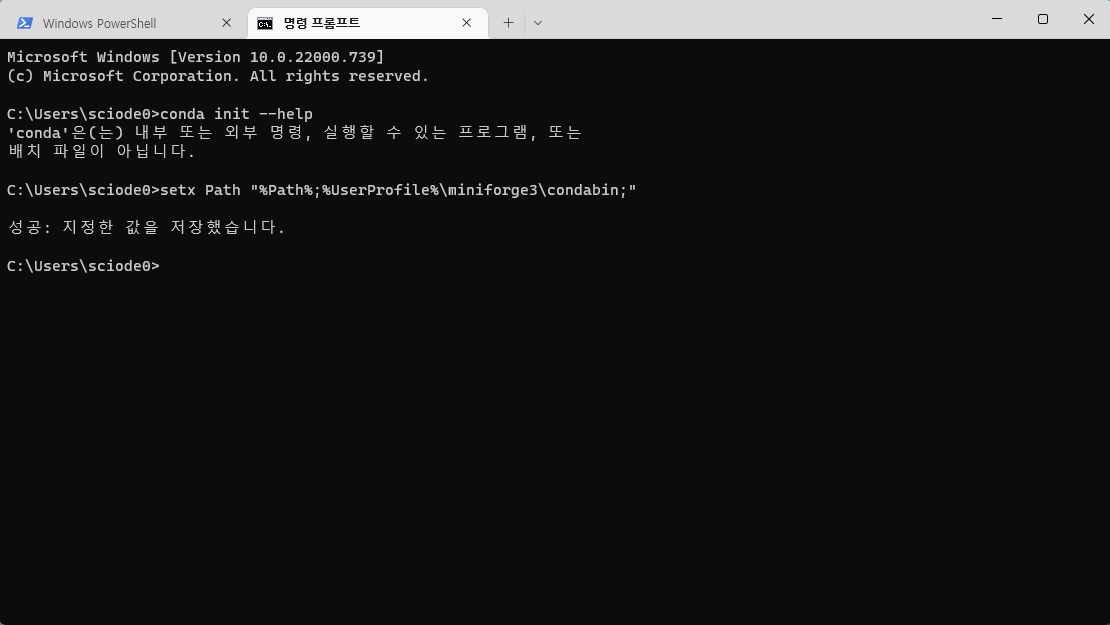
```shell
setx Path "%Path%;%UserProfile%\miniconda3\condabin;"
```

#### **1.3 conda 사용 준비**

PowerShell에 다음을 입력하여 conda 초기화 후 PowerShell 재실행:

| |
|:---:|
| <img width="905" alt="daf" src="/assets/images/posts/Windows/3_3.png" onclick="window.open(this.src)" /> |
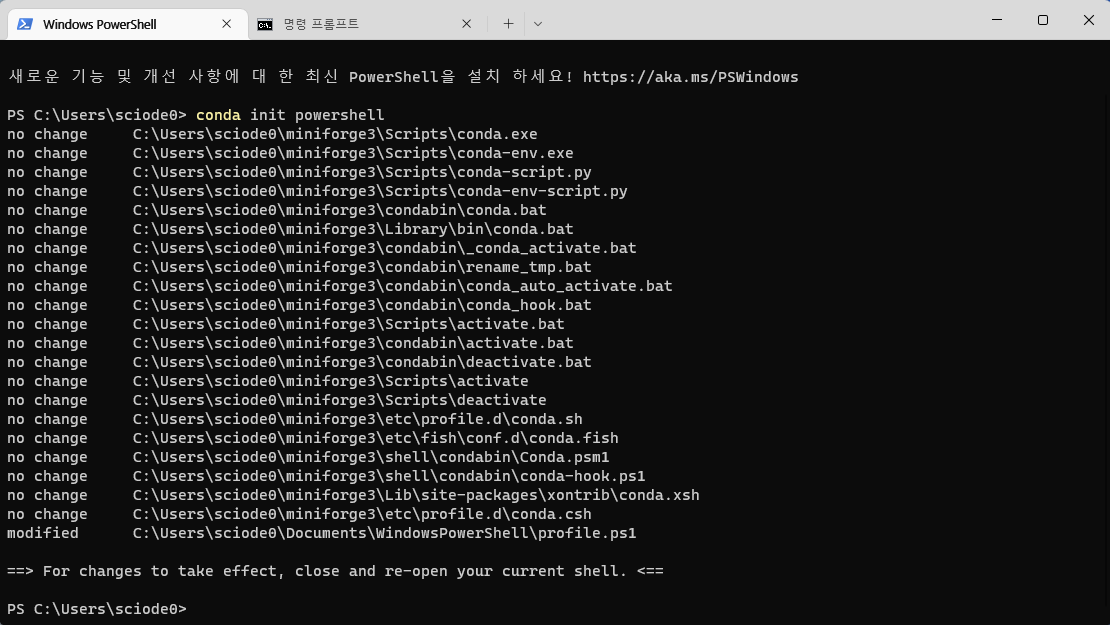
```shell
conda init powershell
exit
```

#### **1.4 스크립트 실행 권한**

"`profile.ps1 파일을 로드할 수 없습니다`"라는 에러가 날 것이다. 이때, 다음을 입력하고 PowerShell 재실행:

| |
|:---:|
| <img width="905" alt="daf" src="/assets/images/posts/Windows/3_4.png" onclick="window.open(this.src)" /> |
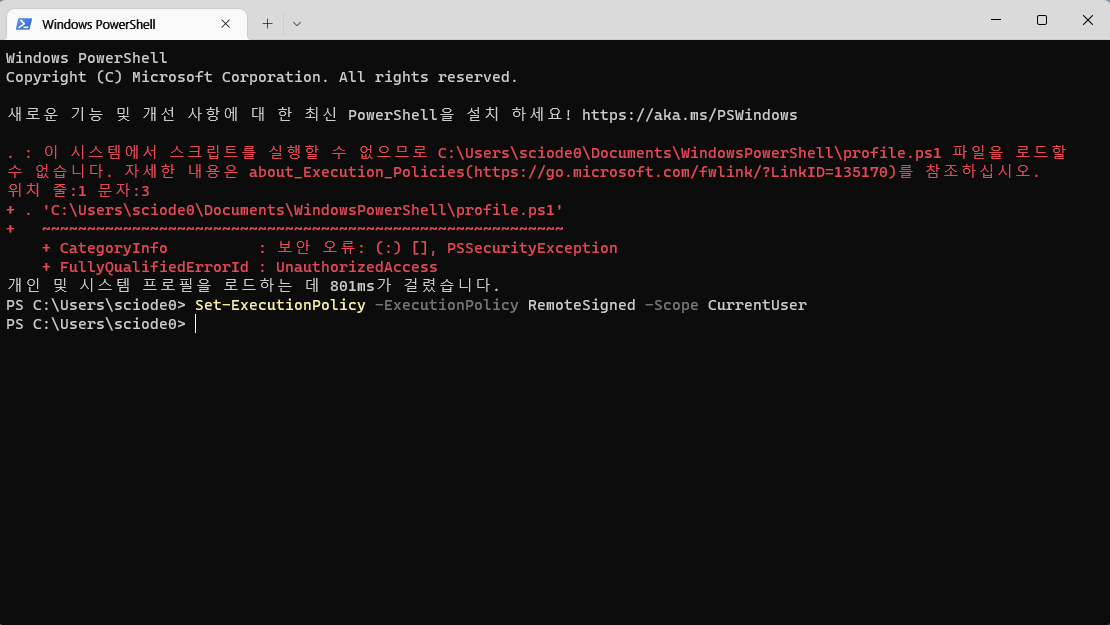
```shell
Set-ExecutionPolicy -ExecutionPolicy RemoteSigned -Scope CurrentUser
exit
```

PowerShell 다시 실행 후 입력란 맨 앞에 `(base)` 콘다 환경이 실행중이면 성공.

| |
|:---:|
| <img width="905" alt="daf" src="/assets/images/posts/Windows/3_5.png" onclick="window.open(this.src)" /> |
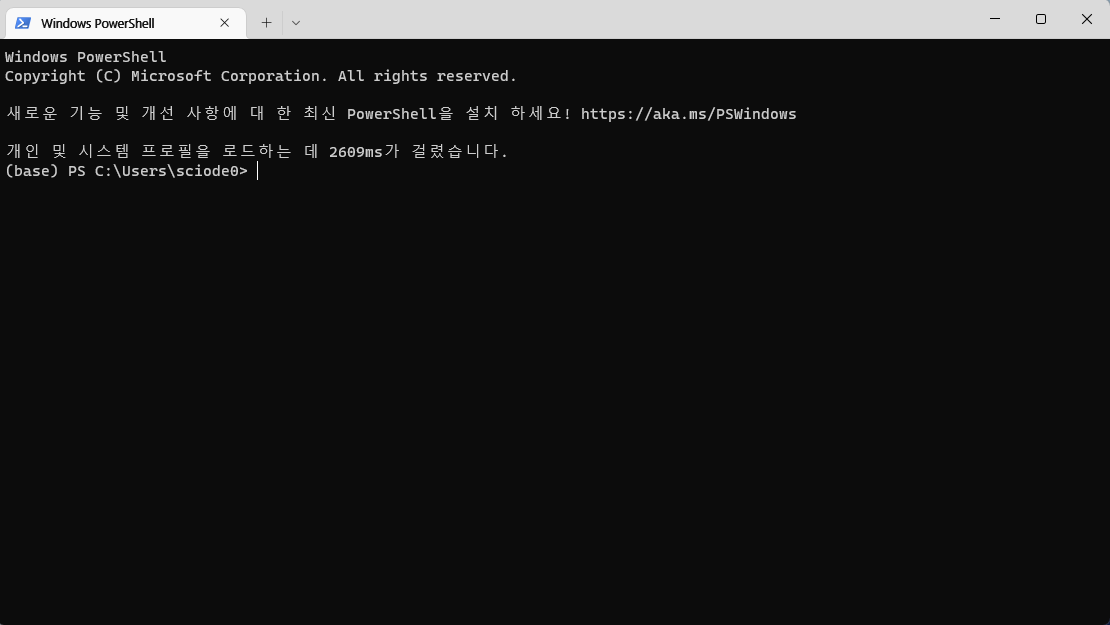
</details>

<details>

  <summary>b) macOS</summary>

```bash
brew install --cask miniforge
conda init zsh
```

*터미널을 디시 실행 시켜야 적용이 된다. 적용이 성공적으로 됐다면, `base`가 자동적으로 활성화되면서 (base)가 앞에 붙는다.*

</details>

<details>

  <summary>c) RHEL</summary>

```bash
wget "https://github.com/conda-forge/miniforge/releases/latest/download/Miniforge3-$(uname)-$(uname -m).sh"
bash Miniforge3-$(uname)-$(uname -m).sh
```

</details>

<h3 id="2-가상-환경-목록-보기"><strong>2. 가상 환경 목록 보기</strong></h3>

<div class="language-bash highlighter-rouge"><div class="highlight"><pre class="highlight"><code>conda <span class="nb">env </span>list
</code></pre></div></div>

<h3 id="3-가상-환경-생성"><strong>3. 가상 환경 생성</strong></h3>

<div class="language-bash highlighter-rouge"><div class="highlight"><pre class="highlight"><code>형식:
conda create <span class="nt">-n</span> &lt;<span class="nb">env </span>name&gt; <span class="nv">python</span><span class="o">=</span>x.y.z

예시:
conda create <span class="nt">-n</span> sciode <span class="nv">python</span><span class="o">=</span>3.8.12
</code></pre></div></div>

<h3 id="4-가상-환경-활성화비활성화"><strong>4. 가상 환경 활성화/비활성화</strong></h3>

<div class="language-bash highlighter-rouge"><div class="highlight"><pre class="highlight"><code>conda activate &lt;<span class="nb">env </span>name&gt;
conda deactivate
</code></pre></div></div>

<h3 id="5-가상-환경-삭제"><strong>5. 가상 환경 삭제</strong></h3>

<div class="language-bash highlighter-rouge"><div class="highlight"><pre class="highlight"><code>conda remove <span class="nt">-n</span> &lt;<span class="nb">env </span>name&gt; <span class="nt">--all</span>
</code></pre></div></div>]]></content><author><name>W. Choi</name></author><category term="Tech" /><category term="Guides" /><category term="linux" /><category term="macos" /><category term="windows" /><category term="conda" /><category term="setup" /><summary type="html"><![CDATA[최초 작성일: 2022년 4월 28일 최근 수정일: 2022년 7월 11일]]></summary></entry><entry><title type="html">[M1 macOS] 개발 환경 설정</title><link href="https://blog.sciode.com/tech/guides/2/" rel="alternate" type="text/html" title="[M1 macOS] 개발 환경 설정" /><published>2022-04-27T00:00:00+09:00</published><updated>2022-04-27T00:00:00+09:00</updated><id>https://blog.sciode.com/tech/guides/2</id><content type="html" xml:base="https://blog.sciode.com/tech/guides/2/"><![CDATA[<p><em>최초 작성일: 2022년 04월 27일</em><br />
<em>최근 수정일: 2022년 08월 13일</em></p>

<h2 id="요약">요약</h2>

<p>macOS 초기 환경 설정 후, 개발 환경 설정을 적용합니다.</p>

<h2 id="설명">설명</h2>

<p>일관성 있는 개발 환경으로 버전 호환성 등 문제를 최소화하고 효율적으로 개발을 시작할 수 있습니다. M1칩 맥북을 기준으로 직접 해봤으며, 인텔칩 맥에서 동일하게 진행해도 될 것으로 보입니다.</p>

<h2 id="솔루션">솔루션</h2>

<p><em>맥북 프로 2022 구매 후 몬터레이 12.2.1을 기준으로 작성하였습니다.</em><br />
<em>macOS 초기 설정 후 작성하였습니다.</em></p>

<h3 id="1-apple-toolchain">1. Apple ToolChain</h3>

<h4 id="11-ide-xcode">1.1. IDE: Xcode</h4>

<p>첫 번째로 애플의 네이티브 개발 도구 Xcode를 설치한다. 앱스토어에서 Xcode 검색 후 설치하면 된다.</p>

<h4 id="12-컴파일러-xcode-command-line-tools">1.2. 컴파일러: Xcode Command Line Tools</h4>

<p>IDE 설치 후 컴파일러 설치를 한다. <em>Xcode Command Line Tools</em> 패키지를 설치하는 것이 가장 간편하고 쉽다. 나중에 또 쓸 일이 있기 때문에 추천한다.</p>

<table>
  <thead>
    <tr>
      <th style="text-align: center"> </th>
    </tr>
  </thead>
  <tbody>
    <tr>
      <td style="text-align: center"><img width="452" alt="" src="/assets/images/posts/macOS/1_13.png" onclick="window.open(this.src)" /></td>
    </tr>
    <tr>
      <td style="text-align: center"><img width="603" alt="" src="/assets/images/posts/macOS/1_14.png" onclick="window.open(this.src)" /></td>
    </tr>
  </tbody>
</table>

<p>터미널에 다음 명령어 입력:</p>

<div class="language-bash highlighter-rouge"><div class="highlight"><pre class="highlight"><code>xcode-select <span class="nt">--install</span>
<span class="nb">sudo </span>xcodebuild <span class="nt">-license</span>
</code></pre></div></div>

<h3 id="2-패키지-관리자-homebrew">2. 패키지 관리자: Homebrew</h3>

<p><a href="https://brew.sh/">Homebrew</a>는 macOS용 패키지 매니저로 필요한 라이브러리/소프트웨어/프로그램 관리(설치/제거/업데이트)가 가능하다. 앞으로 macSO에서 프로그램을 설치할 때 최우선 순위로 사용될 예정이다. 아래 명령어를 순차적으로 입력하면 된다.</p>

<h4 id="21-설치">2.1. 설치</h4>

<div class="language-bash highlighter-rouge"><div class="highlight"><pre class="highlight"><code>/bin/bash <span class="nt">-c</span> <span class="s2">"</span><span class="si">$(</span>curl <span class="nt">-fsSL</span> https://raw.githubusercontent.com/Homebrew/install/master/install.sh<span class="si">)</span><span class="s2">"</span>
</code></pre></div></div>

<blockquote>
  <p><em>설치 적용을 위해 터미널을 종료했다가 다시 실행해야 할 수도 있습니다.</em></p>
</blockquote>

<h5 id="211-cask-설치">2.1.1. Cask 설치</h5>

<p>Cask 확장을 통해 mac GUI 애플리케이션 설치를 할 수 있다.</p>

<div class="language-bash highlighter-rouge"><div class="highlight"><pre class="highlight"><code>brew <span class="nb">install </span>cask
</code></pre></div></div>

<h4 id="22-homebrew-사용-방법">2.2. Homebrew 사용 방법</h4>

<p>아래 명령어를 터미널에서 실행:</p>

<h5 id="221-앱-업데이트-및-업그레이드">2.2.1. 앱 업데이트 및 업그레이드</h5>

<div class="language-bash highlighter-rouge"><div class="highlight"><pre class="highlight"><code>brew update
brew upgrade
</code></pre></div></div>

<blockquote>
  <p><em>brew update는 새로운 업데이트가 있는지 확인한다.</em><br />
<em>brew upgrade는 새로운 버전으로 설치/적용을 한다.</em></p>
</blockquote>

<h5 id="222-앱-검색">2.2.2. 앱 검색</h5>

<div class="language-bash highlighter-rouge"><div class="highlight"><pre class="highlight"><code>brew search &lt;앱 이름&gt;
e.g., brew search chrome
</code></pre></div></div>

<h5 id="223-앱-설치">2.2.3. 앱 설치</h5>

<div class="language-bash highlighter-rouge"><div class="highlight"><pre class="highlight"><code>brew <span class="nb">install</span> &lt;앱 이름&gt;
e.g., brew <span class="nb">install</span> <span class="nt">--cask</span> google-chrome
</code></pre></div></div>

<blockquote>
  <p>GUI 앱이면 <code class="language-plaintext highlighter-rouge">--cask</code> 플래그를 추가한다.</p>
</blockquote>

<h5 id="224-앱-제거">2.2.4. 앱 제거</h5>

<div class="language-bash highlighter-rouge"><div class="highlight"><pre class="highlight"><code>brew uninstall &lt;앱 이름&gt;
e.g., brew uninstall google-chrome
</code></pre></div></div>

<h5 id="225-상태-점검">2.2.5. 상태 점검</h5>

<p>설치 된 앱의 호환성, 충돌 등 문제 발생 시 에러 목록을 출력하고, 해결 방법을 알려준다. 가끔 확인해주면 좋다.</p>

<div class="language-bash highlighter-rouge"><div class="highlight"><pre class="highlight"><code>brew doctor
</code></pre></div></div>

<h5 id="226-기타">2.2.6. 기타</h5>

<ul>
  <li><code class="language-plaintext highlighter-rouge">Homebrew</code>관련 추가 내용은 <a href="https://docs.brew.sh/Manpage">공식 문서</a>를 참고하면 된다.</li>
  <li><a href="https://brew.sh/">https://brew.sh/</a>에서 <code class="language-plaintext highlighter-rouge">brew</code>로 설치 가능한 패키지를 편리하게 검색할 수 있다.</li>
</ul>

<h3 id="3-git">3. Git</h3>

<h4 id="31-git-설치">3.1. Git 설치</h4>

<p>Xcode Command Line Tools에 이미 Git이 내장돼있지만, 오래된 버전이다. 최신 버전을 사용하기 위해 brew를 통해 설치한다.</p>

<div class="language-bash highlighter-rouge"><div class="highlight"><pre class="highlight"><code>brew <span class="nb">install </span>git
</code></pre></div></div>

<h4 id="32-git-등록">3.2. Git 등록</h4>

<p>Git 사용 시작 전에 시스템에 사용자 Git 정보를 등록해야 한다.</p>

<div class="language-bash highlighter-rouge"><div class="highlight"><pre class="highlight"><code>git config <span class="nt">--global</span> user.name <span class="s2">"username"</span>
git config <span class="nt">--global</span> user.email <span class="s2">"user@domain.com"</span>
</code></pre></div></div>

<blockquote>
  <p><em>global</em> 옵션은 현재 사용자 계정에서 작업하는 모든 리포지토리에 적용한다.</p>
</blockquote>

<h3 id="4-text-editor">4. Text Editor</h3>

<p>텍스트 편집기로는 <a href="https://code.visualstudio.com/">Visual Studio Code</a>를 추천한다. 리눅스, 맥, 윈도우 3가지 OS에서 모두 호환이 잘 된다. 다만, Microsoft에서 출시되는 VS Code는 텔레메트리가 자동으로 활성화돼 있는데, 이를 방지하기 위해 <a href="https://vscodium.com/">VSCodium</a>을 사용해도 된다.</p>

<blockquote>
  <p><em>텔레메트리 데이터란 수집된 사용자 데이터를 의미하며, 주기적으로 전송된다.</em></p>
</blockquote>

<ol>
  <li>
    <p>VSCode</p>

    <div class="language-bash highlighter-rouge"><div class="highlight"><pre class="highlight"><code> brew <span class="nb">install</span> <span class="nt">--cask</span> visual-studio-code
</code></pre></div>    </div>
  </li>
  <li>
    <p>VSCodium</p>

    <div class="language-bash highlighter-rouge"><div class="highlight"><pre class="highlight"><code> brew <span class="nb">install</span> <span class="nt">--cask</span> vscodium
</code></pre></div>    </div>
  </li>
</ol>

<h3 id="5-개발툴">5. 개발툴</h3>

<h4 id="51-jdk-temurin">5.1. JDK (Temurin)</h4>

<p>다양한 JDK 제공자들이 있는데, 라이센싱 및 지원 문제를 피하기 위해 Adoptium의 Temurin을 사용한다.</p>

<h5 id="511-설치">5.1.1. 설치</h5>

<p>본인에게 필요한 버전을 설치하면 된다:</p>

<div class="language-bash highlighter-rouge"><div class="highlight"><pre class="highlight"><code>brew <span class="nb">install</span> <span class="nt">--cask</span> temurin8
brew <span class="nb">install</span> <span class="nt">--cask</span> temurin11
brew <span class="nb">install</span> <span class="nt">--cask</span> temurin17
</code></pre></div></div>

<h5 id="512-현재-버전-확인">5.1.2. 현재 버전 확인</h5>

<div class="language-bash highlighter-rouge"><div class="highlight"><pre class="highlight"><code>java <span class="nt">--version</span>
javac <span class="nt">--version</span>
</code></pre></div></div>

<h4 id="52-python">5.2. Python</h4>

<blockquote>
  <p>별도 게시글로 이동함.<br />
<a href="/3">[윈도우 / M1 macOS / RHEL] conda 설치</a></p>
</blockquote>

<h4 id="53-jetbrains-toolbox">5.3. JetBrains Toolbox</h4>

<p>필자는 자바 IDE로 <code class="language-plaintext highlighter-rouge">IntelliJ IDEA</code>를, 안드로이드 IDE는 <code class="language-plaintext highlighter-rouge">Android Studio</code>를, 그리고 파이썬은 <code class="language-plaintext highlighter-rouge">PyCharm</code>을 사용한다. 전에 3가지 툴을 수동으로 다운 및 설치를 해봤는데 설치 경로, 환경 설정, 업데이트, 권한 등 귀찮은 문제가 자주 발생했었다. 이를 방지하기 위해 <code class="language-plaintext highlighter-rouge">JetBrains Toolbox</code>를 먼저 설치하면, IDE 설치/제거/업데이트/관리가 굉자히 편리해진다.</p>

<h5 id="531-설치">5.3.1. 설치</h5>

<div class="language-bash highlighter-rouge"><div class="highlight"><pre class="highlight"><code>brew <span class="nb">install</span> <span class="nt">--cask</span> jetbrains-toolbox
</code></pre></div></div>

<h5 id="532-intellij-idea--android-studio--pycharm-설치">5.3.2. IntelliJ IDEA / Android Studio / PyCharm 설치</h5>

<div class="language-text highlighter-rouge"><div class="highlight"><pre class="highlight"><code>위에서 설치한 JetBrains Toolbox를 실행하면 필요한 IDE를 간편히 설치할 수 있다.
</code></pre></div></div>

<h3 id="6-etc">6. ETC</h3>

<h4 id="p7zip">p7zip</h4>

<blockquote>
  <p>오픈 소스 압축 프로그램</p>
</blockquote>

<div class="language-bash highlighter-rouge"><div class="highlight"><pre class="highlight"><code>brew <span class="nb">install </span>p7zip
</code></pre></div></div>

<h4 id="google-chrome">Google Chrome</h4>

<blockquote>
  <p>선호하는 브라우저 설치</p>
</blockquote>

<div class="language-bash highlighter-rouge"><div class="highlight"><pre class="highlight"><code>brew <span class="nb">install</span> <span class="nt">--cask</span> google-chrome
</code></pre></div></div>

<h4 id="notion">Notion</h4>

<blockquote>
  <p>기획, 협업, 노트 작성, 정리 툴</p>
</blockquote>

<div class="language-bash highlighter-rouge"><div class="highlight"><pre class="highlight"><code>brew <span class="nb">install</span> <span class="nt">--cask</span> notion
</code></pre></div></div>

<h4 id="slack">Slack</h4>

<blockquote>
  <p>팀 협업 툴</p>
</blockquote>

<div class="language-bash highlighter-rouge"><div class="highlight"><pre class="highlight"><code>brew <span class="nb">install</span> <span class="nt">--cask</span> slack
</code></pre></div></div>

<h2 id="references">References</h2>

<p>-</p>]]></content><author><name>W. Choi</name></author><category term="Tech" /><category term="Guides" /><category term="macos" /><category term="setup" /><category term="m1" /><category term="development" /><summary type="html"><![CDATA[최초 작성일: 2022년 04월 27일 최근 수정일: 2022년 08월 13일]]></summary></entry><entry><title type="html">[윈도우 11] 설치 (CPU/RAM/TPM 우회 가능)</title><link href="https://blog.sciode.com/tech/guides/4/" rel="alternate" type="text/html" title="[윈도우 11] 설치 (CPU/RAM/TPM 우회 가능)" /><published>2022-03-20T00:00:00+09:00</published><updated>2022-03-20T00:00:00+09:00</updated><id>https://blog.sciode.com/tech/guides/4</id><content type="html" xml:base="https://blog.sciode.com/tech/guides/4/"><![CDATA[<p><em>최초 작성일: 2022년 03월 20일</em><br />
<em>최근 수정일: 2022년 08월 13일</em></p>

<h2 id="요약">요약</h2>

<p>윈도우 11 다운, 설치 USB 생성 및 클린 설치를 합니다.</p>

<h2 id="설명">설명</h2>

<p>윈도우 11이 출시되면서 하드웨어적인 최소 요구사항이 예상보다 높아졌습니다. 운이 좋게도 이미 최신 하드웨어로 필수 요건이 갖춰진 시스템들도 있지만, CPU 및 RAM 성능 부족과 TPM 부재로 설치 및 업그레이드에 제한받은 케이스도 자주 발생합니다. 이번 포스팅에서는 일반 설치와 성능/하드웨어 제한을 우회하여 설치하는 방법을 포함하였습니다.</p>

<h2 id="솔루션">솔루션</h2>

<p><em>윈도우 정품 키 또는 정품 디지털 라이선스가 연계된 마이크로소프트 계정이 있다는 가정하에 진행합니다.</em><br />
<em>8GB 이상의 USB/SD카드가 필요합니다.</em></p>

<h3 id="0-gpt-형식으로-디스크-설정">0. GPT 형식으로 디스크 설정</h3>

<h3 id="1-윈도우-11-iso-다운">1. 윈도우 11 ISO 다운</h3>

<p><a href="https://www.microsoft.com/ko-kr/software-download/windows11">마이크로소프트 공식 사이트</a>에 접속하여 “Windows 11 디스크 이미지 (ISO) 다운로드”에서 다운받는다.</p>

<table>
  <thead>
    <tr>
      <th style="text-align: center"> </th>
    </tr>
  </thead>
  <tbody>
    <tr>
      <td style="text-align: center"><img width="603" alt="daf" src="/assets/images/posts/Windows/4_1.png" onclick="window.open(this.src)" /></td>
    </tr>
  </tbody>
</table>

<blockquote>
  <p><code class="language-plaintext highlighter-rouge">"Windows 11 디스크 이미지 (ISO) 다운로드"</code> &gt; <code class="language-plaintext highlighter-rouge">"Windows 11 (multi-edition ISO)"</code> &gt; <code class="language-plaintext highlighter-rouge">다운로드</code> &gt; <code class="language-plaintext highlighter-rouge">"한국어"</code> 선택 &gt; <code class="language-plaintext highlighter-rouge">확인</code></p>

</blockquote>

<h3 id="2-설치-usb-생성">2. 설치 USB 생성</h3>

<p><em>8GB 이상의 USB 드라이버가 필요하며, 윈도우에서 설치 미디어를 만들 수 있다.</em></p>

<blockquote>
  <p>경고: USB 드라이브의 모든 데이터는 삭제됩니다.</p>
</blockquote>

<ol>
  <li>
    <p>Rufus 설치</p>

    <p>부팅 디스크를 만들기 위해 <a href="https://rufus.ie/ko/">Rufus</a>를 사용한다. 설치 버전과 포터블 버전이 있는데 자주 사용하기에 설치 버전을 사용한다. 램 및 TPM 우회가 필요하다면 Rufus 3.18 이상부터 지원되며, 글 작성 기준 최신 버전은 3.19로 인터페이스에 약간의 차이가 있다.</p>
  </li>
  <li>
    <p>Rufus 실행 및 ISO 선택</p>

    <p>Rufus를 실행하고, USB 장치와 위에서 다운받은 윈도우 11 ISO 이미지를 선택한다. 나머지는 기본값 그대로 두면 된다.</p>

    <table>
      <thead>
        <tr>
          <th style="text-align: center"> </th>
        </tr>
      </thead>
      <tbody>
        <tr>
          <td style="text-align: center"><img width="302" alt="daf" src="/assets/images/posts/Windows/4_2.png" onclick="window.open(this.src)" /></td>
        </tr>
      </tbody>
    </table>

    <ul>
      <li>이미지 옵션: 표준 Windows 설치</li>
      <li>파티션 구성: GPT</li>
      <li>대상 시스템: UEFI</li>
      <li>파일 시스템: NTFS</li>
    </ul>
  </li>
  <li>
    <p>Rufus 추가 옵션 (우회)</p>

    <p>시작을 누르면 1. TPM 요구사항, 2. 최소 램 및 용량 요구사항, 3. (텔레메트리) 정보 수집 등 3가지의 제거 옵션이 뜬다.</p>

    <table>
      <thead>
        <tr>
          <th style="text-align: center"> </th>
        </tr>
      </thead>
      <tbody>
        <tr>
          <td style="text-align: center"><img width="452" alt="daf" src="/assets/images/posts/Windows/4_3.png" onclick="window.open(this.src)" /></td>
        </tr>
      </tbody>
    </table>

    <blockquote>
      <p>위 옵션을 선택하면 향후 어떤 불이익이 있을지 모르겠다. 꼭 필요한 경우가 아니라면 해제하는 게 편할듯하다.</p>
    </blockquote>
  </li>
</ol>

<h3 id="3-설치-부팅">3. 설치 부팅</h3>

<p>설치 대상 컴퓨터에 USB를 연결한 상태에서 컴퓨터를 다시 시작한다.</p>

<blockquote>
  <p>BIOS/UEFI 설정 메뉴에서 부팅 우선순위를 설치 미디어(USB)로 설정해야 한다.</p>
</blockquote>

<p>설치 USB가 정상적으로 인식되고 부팅 미디어가 로드된 경우 다음과 같은 화면이 표시된다.</p>

<table>
  <thead>
    <tr>
      <th style="text-align: center"> </th>
    </tr>
  </thead>
  <tbody>
    <tr>
      <td style="text-align: center"><img width="603" alt="daf" src="/assets/images/posts/Windows/4_5.png" onclick="window.open(this.src)" /></td>
    </tr>
  </tbody>
</table>

<h3 id="4-설치">4. 설치</h3>

<h4 id="41-설치-시작">4.1. 설치 시작</h4>

<p>설치에 진입하고 다음 설정은 기본값을 이용했다. “지금 설치”를 누르면 제품 키를 입력하는 창이 뜨는데 제품 키가 있으면 입력하고, 마이크로소프트 계정에 연계된 디지털 라이선스가 있으면 “제품 키가 없음”을 누르고 진행한다.</p>

<ul>
  <li>설치할 언어</li>
  <li>시간 및 통화 형식</li>
  <li>키보드 또는 입력 방법</li>
  <li>키보드 종류</li>
</ul>

<p>운영체제는 본인에게 맞는 에디션을 선택하고 이용 조건에 동의한다.<br />
설치 유형은 “사용자 지정”을 선택하여 클린 설치 준비를 한다.<br />
마지막으로 설치할 드라이브를 선택하면 설치가 본격적으로 시작되는데 설치 과정에서 컴퓨터 스스로 여러 번 다시 시작될 수 있다.</p>

<table>
  <thead>
    <tr>
      <th style="text-align: center"> </th>
      <th style="text-align: center"> </th>
      <th style="text-align: center"> </th>
      <th style="text-align: center"> </th>
    </tr>
  </thead>
  <tbody>
    <tr>
      <td style="text-align: center"><img width="302" alt="daf" src="/assets/images/posts/Windows/4_6.png" onclick="window.open(this.src)" /></td>
      <td style="text-align: center"><img width="302" alt="daf" src="/assets/images/posts/Windows/4_7.png" onclick="window.open(this.src)" /></td>
      <td style="text-align: center"><img width="302" alt="daf" src="/assets/images/posts/Windows/4_8.png" onclick="window.open(this.src)" /></td>
      <td style="text-align: center"><img width="302" alt="daf" src="/assets/images/posts/Windows/4_9.png" onclick="window.open(this.src)" /></td>
    </tr>
  </tbody>
</table>

<h4 id="42-첫-실행-경험">4.2. 첫 실행 경험</h4>

<p><a href="https://docs.microsoft.com/ko-kr/windows-hardware/customize/desktop/customize-oobe-in-windows-11">OOBE (첫 실행 경험)</a> 설정을 해줘야 한다.</p>

<ol>
  <li>
    <p><strong>지역 및 언어 설정</strong></p>

    <ul>
      <li>국가: 한국</li>
      <li>키보드: Microsoft 입력기</li>
      <li>두 번째 키보드 레이아웃: 건너뛰기</li>
      <li>디바이스 이름: &lt;사용자가 희망하는 장치 이름: 사용자 이름과 별개&gt;</li>
    </ul>

    <table>
      <thead>
        <tr>
          <th style="text-align: center"> </th>
          <th style="text-align: center"> </th>
          <th style="text-align: center"> </th>
        </tr>
      </thead>
      <tbody>
        <tr>
          <td style="text-align: center"><img width="302" alt="daf" src="/assets/images/posts/Windows/4_10.png" onclick="window.open(this.src)" /></td>
          <td style="text-align: center"><img width="302" alt="daf" src="/assets/images/posts/Windows/4_11.png" onclick="window.open(this.src)" /></td>
          <td style="text-align: center"><img width="302" alt="daf" src="/assets/images/posts/Windows/4_12.png" onclick="window.open(this.src)" /></td>
        </tr>
      </tbody>
    </table>
  </li>
  <li>
    <p><strong>오프라인 계정</strong></p>

    <p>개인 설정을 선택하고, 마이크로소프트 계정을 추가하는 단계에서 일단 로컬 계정을 사용하도록 설정한다.</p>

    <blockquote>
      <p>여기서 디지털 라이선스 인증, 설정 동기화 또는 기타 사유 때문에 마이크로소프트 계정에 로그인해야겠다는 필요를 느낄 수 있는데, 나중에도 연결할 수 있으니 잠시 기다리도록 한다.</p>
    </blockquote>

    <p><em>Microsoft 계정을 바로 연결하지 않는 이유는 생각보다 사소한데, 온라인 계정을 바로 연결할 경우, 등록된 마이크로소프트 계정(이메일)의 첫 5글자를 사용자 폴더 이름으로 지정한다. 예를 들어, 본인의 계정이 <code class="language-plaintext highlighter-rouge">algorithms@microsoft.com</code>이라 가정할 경우, 사용자 폴더 이름은 <code class="language-plaintext highlighter-rouge">algor</code>이 되는 것이다. 이 현상을 방지하고 싶기에…</em></p>

    <table>
      <thead>
        <tr>
          <th style="text-align: center"> </th>
          <th style="text-align: center"> </th>
          <th style="text-align: center"> </th>
        </tr>
      </thead>
      <tbody>
        <tr>
          <td style="text-align: center"><img width="302" alt="daf" src="/assets/images/posts/Windows/4_13.png" onclick="window.open(this.src)" /></td>
          <td style="text-align: center"><img width="302" alt="daf" src="/assets/images/posts/Windows/4_14.png" onclick="window.open(this.src)" /></td>
          <td style="text-align: center"><img width="302" alt="daf" src="/assets/images/posts/Windows/4_15.png" onclick="window.open(this.src)" /></td>
        </tr>
        <tr>
          <td style="text-align: center"><img width="302" alt="daf" src="/assets/images/posts/Windows/4_16.png" onclick="window.open(this.src)" /></td>
          <td style="text-align: center"><img width="302" alt="daf" src="/assets/images/posts/Windows/4_17.png" onclick="window.open(this.src)" /></td>
          <td style="text-align: center"><img width="302" alt="daf" src="/assets/images/posts/Windows/4_18.png" onclick="window.open(this.src)" /></td>
        </tr>
      </tbody>
    </table>

    <p>오프라인 계정 설정:</p>

    <blockquote>
      <p><code class="language-plaintext highlighter-rouge">로그인 옵션</code> &gt; <code class="language-plaintext highlighter-rouge">오프라인 계정</code> &gt; <code class="language-plaintext highlighter-rouge">지금은 건너뛰기</code> &gt; <code class="language-plaintext highlighter-rouge">이름</code>, <code class="language-plaintext highlighter-rouge">비밀번호</code> 입력</p>
    </blockquote>

    <p><em>위 예시와 같이 이름에 <code class="language-plaintext highlighter-rouge">algorithms</code>를 입력하면 사용자 폴더 이름이 <code class="language-plaintext highlighter-rouge">algorithms</code>로 제대로 설정될 것이다.</em></p>
  </li>
  <li>
    <p><strong>텔레메트리 설정</strong></p>

    <p>필자는 정보 제공을 최소화하고 싶은 마음에 제일 보호적인 선택을 했다.</p>

    <table>
      <thead>
        <tr>
          <th style="text-align: center"> </th>
          <th style="text-align: center"> </th>
          <th style="text-align: center"> </th>
        </tr>
      </thead>
      <tbody>
        <tr>
          <td style="text-align: center"><img width="302" alt="daf" src="/assets/images/posts/Windows/4_19.png" onclick="window.open(this.src)" /></td>
          <td style="text-align: center"><img width="302" alt="daf" src="/assets/images/posts/Windows/4_20.png" onclick="window.open(this.src)" /></td>
          <td style="text-align: center"><img width="302" alt="daf" src="/assets/images/posts/Windows/4_21.png" onclick="window.open(this.src)" /></td>
        </tr>
        <tr>
          <td style="text-align: center"><img width="302" alt="daf" src="/assets/images/posts/Windows/4_22.png" onclick="window.open(this.src)" /></td>
          <td style="text-align: center"><img width="302" alt="daf" src="/assets/images/posts/Windows/4_23.png" onclick="window.open(this.src)" /></td>
          <td style="text-align: center"><img width="302" alt="daf" src="/assets/images/posts/Windows/4_24.png" onclick="window.open(this.src)" /></td>
        </tr>
      </tbody>
    </table>

    <blockquote>
      <ul>
        <li>사용자 위치: 아니요</li>
        <li>내 장치 찾기: 아니요</li>
        <li>진단 데이터를 Microsoft에 보내기: 필수 요소만</li>
        <li>수동 입력 및 타이핑 개선: 아니요</li>
        <li>진단 데이터를 사용한 맞춤형 환경 사용: 아니요</li>
        <li>앱에서 광고ID를 사용하도록 허용: 아니요</li>
      </ul>
    </blockquote>

    <p>위 사항은 본인이 희망하는 대로 설정하면 된다. “내 장치 찾기” 같은 기능은 노트북 사용자에게는 유용할 수도 있다. 물론, 후에도 변경할 수 있다.</p>
  </li>
</ol>

<h4 id="43-설치-마무리">4.3. 설치 마무리</h4>

<p>OOBE (첫 실행 경험)까지 마쳤으면 윈도우 11 진입이 가능하다.</p>

<ol>
  <li>
    <p><strong>마이크로소프트 계정</strong></p>

    <p><code class="language-plaintext highlighter-rouge">C:\Users</code>로 이동해서 사용자 폴더 이름이 잘 설정됐는지 확인하고, 마이크로소프트 계정을 연결한다.</p>

    <table>
      <thead>
        <tr>
          <th style="text-align: center"> </th>
        </tr>
      </thead>
      <tbody>
        <tr>
          <td style="text-align: center"><img width="603" alt="daf" src="/assets/images/posts/Windows/4_25.png" onclick="window.open(this.src)" /></td>
        </tr>
      </tbody>
    </table>

    <div class="language-bash highlighter-rouge"><div class="highlight"><pre class="highlight"><code> 설정 <span class="o">&gt;</span> 계정 <span class="o">&gt;</span> 사용자 정보 <span class="o">&gt;</span> 계정 설정 <span class="o">&gt;</span> <span class="s2">"대신 Microsoft 계정으로 로그인합니다."</span>
</code></pre></div>    </div>

    <p>마이크로소프트 계정에 연계된 디지털 라이선스가 있다면 자동으로 정품 인증이 된다.</p>
  </li>
  <li>
    <p><strong>PIN 설정</strong></p>

    <p>일반 (로컬/온라인) 비밀번호 보다 PIN의 보안성이 더 안전하다고 알려졌다 (<a href="https://docs.microsoft.com/en-us/windows/security/identity-protection/hello-for-business/hello-why-pin-is-better-than-password">source</a>). 마이크로소프트 계정을 연결하고 PIN 로그인을 설정하도록 한다.</p>

    <table>
      <thead>
        <tr>
          <th style="text-align: center"> </th>
        </tr>
      </thead>
      <tbody>
        <tr>
          <td style="text-align: center"><img width="603" alt="daf" src="/assets/images/posts/Windows/4_26.png" onclick="window.open(this.src)" /></td>
        </tr>
      </tbody>
    </table>

    <div class="language-bash highlighter-rouge"><div class="highlight"><pre class="highlight"><code> 설정 <span class="o">&gt;</span> 계정 <span class="o">&gt;</span> 로그인 옵션 <span class="o">&gt;</span> PIN<span class="o">(</span>Windows Hello<span class="o">)</span> <span class="o">&gt;</span> 문자 및 기호 포함
</code></pre></div>    </div>

    <p><em>길이가 최소 4자 이상이어야 하고, 대소문자 구별, 특수 문자를 사용할 수 있다.</em></p>
  </li>
</ol>

<h2 id="references">References</h2>

<p>-
이상으로, 윈도우 11 설치 USB 생성 및 설치를 알아봤습니다.<br />
다음 포스팅에서는 초기 환경 설정을 알아보도록 하겠습니다.</p>]]></content><author><name>W. Choi</name></author><category term="Tech" /><category term="Guides" /><category term="windows" /><category term="setup" /><category term="win11" /><summary type="html"><![CDATA[최초 작성일: 2022년 03월 20일 최근 수정일: 2022년 08월 13일]]></summary></entry><entry><title type="html">[M1 macOS] 초기 환경 설정</title><link href="https://blog.sciode.com/tech/guides/1/" rel="alternate" type="text/html" title="[M1 macOS] 초기 환경 설정" /><published>2022-03-02T00:00:00+09:00</published><updated>2022-03-02T00:00:00+09:00</updated><id>https://blog.sciode.com/tech/guides/1</id><content type="html" xml:base="https://blog.sciode.com/tech/guides/1/"><![CDATA[<p><em>최초 작성일: 2022년 02월 27일</em><br />
<em>최근 수정일: 2022년 08월 13일</em></p>

<h2 id="요약">요약</h2>

<p>맥 제품 처음 구매 및 macOS 클린 설치 이후 권장된 초기 환경 설정을 적용합니다.</p>

<h2 id="설명">설명</h2>

<p>보안 설정, 네트워크, 브라우저 등 기본 설정을 하여 보안 강화, 성능 향상을 통해 사용자에게 최적화된 사용 환경을 제공합니다. M1칩 맥북을 기준으로 직접 해봤으며, 인텔칩 맥에서 동일하게 진행해도 될 것으로 보입니다.</p>

<h2 id="솔루션">솔루션</h2>

<p><em>맥북 프로 2022 구매 후 몬터레이 12.2.1을 기준으로 작성하였습니다.</em></p>

<h3 id="1-보안-설정">1. 보안 설정</h3>

<p>macOS 설치한 직후 수행해야 하는 보안 관련 절차이다.</p>

<h4 id="11-관리자-계정-및-표준-사용자-계정-생성">1.1. 관리자 계정 및 표준 사용자 계정 생성</h4>

<p>macOS를 처음 설정할 때 생성하는 계정은 관리자 계정이다. 관리자 권한을 가진 사용자로 주 사용하는 경우 보안에 취약하다. 관리자 계정은 시스템 설정을 하거나 프로그램을 설치해야 할 때 사용을 권장하고, 그 외에는 별도 표준 사용자 계정 생성 후, 주 사용 계정으로 이용하길 권장된다.</p>

<blockquote>
  <p>기본 설정을 하는 동안에는 관리자 계정을 사용한다.</p>

</blockquote>

<h4 id="12-macos-업데이트">1.2. macOS 업데이트</h4>

<p>새로운 기능 추가, 성능 향상, 커널 취약점 공격 예방 등 최적의 환경을 위하여 주기적으로 업데이트를 확인하여 macOS를 최신화한다.<sup id="fnref:1" role="doc-noteref"><a href="#fn:1" class="footnote" rel="footnote">1</a></sup></p>

<h4 id="13-잠금">1.3. 잠금</h4>

<p>사용자가 일정 시간 동안 작업을 수행하지 않을 경우, 자동으로 잠자기 또는 화면 보호기가 시작되도록 설정해야 한다.</p>

<h5 id="131-디스플레이-끄기-및-슬립-모드">1.3.1. 디스플레이 끄기 및 슬립 모드</h5>

<div class="language-text highlighter-rouge"><div class="highlight"><pre class="highlight"><code>시스템 환경 설정 &gt; 배터리 &gt; 배터리, 전원 어댑터 &gt; 디스플레이 끄기 (15분 후)
시스템 환경 설정 &gt; 배터리 &gt; 전원 어탭터 &gt; "디스플레이가 꺼져 있을 때 컴퓨터를 자동으로 잠자지 않게 하기" 체크 해제
</code></pre></div></div>

<h5 id="132-자동-잠금">1.3.2. 자동 잠금</h5>

<table>
  <thead>
    <tr>
      <th style="text-align: center"> </th>
    </tr>
  </thead>
  <tbody>
    <tr>
      <td style="text-align: center"><img width="452" alt="" src="/assets/images/posts/macOS/1_2.png" onclick="window.open(this.src)" /></td>
    </tr>
  </tbody>
</table>

<div class="language-text highlighter-rouge"><div class="highlight"><pre class="highlight"><code>시스템 환경 설정 &gt; 보안 및 개인 정보 보호 &gt; 일반, 잠자기 또는 화면 보호기 시작 "즉시" 암호 요구
</code></pre></div></div>

<h4 id="14-방화벽-활성화">1.4. 방화벽 활성화</h4>

<p>기본적으로, macOS에서 방화벽이 꺼져있을 것이다. 타 OS만큼 위험에 노출되지 않았다는 의견이 있지만, 불필요한 트래픽으로부터 보호하고 싶다면 활성화 시킬 것이 권장된다.</p>

<table>
  <thead>
    <tr>
      <th style="text-align: center"> </th>
      <th style="text-align: center"> </th>
    </tr>
  </thead>
  <tbody>
    <tr>
      <td style="text-align: center"><img width="452" alt="" src="/assets/images/posts/macOS/1_3.png" onclick="window.open(this.src)" /></td>
      <td style="text-align: center"><img width="452" alt="" src="/assets/images/posts/macOS/1_4.png" onclick="window.open(this.src)" /></td>
    </tr>
  </tbody>
</table>

<div class="language-text highlighter-rouge"><div class="highlight"><pre class="highlight"><code>시스템 환경 설정 &gt; 보안 및 개인 정보 보호 &gt; 방화벽, 방화벽 켜기, 방화벽 옵션, 아래 3가지 항목 체크
    - 내장 소프트웨어가 들어오는 연결을 수신하는 것을 자동으로 허용
    - 다운로드한 소프트웨어가 들어오는 연결을 수신하는 것을 자동으로 허용
    - 은폐 모드 활성화
</code></pre></div></div>

<h4 id="15-spotlight-정보-제공">1.5. Spotlight 정보 제공</h4>

<p>기본적으로, Spotlight에서 시리 제안 기능에서는 일부 데이터가 애플에 전송됨으로, 해제하는 것이 권장된다.</p>

<table>
  <thead>
    <tr>
      <th style="text-align: center"> </th>
    </tr>
  </thead>
  <tbody>
    <tr>
      <td style="text-align: center"><img width="452" alt="" src="/assets/images/posts/macOS/1_6.png" onclick="window.open(this.src)" /></td>
    </tr>
  </tbody>
</table>

<div class="language-text highlighter-rouge"><div class="highlight"><pre class="highlight"><code>시스템 환경 설정 &gt; 스팟라이트 &gt; 시리 제안 해제
</code></pre></div></div>

<h4 id="16-filevault-활성화">1.6. FileVault 활성화</h4>

<p>FileVault는 macOS의 자체 디스크 암호화 기능이다. 최근 맥북에는 FileVault 2가 기본 탑재되어 있으며, 클린 설치 시 기본으로 활성화된다. 혹시, 꺼져있다면 활성화 시킬 것을 권장한다.
(참조: <a href="https://support.apple.com/ko-kr/HT204837">https://support.apple.com/ko-kr/HT204837</a>)</p>

<table>
  <thead>
    <tr>
      <th style="text-align: center"> </th>
    </tr>
  </thead>
  <tbody>
    <tr>
      <td style="text-align: center"><img width="452" alt="" src="/assets/images/posts/macOS/1_3.png" onclick="window.open(this.src)" /></td>
    </tr>
  </tbody>
</table>

<div class="language-text highlighter-rouge"><div class="highlight"><pre class="highlight"><code>시스템 환경 설정 &gt; 보안 및 개인 정보 보호 &gt; FileVault
</code></pre></div></div>

<h3 id="2-네트워크">2. 네트워크</h3>

<h4 id="21-dns-구성">2.1. DNS 구성</h4>

<p>굳이 설정을 변경하지 않더라도 인터넷을 사용하는 데는 큰 지장은 없을 것이다. 하지만, DNS 설정 변경으로 검열, 로깅, 프라이버시 보호와 동시에 인터넷 속도도 개선 시킬 수 있으니 강력히 권장된다.</p>

<h5 id="211-권장-dns-서비스-목록">2.1.1. 권장 DNS 서비스 목록</h5>

<table>
  <thead>
    <tr>
      <th style="text-align: center"> </th>
      <th style="text-align: center">IPv4</th>
      <th style="text-align: center"> </th>
    </tr>
  </thead>
  <tbody>
    <tr>
      <td style="text-align: center">Cloudflare</td>
      <td style="text-align: center">1.1.1.1<br />1.0.0.1</td>
      <td style="text-align: center"><a href="https://developers.cloudflare.com/1.1.1.1/setup-1.1.1.1/macos/">(추천)</a></td>
    </tr>
    <tr>
      <td style="text-align: center">Google</td>
      <td style="text-align: center">8.8.8.8<br />8.8.4.4</td>
      <td style="text-align: center"> </td>
    </tr>
    <tr>
      <td style="text-align: center">OpenDNS</td>
      <td style="text-align: center">208.67.222.222<br />208.67.220.220</td>
      <td style="text-align: center"> </td>
    </tr>
  </tbody>
</table>

<h5 id="212-설정-방법">2.1.2. 설정 방법</h5>

<p>각 서비스당 두 개의 DNS 주소가 있는데, 메인과 보조 주소 개념이다. 둘 다 기재해야 한다.</p>

<table>
  <thead>
    <tr>
      <th style="text-align: center"> </th>
      <th style="text-align: center"> </th>
    </tr>
  </thead>
  <tbody>
    <tr>
      <td style="text-align: center"><img width="452" alt="" src="/assets/images/posts/macOS/1_7.png" onclick="window.open(this.src)" /></td>
      <td style="text-align: center"><img width="452" alt="" src="/assets/images/posts/macOS/1_8.png" onclick="window.open(this.src)" /></td>
    </tr>
  </tbody>
</table>

<div class="language-text highlighter-rouge"><div class="highlight"><pre class="highlight"><code>시스템 환경 설정 &gt; 네트워크 &gt; 고급 &gt; DNS
기 입력된 항목 삭제 후, 새로운 DNS 입력
</code></pre></div></div>

<blockquote>
  <p>저장 후 <a href="https://1.1.1.1/help">https://1.1.1.1/help</a>에서 확인 가능</p>
</blockquote>

<h3 id="3-브라우저">3. 브라우저</h3>

<h4 id="31-safari">3.1. Safari</h4>

<p>사파리를 기본 브라우저로 사용할 계획이 없더라도, 한 번은 실행시켜 설정할 것이 권장된다.</p>

<table>
  <thead>
    <tr>
      <th style="text-align: center"> </th>
    </tr>
  </thead>
  <tbody>
    <tr>
      <td style="text-align: center"><img width="452" alt="" src="/assets/images/posts/macOS/1_10.png" onclick="window.open(this.src)" /></td>
    </tr>
    <tr>
      <td style="text-align: center"><img width="603" alt="" src="/assets/images/posts/macOS/1_11.png" onclick="window.open(this.src)" /></td>
    </tr>
  </tbody>
</table>

<div class="language-text highlighter-rouge"><div class="highlight"><pre class="highlight"><code>사파리 &gt; 환경 설정 &gt; 일반, "다운로드 후 '안전한' 파일 열기" 체크 해제
사파리 &gt; 환경 설정 &gt; 검색,  "사파리 제안 포함" 체크 해제
</code></pre></div></div>

<h3 id="4-선택-사용자-선택-사항">4. (선택: 사용자 선택 사항)</h3>

<p>아래 항목은 주관적인 설정으로 선택 사항이다.</p>

<h4 id="41-다크-모드">4.1. 다크 모드</h4>

<p>개인적으로 밝은 라이트 모드 보다 다크 모드가 더 편안함으로 변경한다.</p>

<table>
  <thead>
    <tr>
      <th style="text-align: center"> </th>
    </tr>
  </thead>
  <tbody>
    <tr>
      <td style="text-align: center"><img width="452" alt="" src="/assets/images/posts/macOS/1_12.png" onclick="window.open(this.src)" /></td>
    </tr>
  </tbody>
</table>

<div class="language-text highlighter-rouge"><div class="highlight"><pre class="highlight"><code>시스템 환경 설정 &gt; 일반 &gt; 화면 모드 &gt; 다크 모드
</code></pre></div></div>

<h4 id="42-기본-웹-브라우저">4.2. 기본 웹 브라우저</h4>

<p>사파리를 사용하지 않고 다른 브라우저를 기본 브라우저로 설정 가능하다.</p>

<div class="language-text highlighter-rouge"><div class="highlight"><pre class="highlight"><code>시스템 환경 설정 &gt; 일반 &gt; 기본 웹 브라우저 &gt; 선택
</code></pre></div></div>

<h4 id="43-최근-사용-항목">4.3. 최근 사용 항목</h4>

<p>개인적으로 최근 앱 및 파일 사용 내역(히스토리)이 (예를 들어, 맥북의 하단 독) 뜨는 것을 선호하지 않는다. 그러므로 비활성화시킨다.</p>

<div class="language-text highlighter-rouge"><div class="highlight"><pre class="highlight"><code>시스템 환경 설정 &gt; 일반 &gt; 최근 사용 항목 &gt; 0 (None)
</code></pre></div></div>

<h4 id="44-디스플레이-해상도-변경">4.4. 디스플레이 해상도 변경</h4>

<p>맥의 기본 디스플레이 설정은 아이콘과 텍스트가 너무 크게 느껴져서 해상도와 텍스트 크기를 조절한다.</p>

<div class="language-text highlighter-rouge"><div class="highlight"><pre class="highlight"><code>시스템 환경 설정 &gt; 디스플레이 &gt; 해상도 조절, 추가 공간
</code></pre></div></div>

<blockquote>
  <p>본인에게 적합한 설정으로 변경한다.</p>

</blockquote>

<h4 id="45-시스템-언어-변경">4.5. 시스템 언어 변경</h4>

<h4 id="46-입력-언어-추가">4.6. 입력 언어 추가</h4>

<h4 id="47-트랙패드-탭-설정">4.7. (트랙패드) 탭 설정</h4>

<h4 id="48-파일-메니저-파인더">4.8. 파일 메니저: 파인더</h4>

<div class="language-bash highlighter-rouge"><div class="highlight"><pre class="highlight"><code>Finder <span class="o">&gt;</span> Preferences <span class="o">&gt;</span> General <span class="o">&gt;</span> New Finder windows show: root
Finder <span class="o">&gt;</span> Preferences <span class="o">&gt;</span> General <span class="o">&gt;</span> Open folders <span class="k">in </span>tabs instead of new windows
Finder <span class="o">&gt;</span> Preferences <span class="o">&gt;</span> Sidebar <span class="o">&gt;</span> Disable any not used
Finder <span class="o">&gt;</span> Preferences <span class="o">&gt;</span> Advanced <span class="o">&gt;</span> Show all filename extensions
</code></pre></div></div>

<p>트랙패드 사용 시, 굳이 누르지 않고 가벼운 터치로 클릭을 대체하고 싶을 때 유용하다.</p>

<div class="language-text highlighter-rouge"><div class="highlight"><pre class="highlight"><code>시스템 환경 설정 &gt; 트랙패드 &gt; 포인트 및 클릭 &gt; 탭하여 클릭하기 체크
</code></pre></div></div>

<h2 id="references">References</h2>

<p>이상으로, macOS에서 기본 환경 설정 적용을 알아봤습니다.<br />
다음 포스팅에서는 개발자 환경 설정 적용을 알아보도록 하겠습니다.</p>

<div class="footnotes" role="doc-endnotes">
  <ol>
    <li id="fn:1" role="doc-endnote">
      <p><a href="https://support.apple.com/ko-kr/HT201541">“Mac에서 macOS 업데이트하기”, Apple</a> <a href="#fnref:1" class="reversefootnote" role="doc-backlink">&#8617;</a></p>
    </li>
  </ol>
</div>]]></content><author><name>W. Choi</name></author><category term="Tech" /><category term="Guides" /><category term="macos" /><category term="setup" /><category term="m1" /><category term="development" /><summary type="html"><![CDATA[최초 작성일: 2022년 02월 27일 최근 수정일: 2022년 08월 13일]]></summary></entry></feed>